Home page overview
Last updated: June 11, 2026
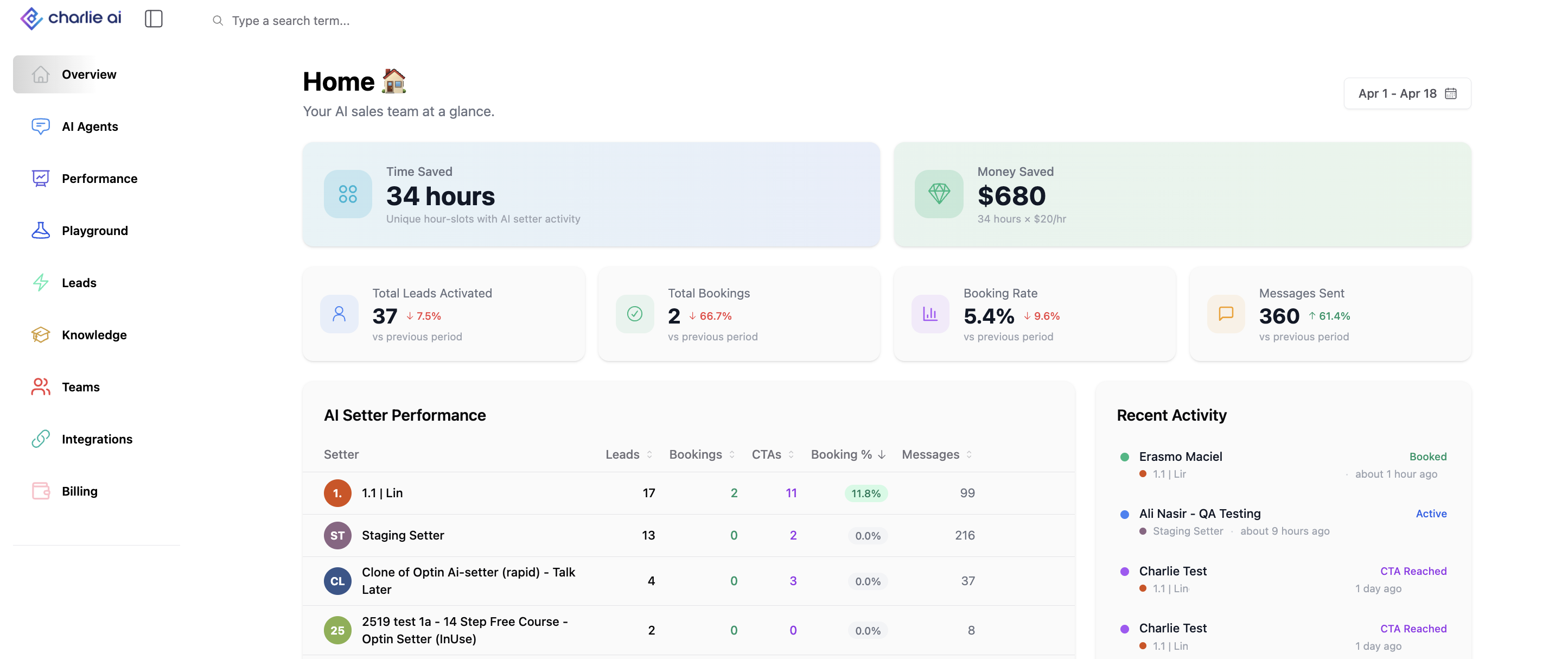
The Home page is the first thing you see when you log into Charlie AI. It gives you an instant snapshot of how your AI setters are performing : key metrics, time and money saved, a setter performance ranking, and recent activity, all in one place.
What it is?
The Home page replaces the old raw setter list as your default landing page. Instead of jumping straight into configuration, you start with a high-level overview of your account's performance.
At a glance, you can see:
• How many leads your setters have activated
• How many bookings they've generated
• Your overall booking rate
• How much time and money Charlie AI is saving you
• Which setters are performing best
• What's been happening recently across your account
AI Setter Performance Table
The lower section of the Home page features a Setter Performance Table that lists all your active AI setters, ranked by booking rate (highest first).
For each setter you can see key performance metrics at a glance. The table columns are clickable — click any column header to re-sort by that metric.
Quick Edit
Hover over any setter row to reveal a Quick Edit link. Clicking it takes you directly to that setter’s configuration page, so you can make adjustments without navigating through multiple menus.
Recent Activity Feed
Next to the setter performance table, a Recent Activity Feed shows the latest events across your account — new lead activations, messages, bookings, and other key actions. This gives you a real-time pulse on what’s happening.
Hover over any activity entry to see a View button that takes you to the relevant detail page.
Navigating to Setter Details from the Home Page
The Home page is designed to be your starting point, with quick paths to deeper views:
• Quick Edit (Setter Performance Table) — Click to jump directly to a setter’s configuration page.
• View (Recent Activity Feed) — Click to open the detail page for a specific event.
• Performance Page — Navigate to the full Performance page from the sidebar for detailed per-setter analytics, date filtering, and conversation-level data.
AI Setter Button on the Performance Page
When viewing any setter’s Performance page (DM or Voice), you’ll see an AI Setter button in the top-right header. Clicking it takes you directly to that setter’s configuration tab — maintaining the correct setter context so you don’t have to search for it.
FAQs
What time period do the KPI widgets cover?
The KPI widgets reflect your account’s overall data. The trend indicators compare the current 30-day window to the previous 30-day window to show you whether things are improving.
How is “Time Saved” calculated?
Time Saved = total messages sent this month × 2 minutes per message, displayed in hours. It estimates the manual effort Charlie AI is replacing.
How is “Money Saved” calculated?
Money Saved = hours saved × $20/hr (industry-standard SDR rate). It estimates the dollar value of work handled by your AI setters.
Can I sort the setter performance table by different metrics?
Yes. By default it’s sorted by Booking Rate (highest first), but you can click any column header to re-sort.