Actions and Branches
Last updated: March 5, 2026
Actions and Branches are powerful features that enable dynamic, intelligent conversation routing based on lead responses. These tools transform linear conversations into adaptive journeys that respond to individual lead context, maximizing engagement and conversion while maintaining personalized experiences at scale.
This guide explains what Actions and Branches are, how to configure them, strategic use cases, and key insights for leveraging these features effectively.
Prerequisites:
Have an AI Setter created
Conversation Flow Mapped: Clear understanding of desired conversation paths before implementing Actions/Branches.
What They Are
Actions
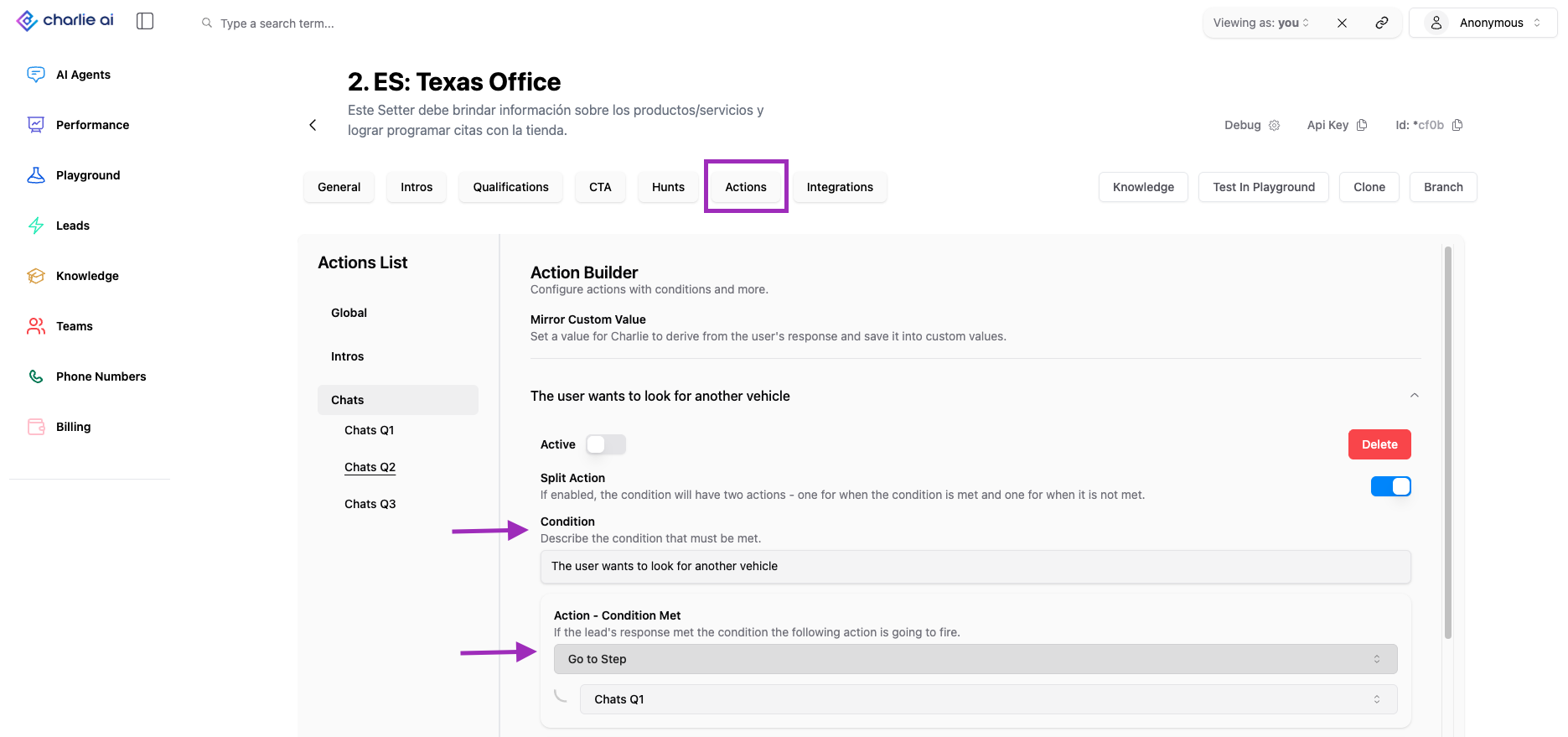
Actions are conditional logic rules that determine what happens next in your conversation sequence based on specific lead responses or behaviors.
Purpose:
Route leads to appropriate next steps based on their answers (Skip irrelevant questions)
Trigger disqualification when criteria aren't met
Create intelligent, responsive conversation experiences
Core Concept: Actions enable "if/then" logic: IF a lead responds in a certain way, THEN take a specific action (continue, skip, disqualify, move to CTA, etc.).
Branches
Branches are separate conversation pathways that diverge from the main sequence, creating alternative journeys for leads based on their responses or characteristics.
Purpose:
Create parallel conversation flows for different lead segments
Nurture disqualified leads with alternative offers
Provide different information based on lead needs
Core Concept: Branches enable multi-path conversations: instead of a single linear flow, you create multiple pathways that leads can follow based on their specific situation.
Difference: Actions control flow within a sequence (continue, skip, disqualify), while Branches create separate sequences that diverge from main flow
Often Used Together: Actions determine when to branch, Branches define where leads go when they branch.
Configuration
Actions
Structure:
Trigger Point: Question or conversation moment where action is evaluated
Condition: Specific lead response or behavior that triggers action
Outcome: What happens when condition is met (continue, skip, disqualify, route to branch, etc.)
A single action can have multiple conditions handling different response scenarios.
Step by step: Creating an Action
Step 1: Navigate to Action Creation Point
Open your AI Setter
Navigate to the qualification question or conversation point where you want action logic
Identify the specific objective (e.g., "Ask if lead is interested in booking demo")
Step 2: Access Action Button
Look for the "Action" button or "+" icon near the message or question
Click to open action configuration interface
Action creation panel appears
Step 3: Define Action Conditions
For Each Possible Response:
Example Scenario: "Are you interested in booking a live demo?"
Condition 1: Lead Says "No"
Click "Add Condition" or similar
Define trigger: "If lead response is 'No' or negative"
Select outcome: "Disqualify"
Lead will be moved out of the sequence and receive disqualification message
Condition 2: Lead Says "Yes"
Click "Add Condition"
Define trigger: "If lead response is 'Yes' or positive"
Select outcome: "Proceed to next message" or "Skip to CTA"
Lead continues to booking flow or next qualification question
Step 4: Configure Outcomes
Available Action Outcomes:
1. Switch to Branch
2. Go to Step
3. Switch to Branch and Step
4. Disqualify Lead
5. Kill Switch
Step 5: Test Action Logic
Save action configuration
Open Playground
Simulate conversation and provide different responses
Verify each condition routes correctly:
Branches
Logic: Main sequence represents your primary path (ideal qualified lead). Branches represent alternative paths for leads who need different handling.
Step by step: Creating Branches
Step 1: create the branch
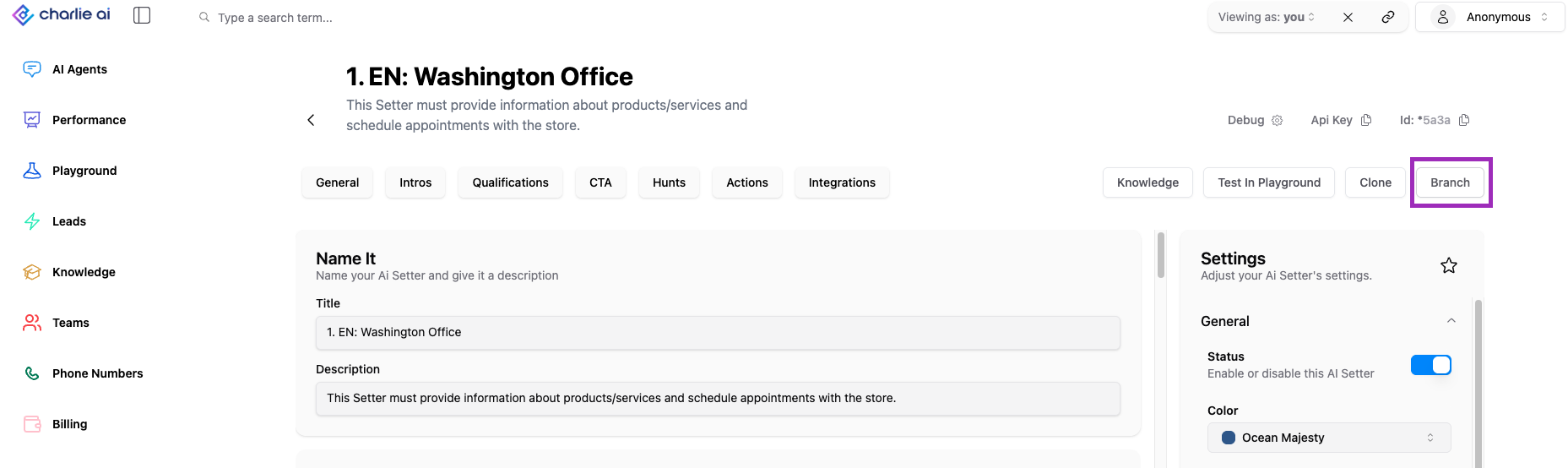
1. Open a setter, click the Branch option in the rightmost side below the Setter Id info. Then create the branch just like how you create a setter
Step 2: Building the branch
Once the branch is created, you can customize the script and messages within that branch, such as sending them a free resource or further nurturing content.
You can move the lead into this branch by selecting the branch option in the action settings.
Step 3: Connect Branch to Action
Critical Step: Create the action that routes leads into the branch.
Return to the branch point question in main sequence
Create or edit action
Add condition that routes to branch:
IF lead doesn't qualify for main offer
THEN switch to [Branch Name] or Switch to [Branch Name] and step
Step 4: Test Branch Flow
Open Playground
Simulate conversation that should trigger branch
Provide response that meets branch condition
Verify lead is routed to branch correctly
Complete branch conversation to verify entire branch flow works
Disqualification
Hard Disqualification: Lead definitively doesn't meet criteria → Immediate disqualification with closing message.
Soft Disqualification: Lead doesn't meet primary criteria but might be valuable in other ways → Route to alternative offer or nurture branch instead of ending conversation.
When a lead is disqualified via action, and you don't have a branch configured, the conversation will end and a disqualification message is sent.
Currently, you can configure one disqualification message that is sent to all disqualified leads, regardless of disqualification reason.
Key Insights
Without branches, you have binary outcomes: qualify or disqualify. With branches, leads who don't fit your primary offer can be routed to alternative offers, free resources, or nurture sequences instead of being completely lost.
Launch with simple linear flow plus basic qualify/disqualify logic. Monitor which scenarios actually occur frequently (not which you think might occur), then add branches for proven patterns.
Craft a DQ message general enough to work for all scenarios yet personalized enough to feel human.