Close CRM: Overview
Last updated: June 24, 2026
Charlie AI natively integrates with Close CRM, soothing the process for Close users and enabling a new option of CRM provider. With this integration, Charlie can also send and receive messages directly through Close's built-in phone numbers and SMS
All conversations appear on the Close lead timeline in real time, and custom field updates sync automatically as leads progress through the conversation.
This article covers how to connect Close, configure settings, activate leads, and manage the integration.
Prerequisites
A Close CRM account with API access
At least one phone number configured in Close CRM
At least one AI Setter (DM use case) created in Charlie
Custom fields created in Close CRM (if you want to use property mappings)
Connection set-up
1. Connecting Close CRM (Account-Level Setup)
Close CRM is connected at the account level, not per-setter. One connection covers all your AI Setters.
Steps:
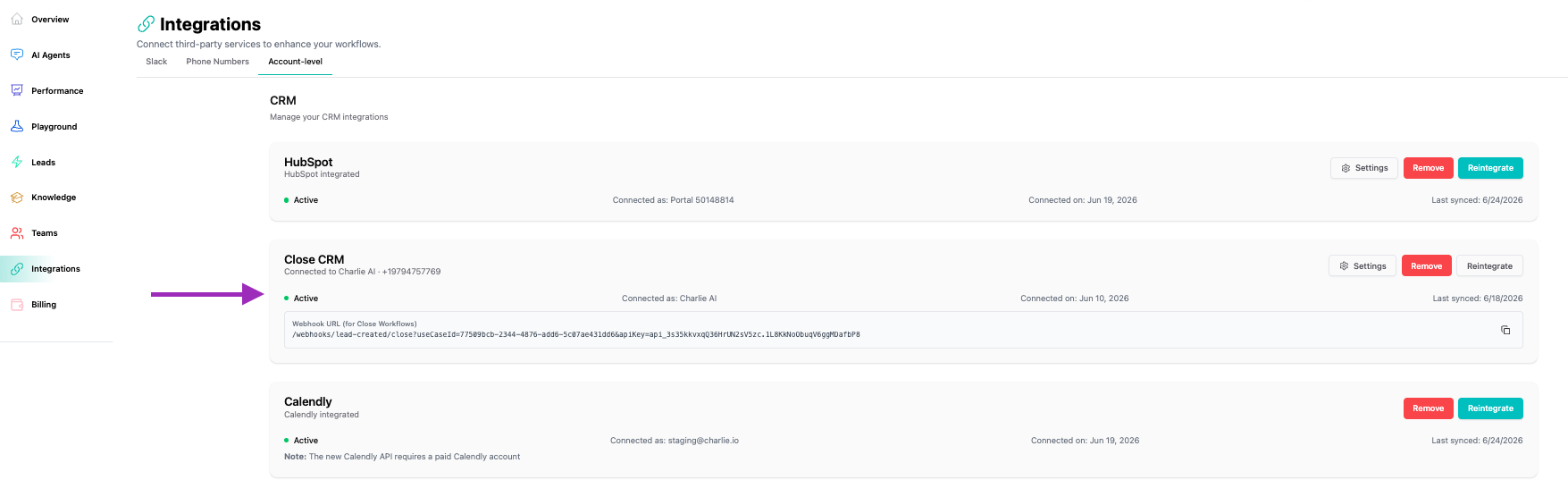
In the Charlie dashboard, go to Integrations → Account-Level
Find the Close CRM card and click Integrate
Paste your Close API key and click Save and Connect
Charlie validates the key against the Close API
Close uses API key authentication (not OAuth). API keys don't expire, so there's no token refresh to worry about.
2. Account Settings (Phone Number & Default Setter)
After connecting, click Settings on the Close CRM card to configure:
Phone Number — Select which Close phone number Charlie should use for sending SMS. The dropdown lists all phone numbers available in your Close account.
Default AI Setter — Select which AI Setter handles leads by default when no specific setter is assigned.
All your AI Setters share this account-level connection — individual setters do not have their own Connect/Disconnect buttons.
3. Setter-Level Settings (Custom Field Mappings)
Each AI Setter has its own custom field mapping configuration under its Integrations tab → Close CRM card.
What it does: Automatically updates Close contact custom fields when specific conversation milestones are reached in Charlie.
Direction of data flow: Charlie → Close
Configuration steps:
First, create the custom fields you want to map in Close CRM:
Go to Close CRM → Settings → Custom Fields → Contacts
Click New Contact Custom Field and create your fields (e.g.,
charlie_status,lead_stage)
In Charlie → AI Agents → select a DM setter → scroll to the Close CRM card
Click Settings → Add New Custom Mapping
Select the Close custom field you created
Select a Trigger Event (see list below)
Enter the New Property Value
Click Save
Available Trigger Events
These are the 8 conversation milestones that can trigger a custom field update:
1. Lead Activated       — Lead is assigned and Charlie begins outreach
2. Intro Response       — Lead replies to Charlie's first message
3. CTA Reached          — Conversation reaches the call-to-action step
4. DQ Reached           — Lead is disqualified based on vetting criteria
5. DQ Removed           — A previously disqualified lead is requalified
6. Lead Booked          — Lead books a meeting/appointment
7. Kill Switch Reached  — Lead is manually deactivated
8. Kill Switch Removed  — A deactivated lead is reactivated
When any of these events fires, Charlie writes the configured value to the mapped Close custom field on the contact. The update happens in real time.
Activating Leads (Close Workflows)
Leads are assigned to Charlie through Close Workflows. There are two mechanisms:
Primary — Close Workflow (recommended):
In Close CRM, go to Workflows → create a new workflow
Set the trigger (e.g., Manual, or a lead event)
Add a step: Update Lead
Set
charlie_enabled=trueSet
ai_setter_id= the UUID of the AI Setter you want to handle this lead
Activate the workflow
Trigger it on a lead: Lead → ⋯ (three dots) → Trigger Workflow → select it → Preview → Start Workflow
Secondary — Custom field toggle:
Setting the charlie_enabled custom field to true on a Close contact also activates the lead.
Once activated:
The lead appears in the Charlie dashboard under the assigned setter
Charlie sends the intro message
The intro appears on the Close lead timeline as an SMS with a [Charlie] prefix on outbound messages
Deactivating Leads (Kill Switch)
To stop Charlie from responding to a lead:
In Close CRM, create or use a kill switch workflow:
Trigger: Manual
Step: Update Lead → set
charlie_kill_switch=true
Trigger the workflow on the lead you want to deactivate
Once triggered:
The lead is deactivated in Charlie
Charlie stops responding to new messages from this lead
Removing the Integration
Go to Integrations → Account-Level
Click Remove on the Close CRM card
Confirm the removal
This disconnects the integration, removes the webhook subscription, and clears all stored credentials. The card returns to the "Integrate" state.
Removing the integration does not delete any data in Close CRM. Leads, messages, and custom field values already written to Close remain intact.
Tips & Best Practices
Create your Close custom fields first — Charlie can only map to fields that already exist in Close. You cannot create new fields from the Charlie dashboard.
Use descriptive field names — e.g.,
charlie_status,charlie_lead_stage— so your team can easily identify which fields are managed by Charlie.Test with a single lead first — Activate one lead, run through a full conversation, and verify that custom field mappings fire correctly before scaling up.