Calendly: Integration
Last updated: December 23, 2025
Here is a quick guide to show you how to connect Charlie to Calendly with our native integration, this will enable it to handle Conversational Autobooking for both, DM and Voice setters.
How to setup Calendly
NOTE: The Calendly integration requires paid Calendly accounts.
Prerequisites
Active paid account in Calendly
Step by step guide
Step 1: Select AI Setter for Autobooking
Log into Charlie AI: Ensure you are logged into your Charlie AI account.
Select AI Setter: Navigate to the AI setter that you want to enable auto-booking for.
Step 2: Integrate Calendly
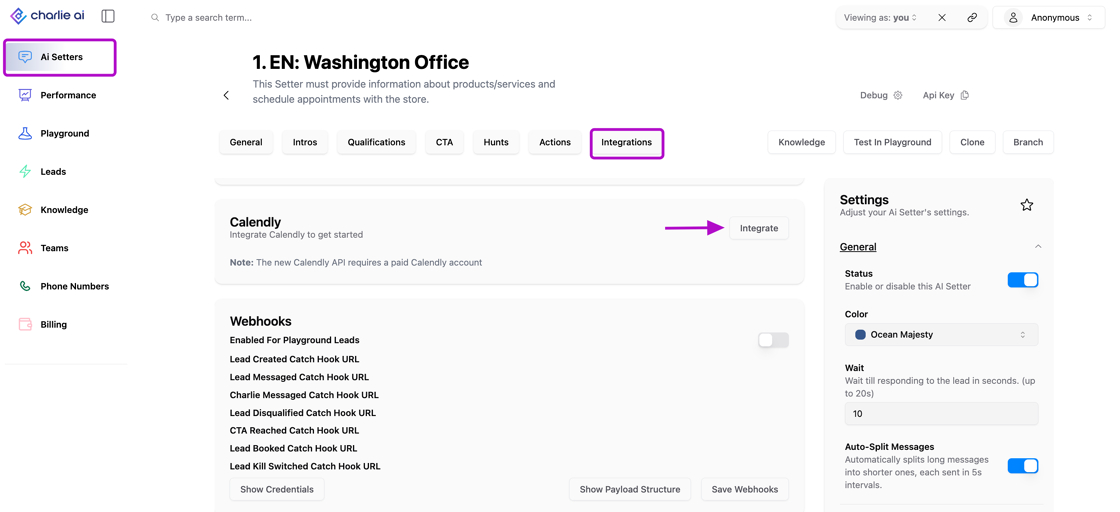
Go to Integrations: In the selected AI setter, find and click on "Integrations".
Look for Calendly option
Click the "Integrate" button to connect Calendly to Charlie AI.
Visual guidance
Step 3: Configure Calendly Settings
You have the option to either modify their existing booking event or to create a separate booking event
Log into Calendly: Ensure you are logged into your Calendly account.
Select Event: Go to the Calendly event you want to use for auto-booking.
Edit Event: Click on the event and select "Edit".
Modify Booking Form:
Ensure the field for "Name" is simplified (e.g., just "Name" instead of "First and Last Name").
Required Fields: Only "Name" and "Email" should be marked as required.
Optional Fields: Make sure other fields like "Phone Number" are not required.
Step 3.1: Create Separate Calendly Event for Charlie
Create a New Event: Set up a separate Calendly event specifically for Charlie AI auto-booking if needed.
Adjust Fields: Configure this new event with only the "Name" and "Email" fields as required, and ensure other fields are optional.
Step 4: Enable Autobooking in Charlie AI
Select Calendar: In Charlie AI, go to the settings of the AI set and navigate to the booking settings.
Enable Autobooking: Turn on the autobooking feature.
Select Calendar: Choose the calendar you want Charlie AI to book appointments on.
Step 5: Finalize and Save Settings
Save Changes: Ensure all settings are saved in both Calendly and Charlie AI.
Test Integration: Conduct a test booking to verify that the integration works smoothly and appointments are being scheduled correctly.
Additional Tips
Sync with Social Media DMs: Charlie AI can gather emails from social media DMs (Facebook, Instagram) if not already provided.
Integration with GoHighLevel: If using GoHighLevel, ensure contacts' info syncs automatically, allowing Charlie AI to book appointments efficiently.
Troubleshooting
Check Calendly Login: Verify you are logged into Calendly to ensure seamless integration.
Field Requirements: Double-check that only "Name" and "Email" are required fields in the Calendly event setup for Charlie AI.
Booking Settings: Ensure auto-booking is enabled in Charlie AI's booking settings.
By following these steps, you can successfully set up and integrate Calendly with Charlie AI to automate booking appointments onto your sales team’s calendar.