Zapier: Available Actions
Last updated: August 21, 2026
An action is the task a Zap performs after a trigger event occurs.
When your Zap is triggered by an event in another application, the actions define the tasks Zapier will perform in Charlie Ai. Below you'll find a list of actions that Charlie Ai app currently supports.
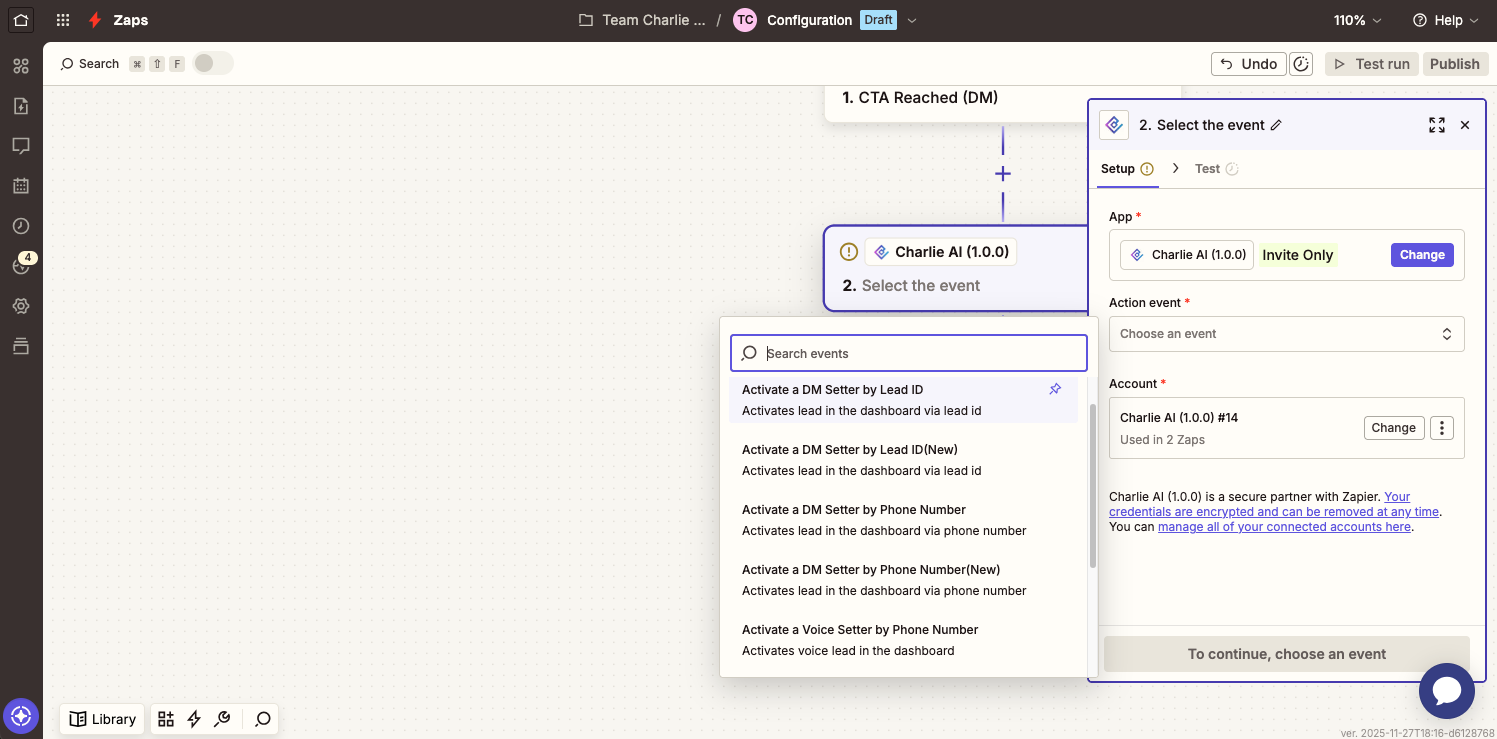
Make sure you have the Charlie app set up in Zapier
Actions
Activate a DM or Voice Setter
Programmatically trigger a Charlie Setter for specific leads with custom data. There are 2 ways of activating them:
Lead ID - this is suitable if they want to activate by lead id only. The required fields are: Lead ID, Setter and the optional is Custom Values.
Useful for: If they want leads that has responded to specific campaign on their CRM or other triggers that requires Zapier (not available on their CRM) but has Lead ID from their CRM
Phone Number - This requires Setter, Twilio Phone Number, Lead Name, Lead Phone Number and other optional field are: Lead's timezone, Lead's email and Custom values.
Useful if:
They don't have HubSpot or GHL
The trigger or leads are coming from google form, spreadsheet lists, and other sources as long as the trigger is available in Zapier and they want it to be triggered by phone number.
General steps:
Select a Setter
Map Lead data: Phone number, name, email, and/or timezone
Map (optional) custom values for personalized outreach
Use this to:
Trigger personalized outreach based on lead behavior in other apps
Start follow-up sequences when leads meet certain criteria
Pass custom data from your CRM or other apps to Charlie
Kill Switch a Lead
Immediately stop all Charlie Ai activities for a specific lead, using the Lead ID and/or phone number. Perfect for:
Stopping outreach when a lead converts through other channels
Implementing compliance requirements
Pausing campaigns based on external triggers
Using Custom Values
When activating a lead by any method, you may add custom values, allowing you to pass additional data from your CRM or other apps to Charlie Ai.
Setting Up Custom Values
From Zapier, name the custom value using underscores or dashes instead of spaces (e.g., 'booking-date', not 'booking date')
Avoid spaces at the beginning or end of field names
Map values from previous Zapier steps or enter static values
Referencing Custom Values in Scripts
Once set up, reference custom values in your DM or Voice scripts using the pattern lead (dot) the field's name: lead.your_custom_field_name
Example: If you create a custom field called
booking_date, reference it aslead.booking_datein your setter scripts.
There are default custom values in Charlie, but the most frequently use custom values is the Lead - First Name.
Default custom values in Charlie
Lead - Full Name,
Lead - First Name,
Lead - Postal Code,
Lead - Timezone,
Lead - Email,
Lead - Phone,
Agent - First Name
Company - Name
Common Use Cases
💡 CRM Integration
Trigger: Lead Response
Action: Create or update contact in CRM (HubSpot, Salesforce, etc.)
Automatically sync lead responses with your existing CRM system.
💡 Team Notifications
Trigger: Booking Made
Action: Send Slack message or email notification
Keep your sales team informed immediately when prospects book meetings.
💡 Campaign Management
Trigger: DQ Reached
Action: Add to Google Sheets or remove from email lists
Maintain clean contact lists by automatically updating lead status across platforms.
💡 Follow-up Automation
Trigger: CTA Reached
Action: Send email via Gmail or create task in project management tool
Ensure no lead falls through the cracks with automated follow-up workflows.