Global notification system
Last updated: October 28, 2026
Global Notifications help you identify critical configuration problems without having to check each settings page individually.
When Charlie detects a supported issue, a persistent banner appears across the dashboard and directs you to the settings needed to resolve it.
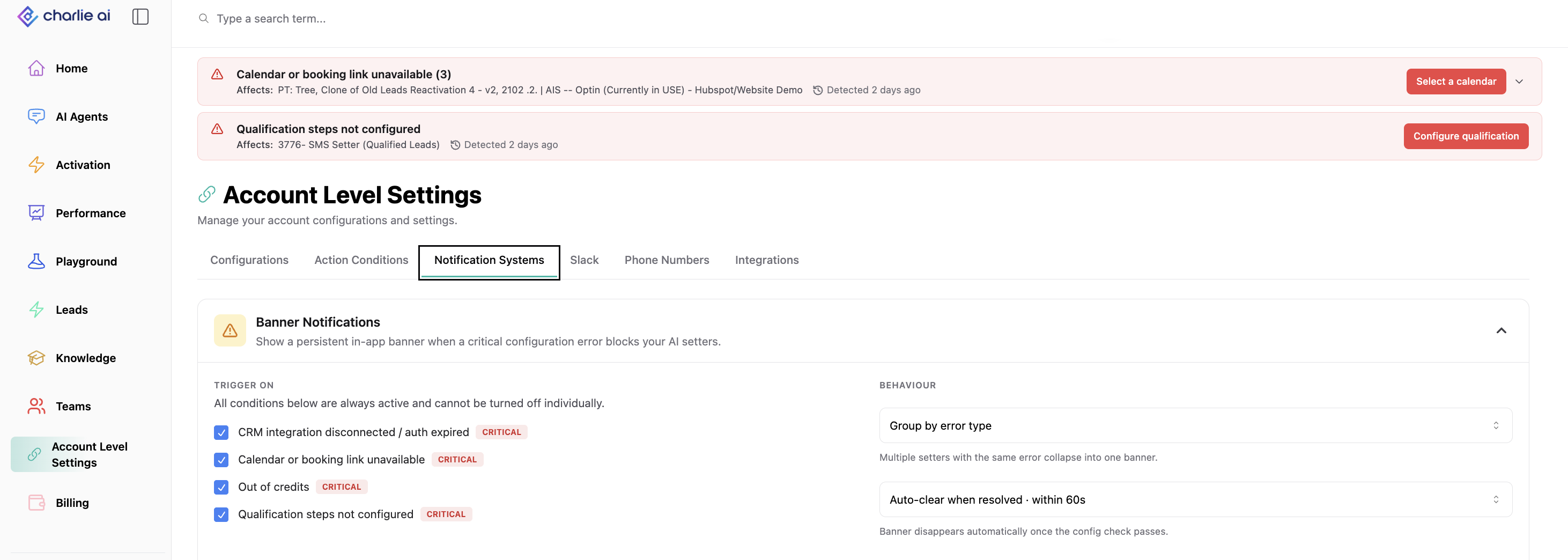
Issues covered
Issue | Why it matters? | What to do? |
|---|---|---|
Disconnected CRM | Charlie may be unable to access or update CRM data. | Follow the alert’s link and reconnect the affected CRM. |
No credits remaining | Charlie’s credit-dependent activity may be interrupted. | Follow the alert’s link to address your credit balance. |
Autobooking enabled without a calendar | The affected setup cannot complete bookings through Autobooking. | Connect and configure the calendar for the affected setup. |
Missing qualification steps | The affected setup is missing required qualification configuration. | Follow the alert’s link and complete the qualification setup. |
How to resolve an alert
Open the alert from the dashboard banner.
Review the explanation and the affected configuration.
Follow the link to the relevant settings page.
Fix the underlying issue.
Charlie automatically clears the alert when it detects that the issue has been resolved.
Opening an alert does not resolve it. The banner remains until the underlying problem is fixed.
Slack notifications
If Slack notifications are enabled for your account through Charlie’s Slack integration, critical alerts can also be sent to Slack when an issue is detected and when it clears.
Charlie suppresses duplicate notifications for an ongoing active issue. If the issue is resolved and later occurs again, it can generate a new alert.
Visual guidance
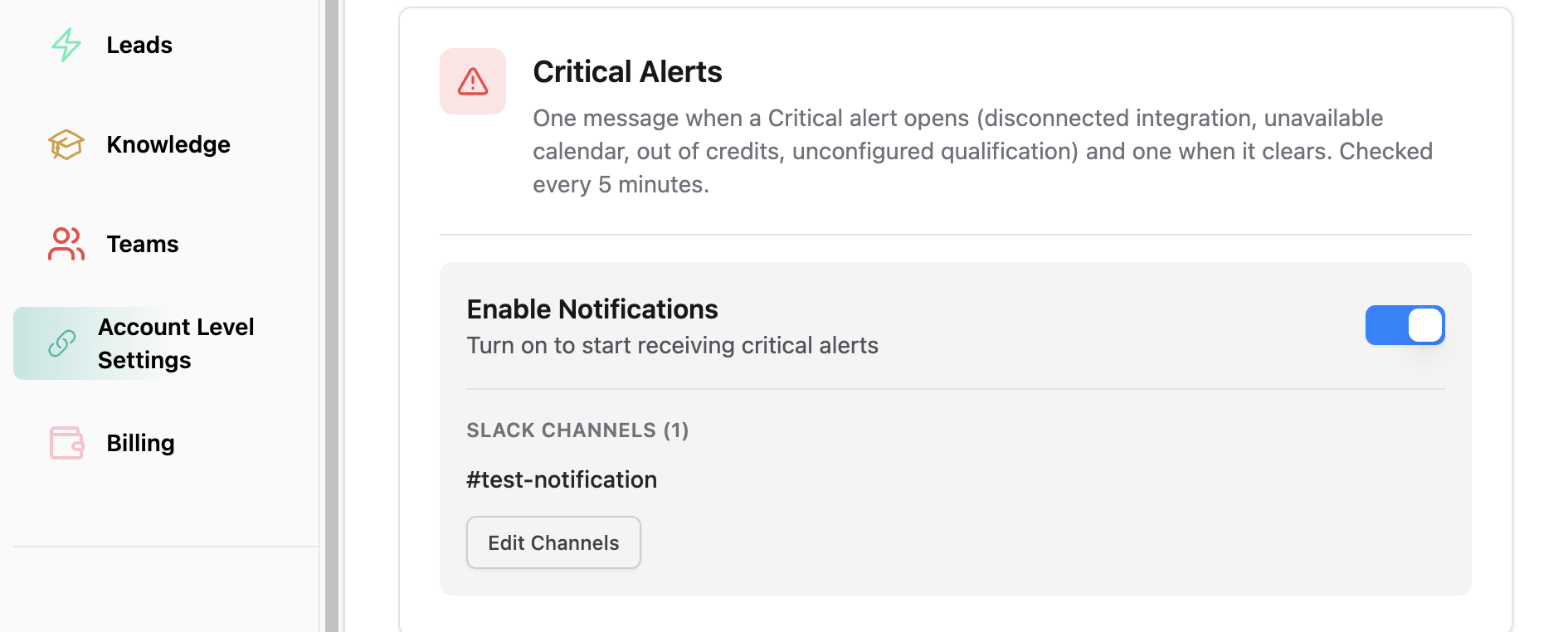
within account level settings, in "Slack tab"
Lay out
Issues of the same type can be grouped together with a total count. Expand the group to see the affected items and follow the individual links to fix them.
Or if preferred, within the account level settings, you can configure the grouping of alerts per setter instead
So you can review them together and open each affected setup from the alert group.
Critical configuration alerts are account-level, so members of the same account can see the same underlying issues.
Dashboard banners are always enabled. You do not need to turn them on, and they cannot be switched off while an issue remains active.