Voice agents management
Last updated: December 17, 2025
Make the most out of your voice agents! In this article we will explain you all key aspects you need to take into account to find what you need in seconds, and manage your voice operations with precision.
Create & Manage a Voice setter (AI Setter)
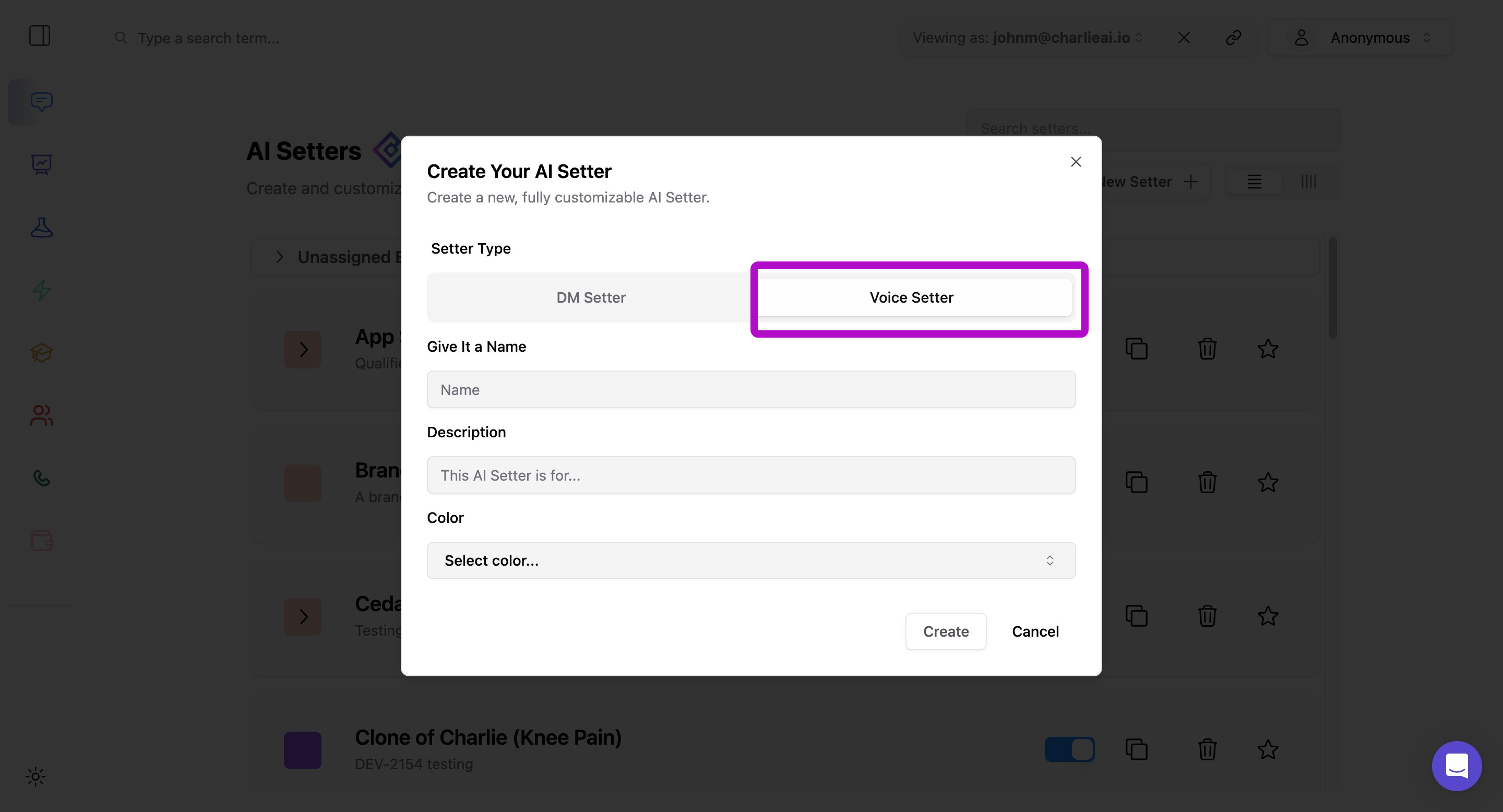
To create a voice setter you need to go to the "AI Setter" option of your left menu, look for the "New setter" option in your right top corner (beneath the search bar) and select the voice setter option. And move on to configuration
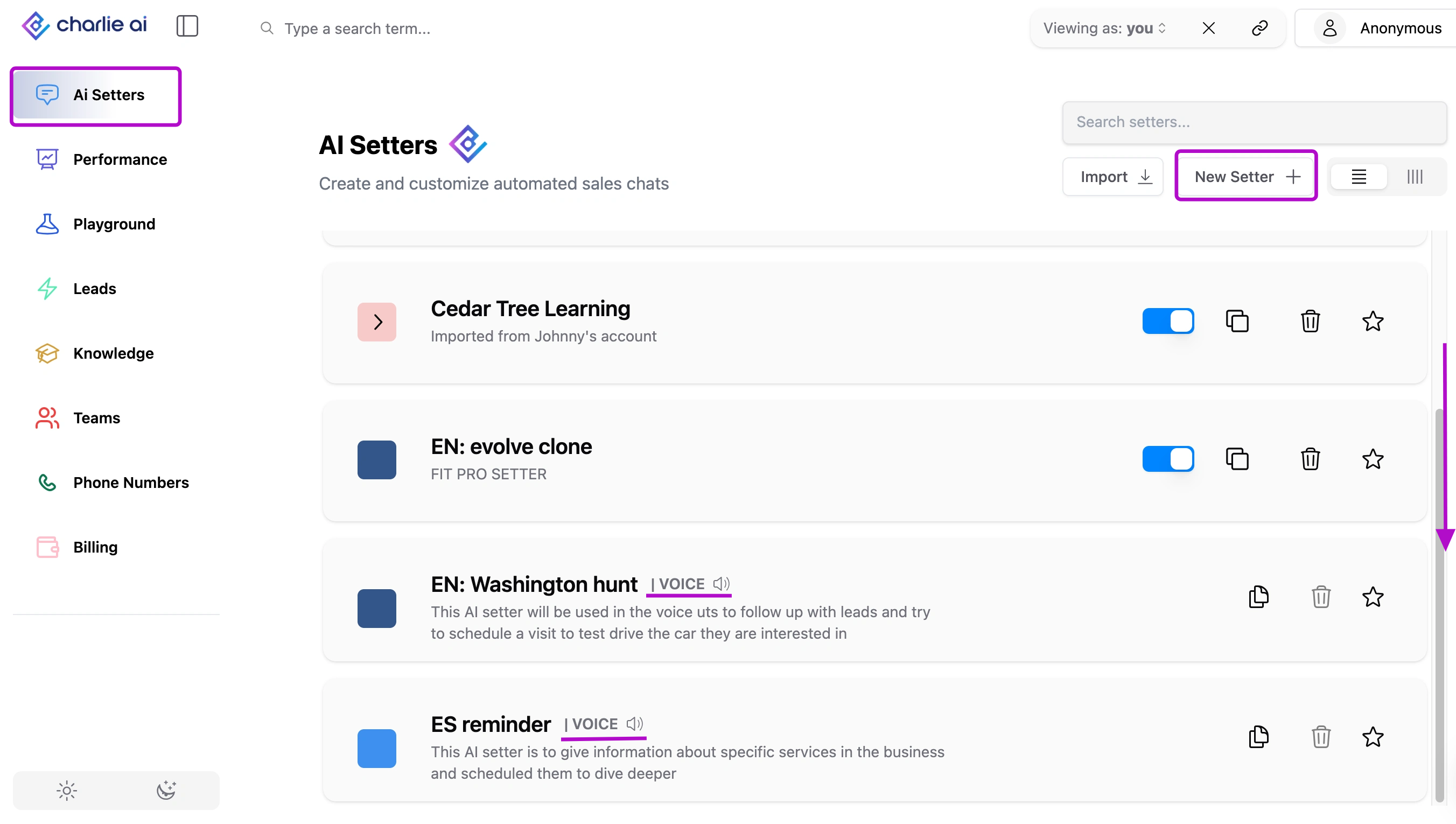
You'll find all your setters centralized in the " AI Setter" tab of your left side menu. Remember that they are organized alphabetically, and the voice setter will be displayed after your DM's Setters. Scroll down to find them, with a "| VOICE 📣" label.
Visual guidance
Training Voice setter (Knowledge)
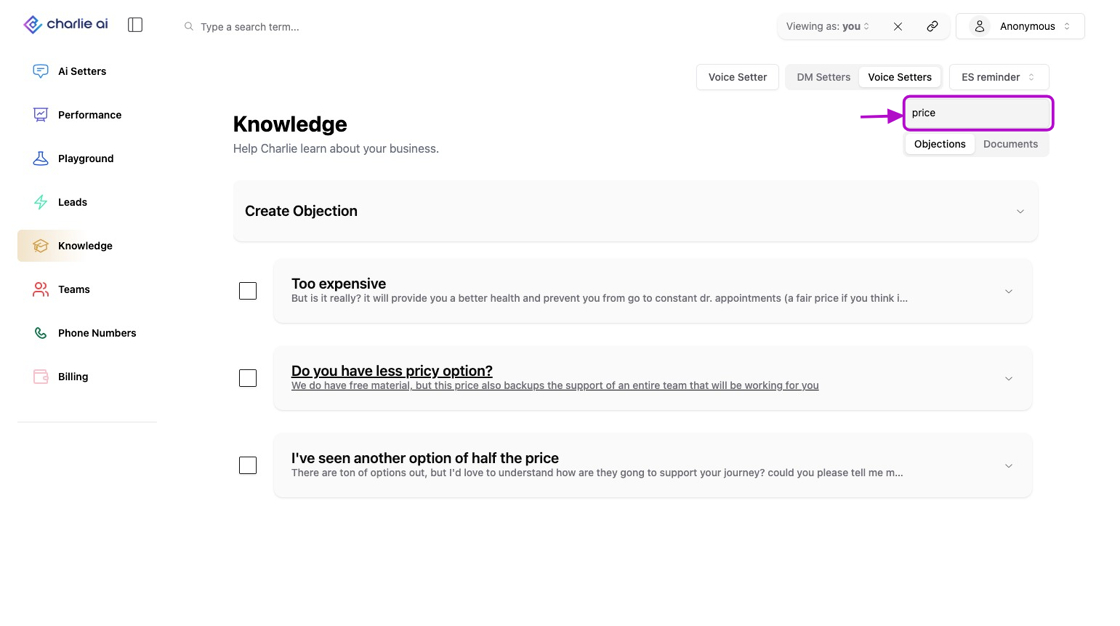
We enabled a Knowledge Base Search function for your voice agents, allowing you to easily find input information within Voice Objections, just like with DM Objections, you'll be able to find, review and adjust your voice setter objections in just minutes to improve AI generated responses and it's training.
Visual guidance
Leads Management (Leads)
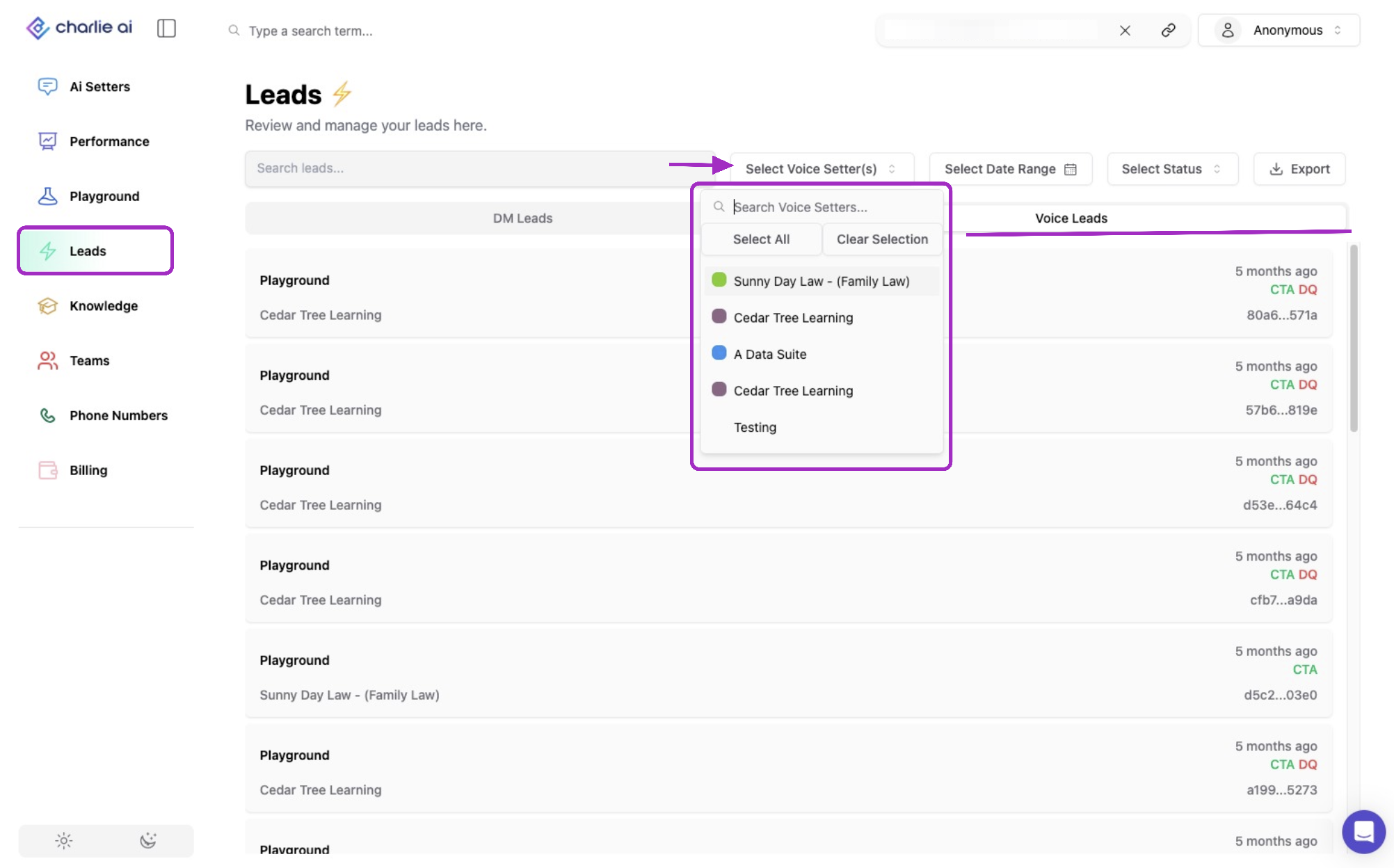
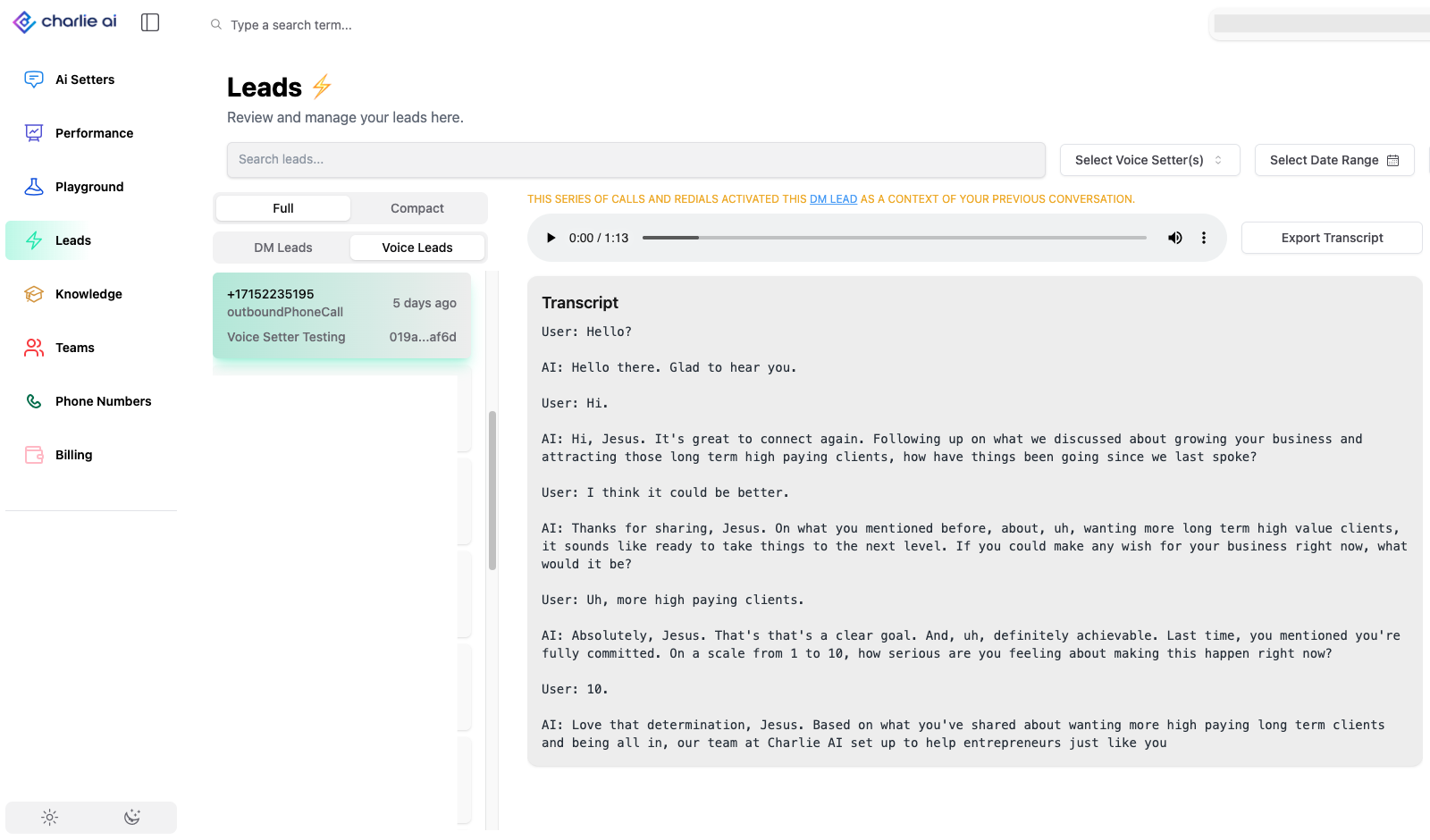
The Leads page now features a Voice Setter filter. This new, multi-selection, searchable dropdown allows you to select specific Setters. Once a setter(s) is chosen, the page will exclusively display lead conversations associated with them, resulting in much more focused and efficient lead management.
Visual guidance