Automated Performance Reports
Last updated: May 11, 2026
Stay on top of your AI setters' performance without effort. Charlie AI automatically delivers performance reports straight to your Slack workspace, so your team always has visibility into how your setters are doing. In this guide we explain you how it works and configuration steps.
What Are Automated Performance Reports?
Automated Performance Reports are scheduled summaries of your AI setters' activity, delivered directly to one or more Slack channels in your workspace. Each report gives you a clear snapshot of how your DM Setters and Voice Setters performed over the reporting period — including lead activations, messages, responses, CTAs, and bookings.
Reports are branded as Charlie AI communications so your team always knows where they're coming from.
Prerequisites
Before you can enable Automated Performance Reports, you need to connect your Slack workspace to Charlie AI:
1. Navigate to the Integrations page in your Charlie AI dashboard.
2. Select the Slack tab.
3. Follow the prompts to connect your Slack workspace via OAuth.
Once Slack is connected, the "Performance Reports" configuration section will appear under the Slack tab.
If Slack is not connected, the Performance Reports section will not be visible. You must connect Slack first.
Setting Up Performance Reports
Step 1: Navigate to Integrations
Go to Integrations in your Charlie AI dashboard and select the Slack tab.
Step 2: Locate the Performance Reports Section
Once Slack is connected, you will see a “Performance Reports” section with options to select channels and configure delivery.
Step 3: Select Slack Channels
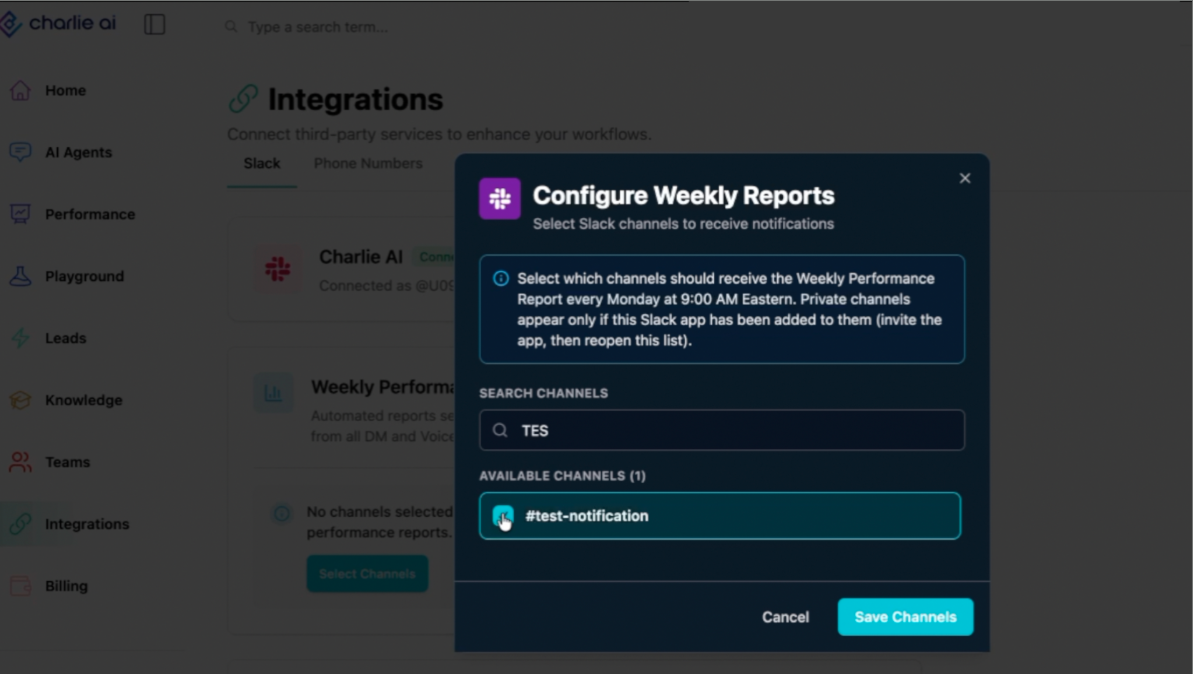
Click “Select Channels” to open the channel selection popup. You will see a list of all available channels from your connected Slack workspace.
• Select one or multiple channels where you want reports delivered.
• Click “Save” to confirm your selection.
• You can edit your channel selection at any time — add new channels or remove existing ones.
Step 4: Enable Notifications
Toggle the “Enable Notifications” switch to ON to activate report delivery. When toggled OFF, reports will not be sent, but your channel selections are preserved so you can re-enable at any time.
At least one channel must be selected. You cannot save with zero channels selected.
Editing Channels
You can update your channel selection at any time:
• Go to Integrations → Slack → Performance Reports.
• Click “Edit Channels” to add or remove channels.
• Save your changes. Reports will be sent to the updated list on the next delivery.
Pausing Reports
Toggle “Enable Notifications” to OFF to temporarily stop receiving reports. Your channel selections and cadence preference will be preserved. Toggle back ON to resume on the next scheduled delivery.
Disconnecting Slack
If you disconnect your Slack workspace from Charlie AI:
• All scheduled performance reports will stop.
• Your saved channel selections will be cleared.
• If you reconnect Slack later, you will need to re-select your channels and re-enable notifications.
Choosing a Report Cadence
Charlie AI supports two delivery cadences for performance reports:
Weekly (Default)
• Reports are delivered every Monday at 9:00 AM Eastern Time.
• Each report covers the previous Monday through Sunday.
• This is the default cadence and works well for most accounts.
Daily
• Reports are delivered every day at 9:00 AM Eastern Time.
• Each report covers the previous day’s activity.
• Ideal for high-volume accounts that need more frequent visibility into setter performance.
To change your cadence:
1. Go to Integrations → Slack tab → Performance Reports section.
2. Use the Cadence dropdown to select either “Weekly” or “Daily.”
3. The report name will automatically reflect your selected cadence (e.g., “Charlie AI: Weekly Performance Report” or “Charlie AI: Daily Performance Report”).
Viewing Detailed Performance
Each setter listed in the Slack report includes an “Open Performance Report” link. Clicking it will:
1. Open your Charlie AI dashboard in the browser.
2. Navigate directly to the Performance page.
3. Automatically filter to the specific setter and the report’s date range.
This lets you dive deeper into any setter’s metrics without manually setting filters.
FAQs
Can I send reports to multiple Slack channels?
Yes! You can select as many channels as you like. All selected channels will receive the same report.
I enabled reports but didn’t receive one — what happened?
Make sure:
(1) Notifications are toggled ON
(2) at least one channel is selected,
(3) your Slack workspace is still connected, and
(4) the Charlie AI bot has not been removed from the selected channel(s).
What if a setter has zero activity during the period?
Setters with no activity are grouped together at the bottom of the report rather than showing individual rows of zeroes, keeping the report clean and easy to read.
Can I change the delivery day or time?
The default schedule is Monday at 9:00 AM ET for weekly, or daily at 9:00 AM ET. You can switch between Weekly and Daily cadence in the settings
Does the report show data based on when leads were created or activated?
Reports use activation date, not creation date. A lead created two weeks ago but activated this week will appear in this week’s report.