Vets: Lead Vetting & Disqualification
Last updated: October 5, 2026
Vets is Charlie's built-in lead-vetting system. When enabled, it evaluates every incoming lead message for signals of disinterest, rudeness, or disqualifying criteria before the conversation continues.
In this article we break it down the logic behind, when to use it, and special configurations.
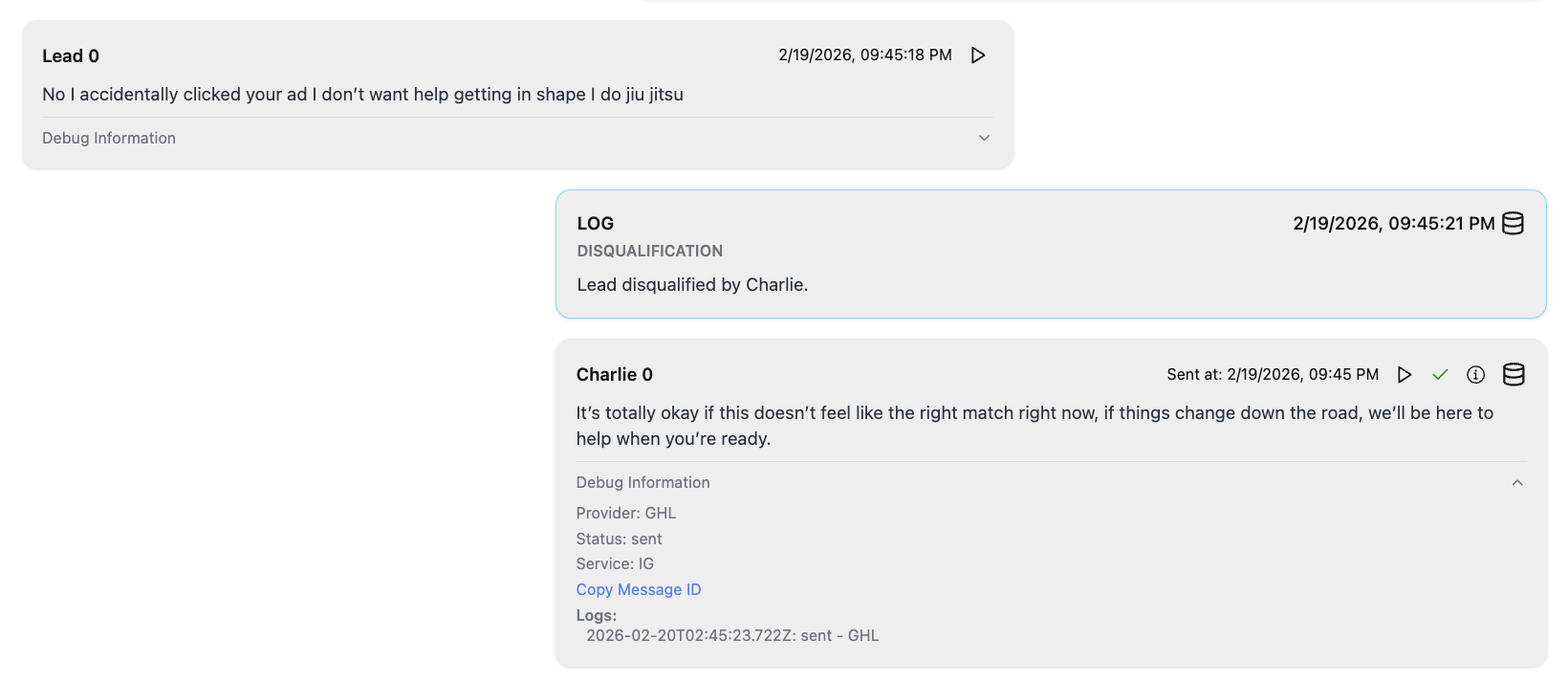
When to Use Vets
✅ You want to automatically filter leads who aren't a good fit (e.g., wrong industry, under age, no budget)
✅ You want Charlie to exit conversations gracefully when leads are clearly uninterested or hostile
✅ You want to protect your team's time by only surfacing qualified conversations
✅ You want consistent, automated application of your disqualification criteria
How to Configure Vets
Step 1: Navigate to your setter’s settings
Go to AI Setters from the left-side menu
Select the Setter you want to configure
Click the Settings menu on the right side
Scroll to the Lead Processing section
Step 2: Enable Vets
Toggle the Vets switch to ON.
When enabled, Charlie will begin evaluating every incoming message from leads in this Setter for disqualification signals.
Toggling OFF does not delete any data or past disqualifications — it simply stops evaluating new messages.
Step 3: Write your Vets instructions
The Instructions field is an open text area where you define how Charlie should vet leads.
This is where you set your disqualification rules and criteria. You can be as specific or general as needed. Charlie will use these instructions to determine whether a lead’s message indicates they should be disqualified.
Examples: Criteria that make a lead a poor fit (e.g., “Disqualify if the lead does not own a business”), Behavioral signals to watch for (e.g., “Disqualify if the lead is rude, hostile, or explicitly uninterested”), Age or eligibility thresholds (e.g., “Disqualify if the lead is under 18”), Geographic or service restrictions (e.g., “Disqualify if the lead is outside the US”)
Step 4: Set your disqualification message
The Disqualification Message field lets you customize the message Charlie sends when a lead is disqualified.
This message is sent once, right after disqualification, and the conversation ends.
Best practices for your DQ message:
Keep it polite and professional — even disqualified leads can become future customers or referrals
Offer value where possible (e.g., link to free resources, YouTube channel, or social media)
Keep it general enough to cover multiple DQ scenarios, since one message is used for all Vets-triggered disqualifications
Visual Guidance
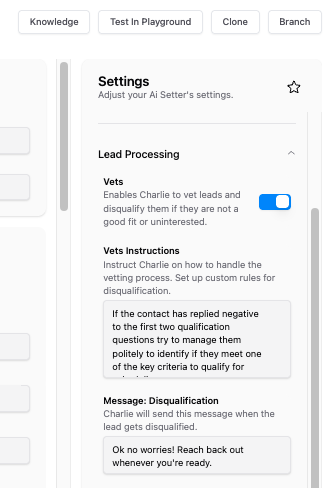
All Vets settings are Setter-specific — changes only affect the Setter you’re editing.
How it works
When a lead sends a message, Charlie’s AI pipeline evaluates it in a specific order of priority, and Vets is evaluated within the firsts, disqualified leads are caught immediately; before Charlie spends time asking qualification questions or attempting to book.
What happens when a lead is disqualified:
The lead is marked as Disqualified in the system
Your configured DQ message is sent
The conversation ends — Charlie will not continue engaging
The disqualification is logged and visible in the conversation UI
Vets vs Action Condition
Charlie has two ways to disqualify leads, and it’s important to understand when each applies:
VETS | ACTION CONDITION | |
Trigger | General disinterest / poor fit | Specific answer to a specific question |
When it runs | Every message (always-on) | Only at configured question triggers |
DQ message | One global DQ message per setter | Can have its own custom DQ message |
Best for | Broad behavioral screening | Precise conditional logic |
When both match: If a lead’s message matches both a Vets signal and an Action Condition with its own DQ message, the Action Condition takes priority and its custom DQ message is sent instead of the general Vets message.
This means you can set broad Vets rules as a safety net, while using Action Conditions for targeted, question-specific disqualification with tailored messaging.
Key Insights
Vets is your first line of defense — it runs before qualification, booking, or any other logic. This ensures disqualified leads never waste your team’s time or your credits on unnecessary conversation.
Think of Vets as a broad safety net and Action Conditions as surgical precision. Use both together for comprehensive lead filtering.
Your initial instructions are a hypothesis. Production data reveals what actually works. Launch with your best guess, monitor DQ patterns, and iterate.