Booking settings
Last updated: April 21, 2026
The "Settings" menu provides multiple configuration options to tailor your Setters and align them with your account's operational needs. This guide explores the "Booking Settings" section, detailing how each configuration impacts your Setter's behavior, along with key insights that summarize the most important considerations.
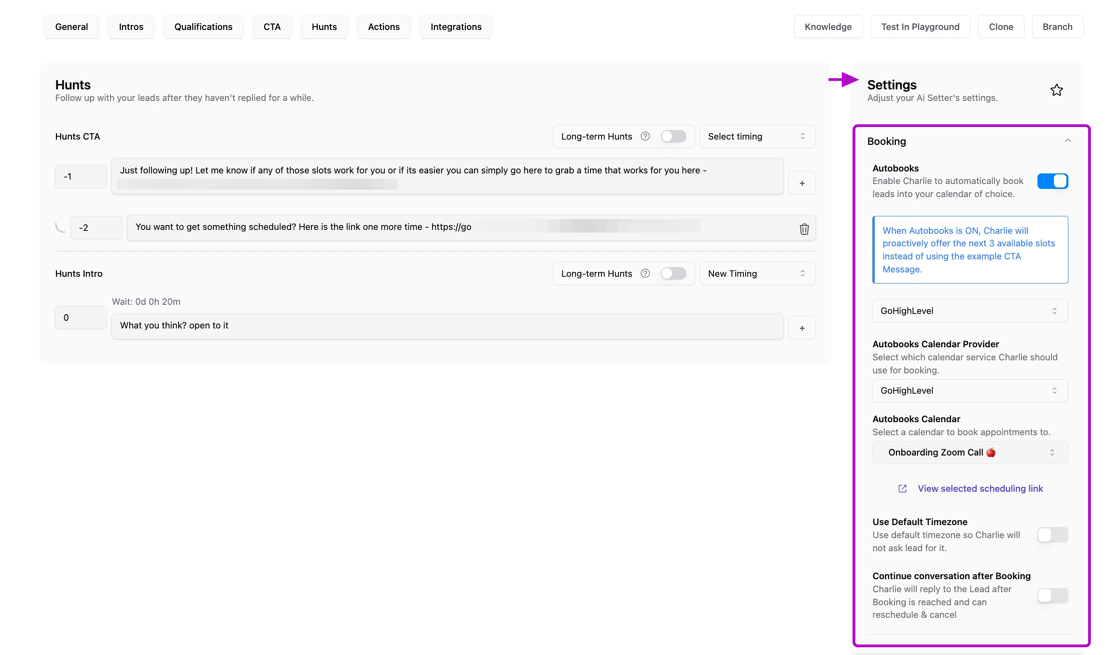
Where to find it
In all your setter you'll always find the "Settings" menu, you just need to:
Click in the "Ai Setters" option at your left side menu
And look for the "settings" menu at your right side.
Scroll down till you get to the "Booking" section.
All adjustments made in a Setter's Settings menu impact only that specific Setter. Changes do not apply account-wide or affect other Setters.
Autobooks
The 📄 Autobooking functionality allows Charlie to automatically schedule your qualified leads directly into your selected calendar without requiring any manual intervention from you or your team. Guaranteeing that every qualified lead moves promptly from inquiry to a confirmed meeting on your schedule.
Configuration:
Activate "Autobooks" toggle.
Select the calendar provider of your preference (GHL, Oncehub, Hubspot)
Enable/ disable the default timezone, so Charlie will not ask lead for it.
And provide specific instructions for this specific section
Visual support
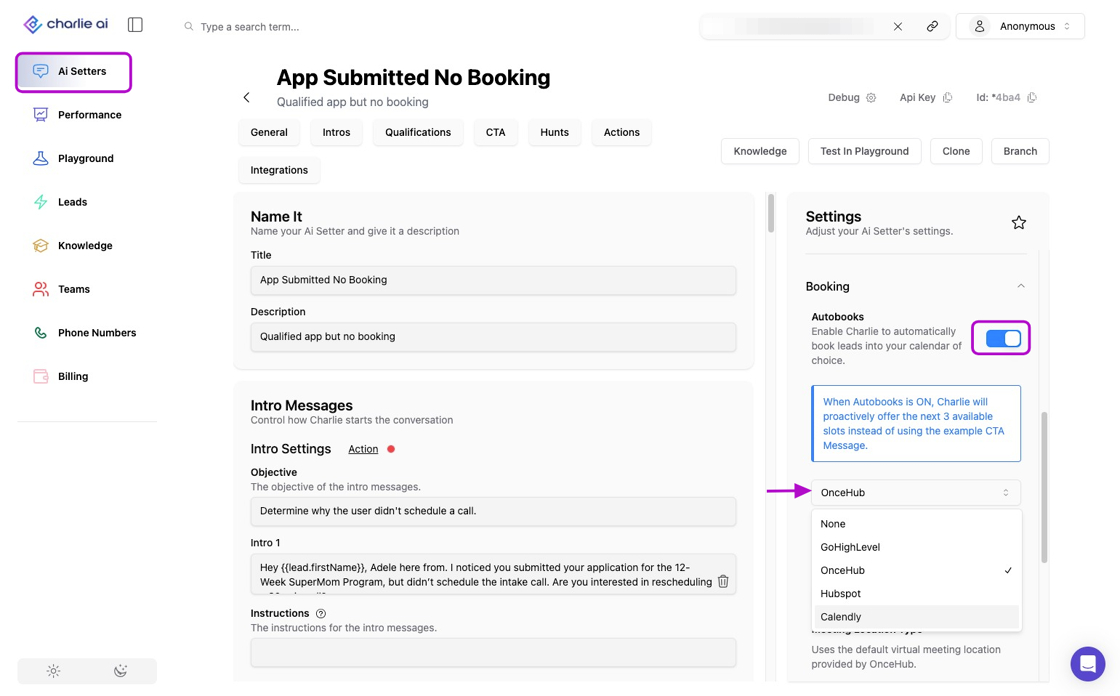
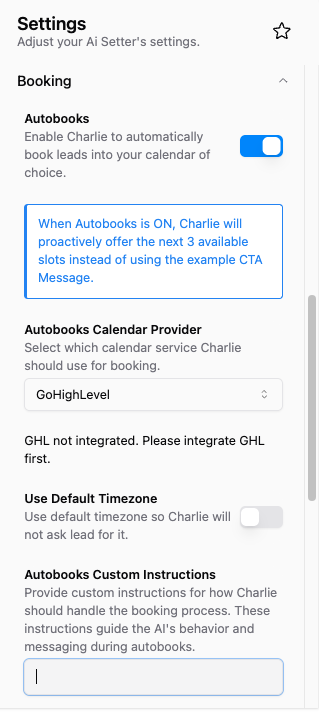
After the Autobooks setting is on, a series of configurations will be displayed
GHL
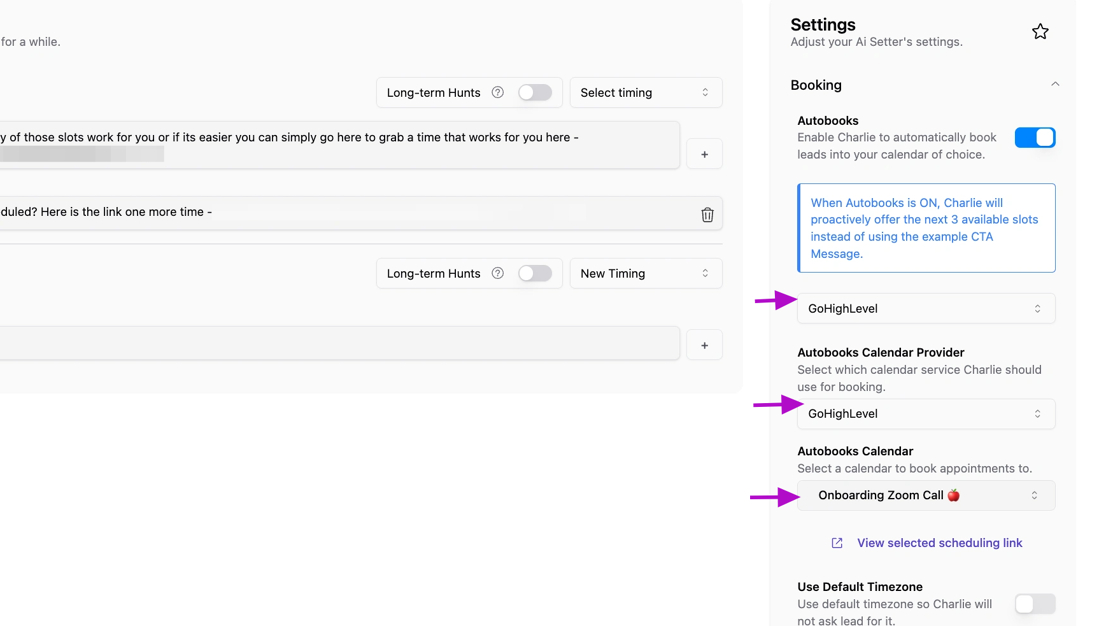
If you are using GHL, it will display 3 drop downs
Is to select the CRM that will be used for the autobooks
You should select the Calendar provider
Use the search bar to choose which calendar want to use for auto-booking, narrowing the result of the available calendars.
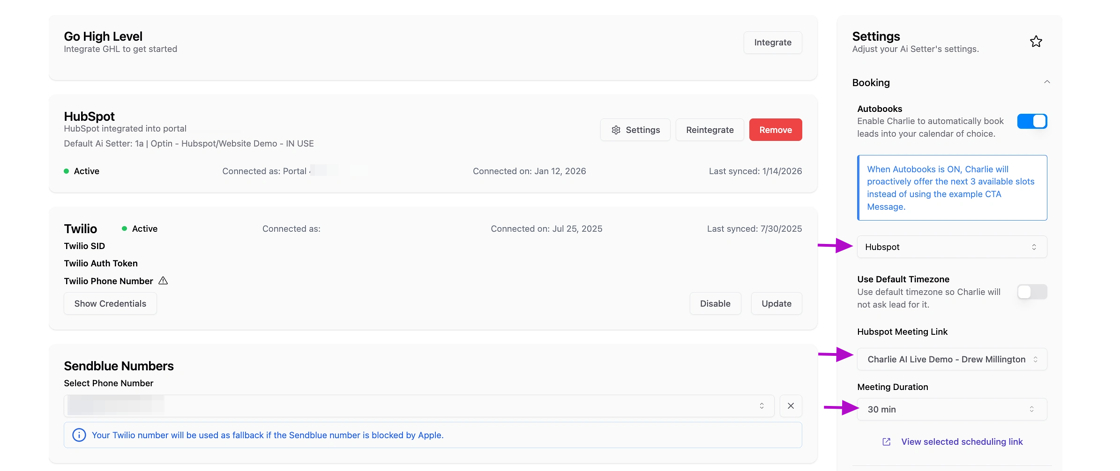
Hubspot
If you are using Hubspot, it will display the following:
Dropdown to select your calendar provider.
Select the specific calendar you want to use
Define the meeting duration
Oncehub
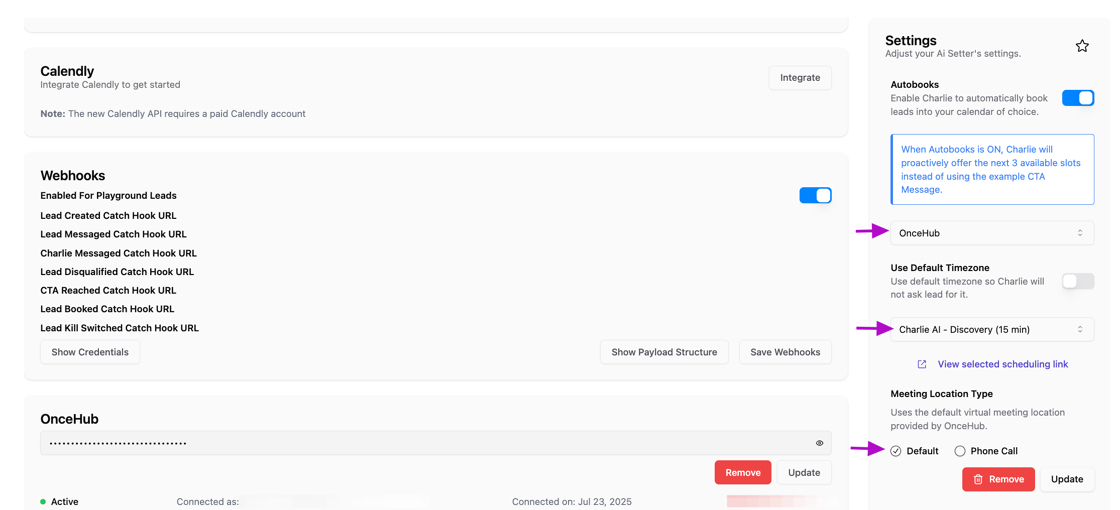
When you select Oncehub you'll need to configure:
Select OnceHub as your calendar provider.
Select the calendar you want to use from the options within your CRM
Define the meeting location: virtual location in Oncehub or re direct it to a phone call
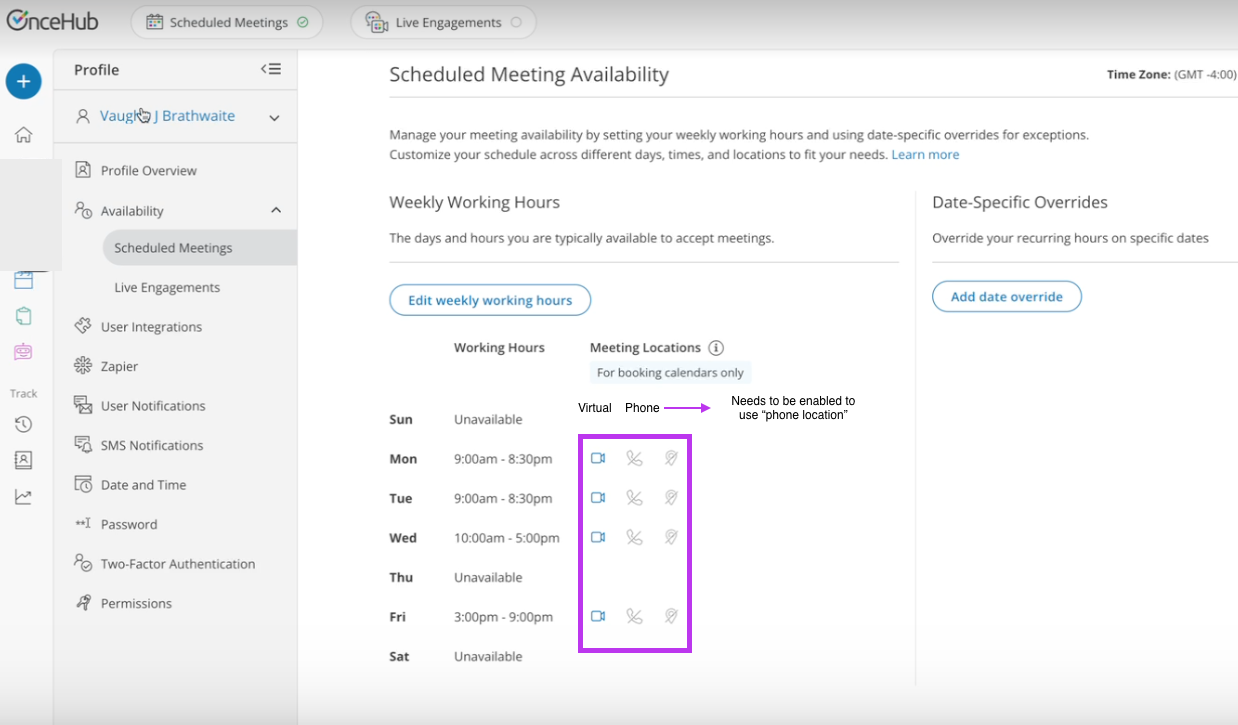
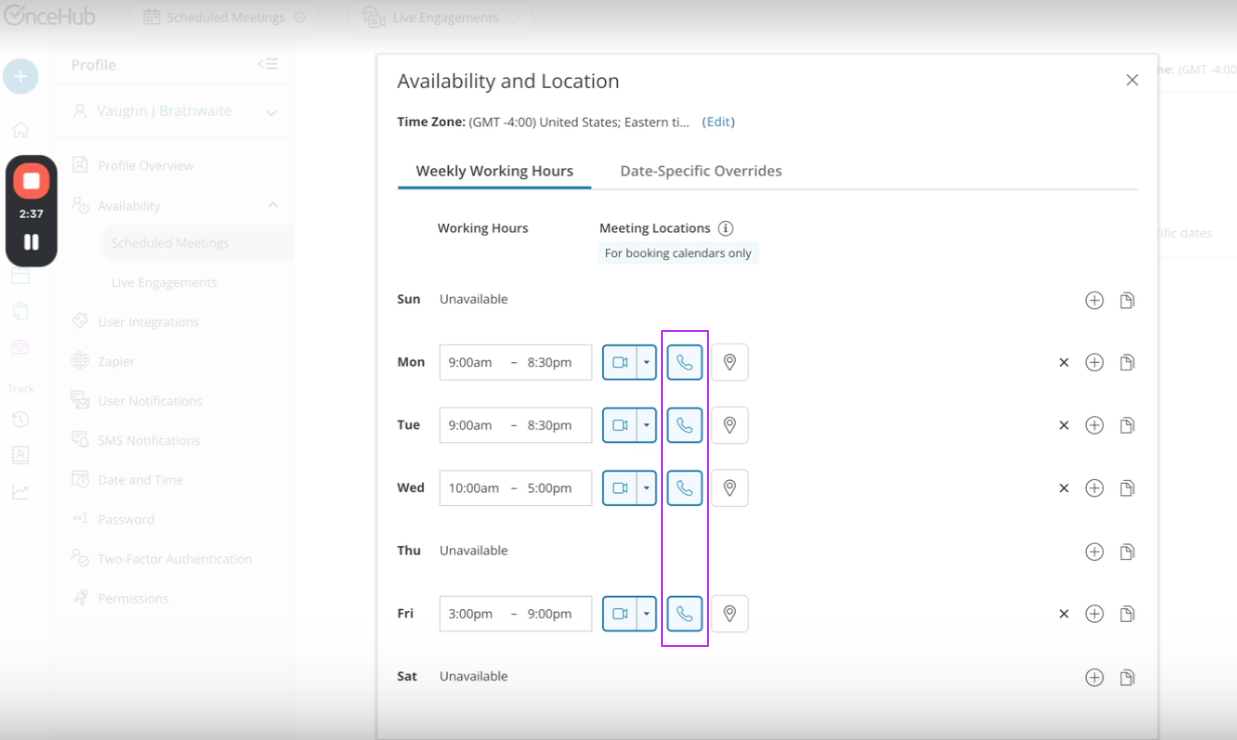
If the phone number option is selected, the OnceHub configuration should be also enabled (this needs to be configured in OneceHub account)
Continue conversation
It's a toggle configuration that activates Charlie's 📄 Post booking intelligence to manage lead’s interactions after booking. Whether they need to reschedule, cancel, or have questions; Charlie maintains full context and handles it to keep them engaged.