Autobooking
Last updated: January 29, 2026
The Auto-booking functionality allows Charlie to automatically schedule your qualified leads directly into your selected calendar without requiring any manual intervention from you or your team. Guaranteeing that every qualified lead moves promptly from inquiry to a confirmed meeting on your schedule. This functionality is supported for both, DM and voice setters, and located in the 📄 Booking settings menu.
Prerequisites
Calendar integration configured (Just the ones that will be integrated):
Key benefits
Faster Lead Conversion: Book appointments instantly, striking while the lead's interest is highest, significantly improving your conversion rate.
Reduced Friction: Provide a smooth, professional experience for your leads, leading to higher engagement and satisfaction.
Real-time Calendar Sync: Charlie ensures that all scheduled appointments respect your current availability
Specificities
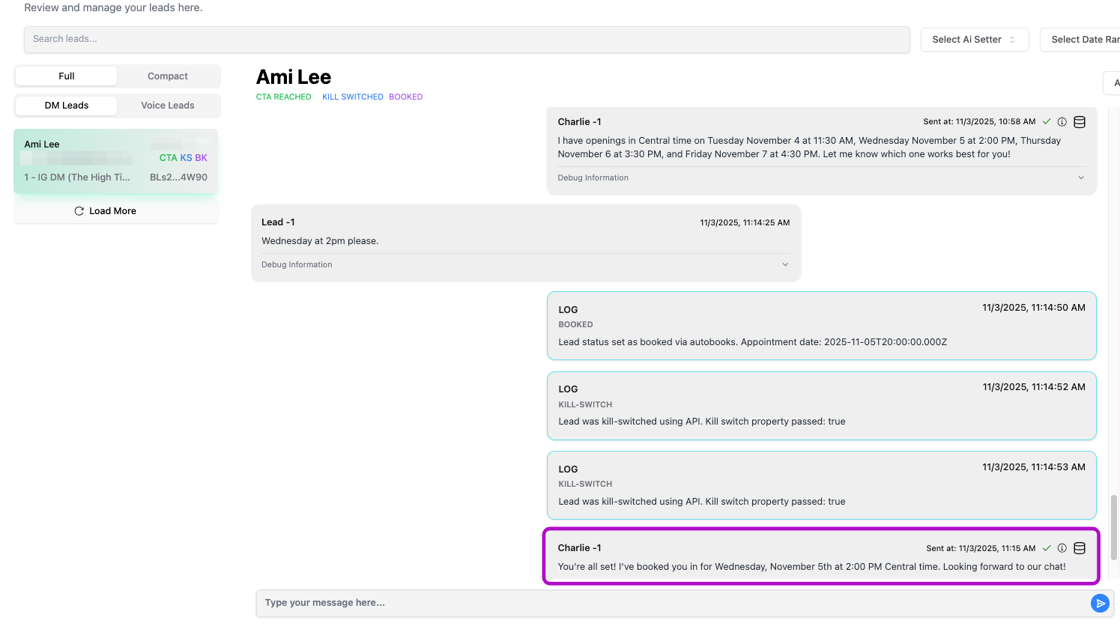
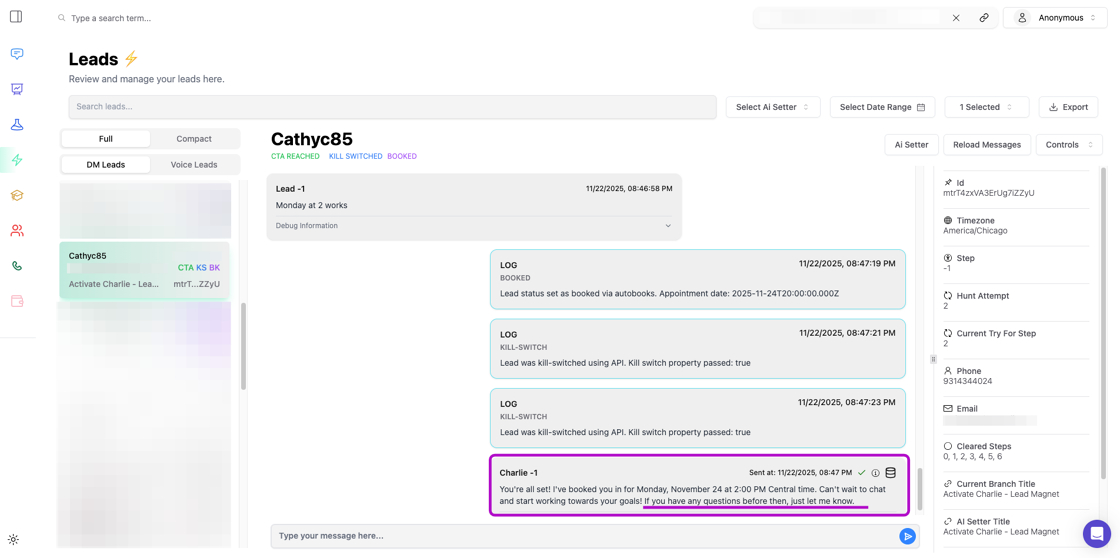
Charlie's Auto Booking confirmation is designed to be simple and direct, using standard closure messages only, avoiding open-ended phrases to prevent unnecessary conversation loops.
Visual explanation
✅ Clear closure & direct
❌ Open ended conversations
When Autobooking is on that the "CTA Message" is ignored and Charlie will instantly offer available times
Available times are offered in the lead's timezone 8am to 8pm
Before offering slots, Charlie ensures he knows the lead's email, phone number, and timezone
To improve the "Autobooks" function, you can also enable the 📄 Post bookingtoggle, allowing Charlie to reschedule, cancel the booking or answer questions, as requested by the lead.
Configuration
This is a Setter-level configuration, it won't be applied account-wide. You'll need to replicate the process in the setters you'd like to enable it.
Step 1: Enable autobooking
Select the "AI Setter" you're going to enable for autobooking
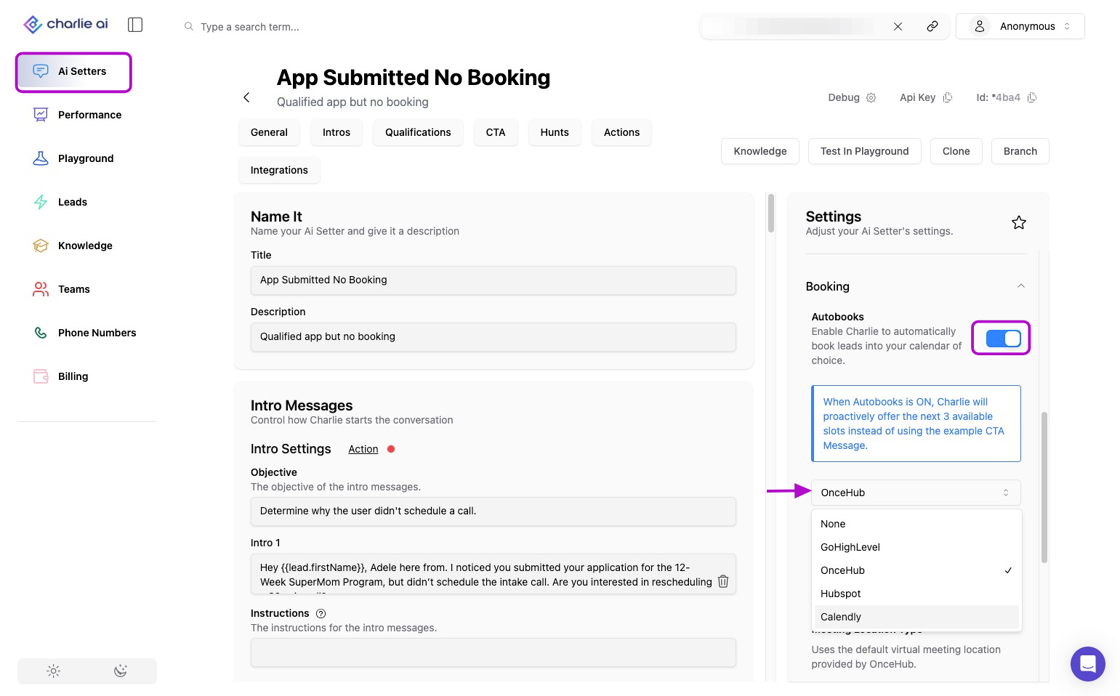
Scroll in the "settings" menu at your right side, and look for the "Booking" option; and click on it to expand.
Click on the toggle to activate it
Enable/ disable the default timezone, so Charlie will not ask lead for it.
Step 2: Configure your calendar
After the Autobooks setting is on, a series of configurations will be displayed
GHL
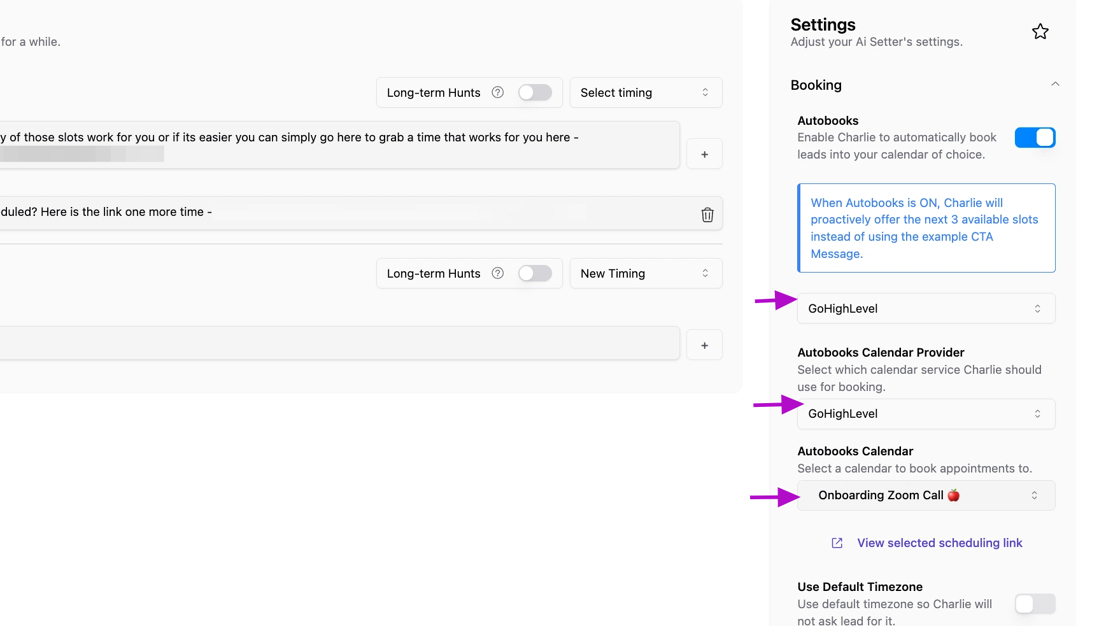
If you are using GHL, it will display 3 drop downs
Is to select the CRM that will be used for the autobooks
You should select the Calendar provider
Use the search bar to choose which calendar want to use for auto-booking, narrowing the result of the available calendars.
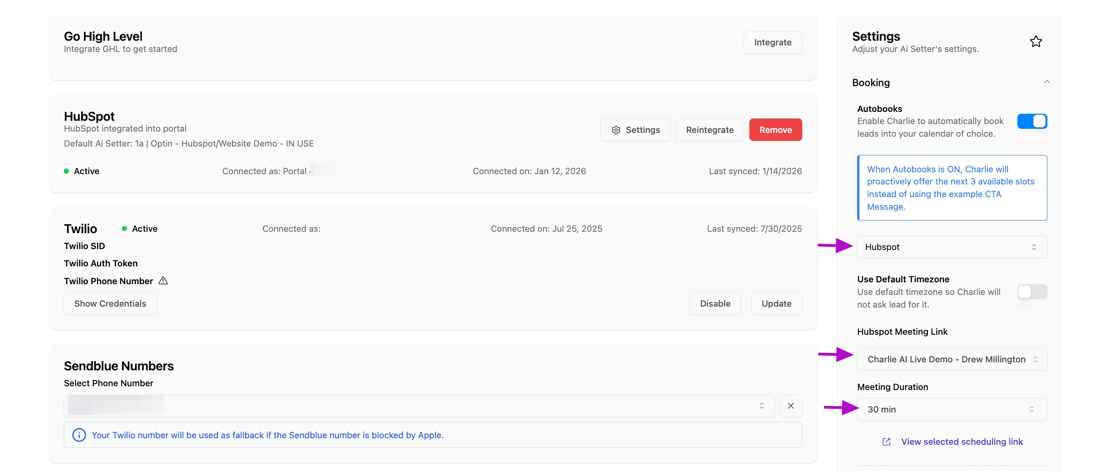
Hubspot
If you are using Hubspot, it will display the following:
Dropdown to select your calendar provider.
Select the specific calendar you want to use
Define the meeting duration
Oncehub
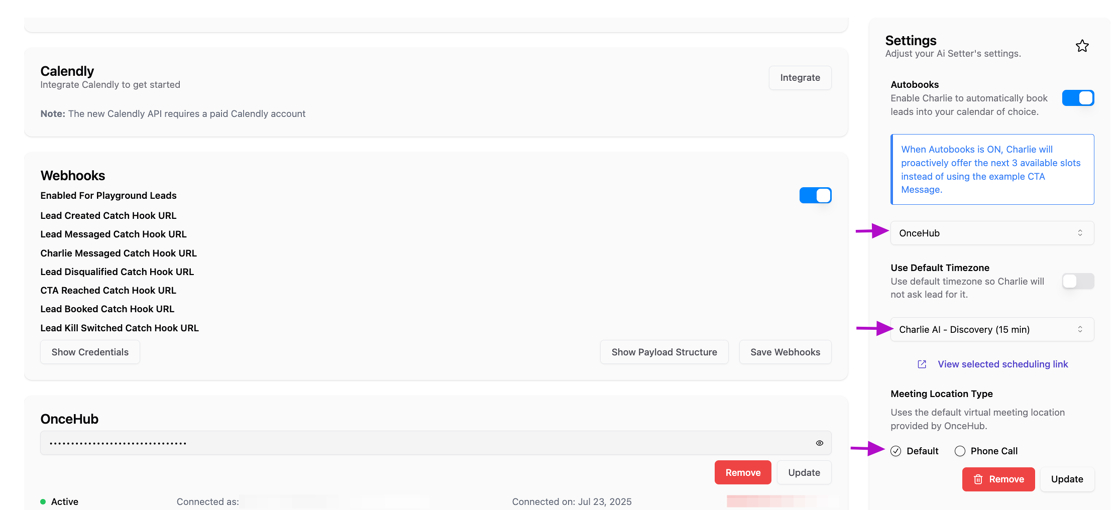
When you select Oncehub you'll need to configure:
Select OnceHub as your calendar provider.
Select the calendar you want to use from the options within your CRM
Define the meeting location: virtual location in Oncehub or re direct it to a phone call
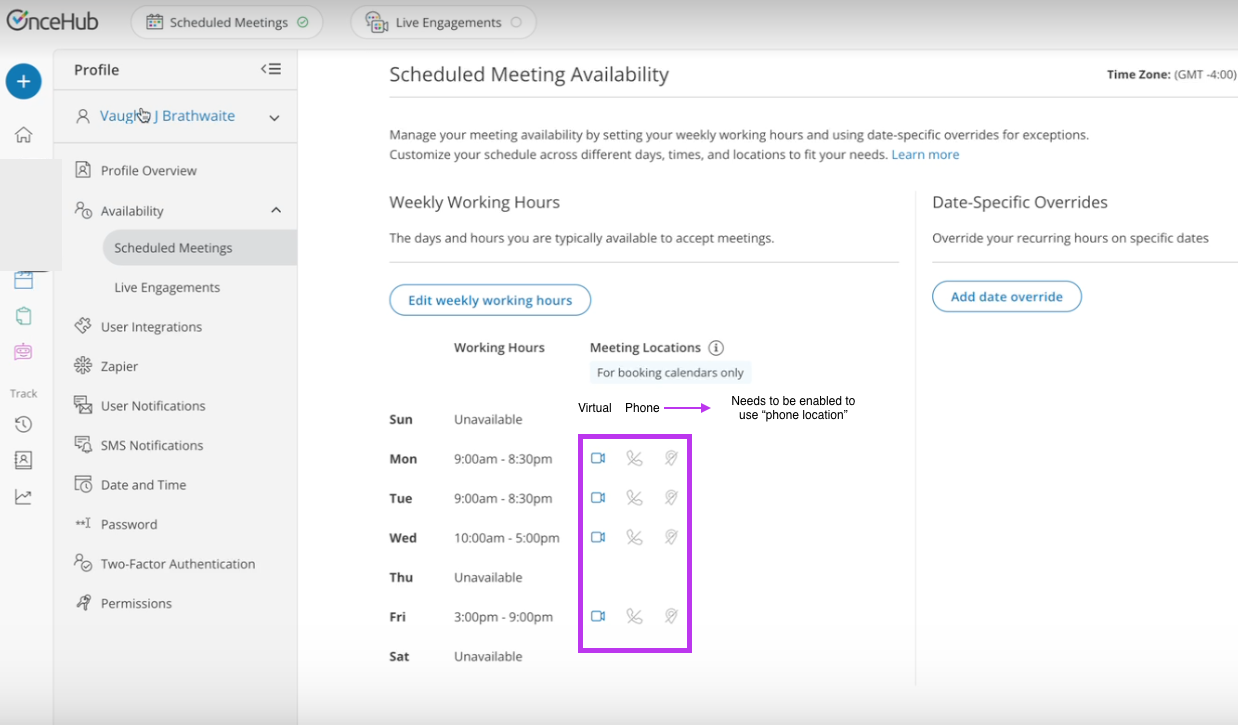
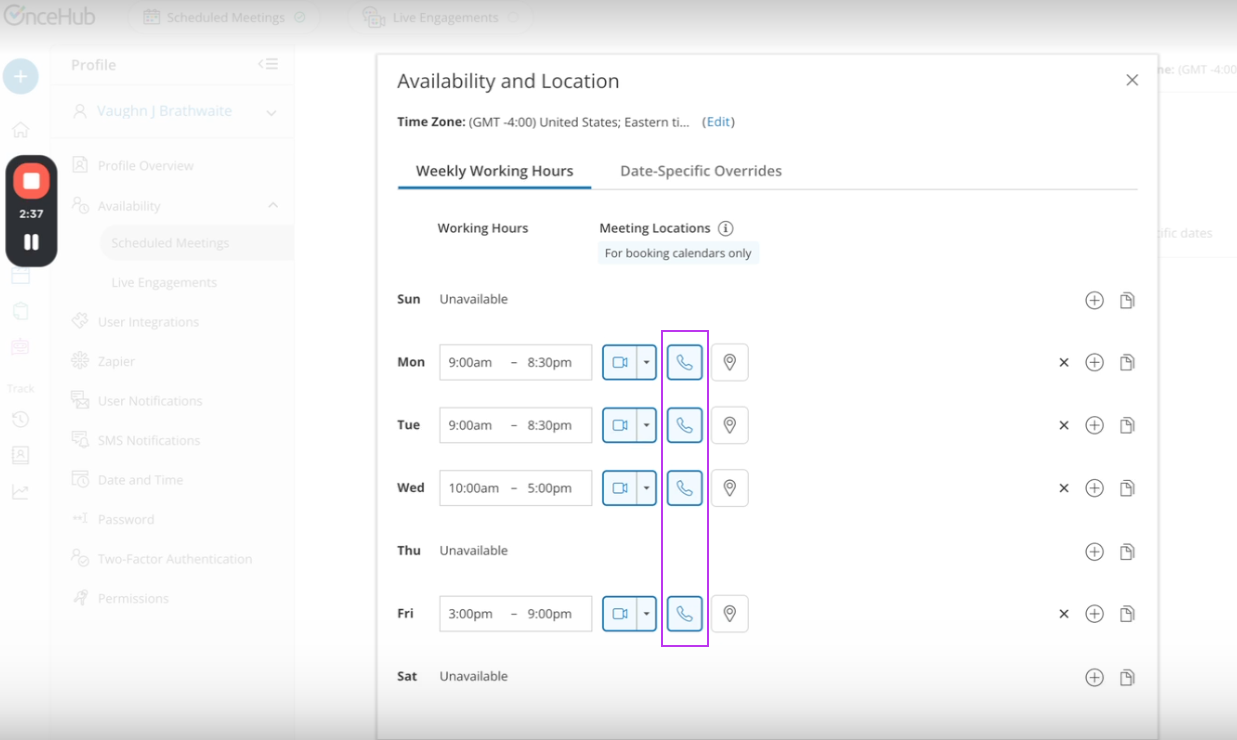
If the phone number option is selected, the OnceHub configuration should be also enabled (this needs to be configured in OneceHub account)
Step 3: Set-up a "DELAYED" Booking Intent (optional)
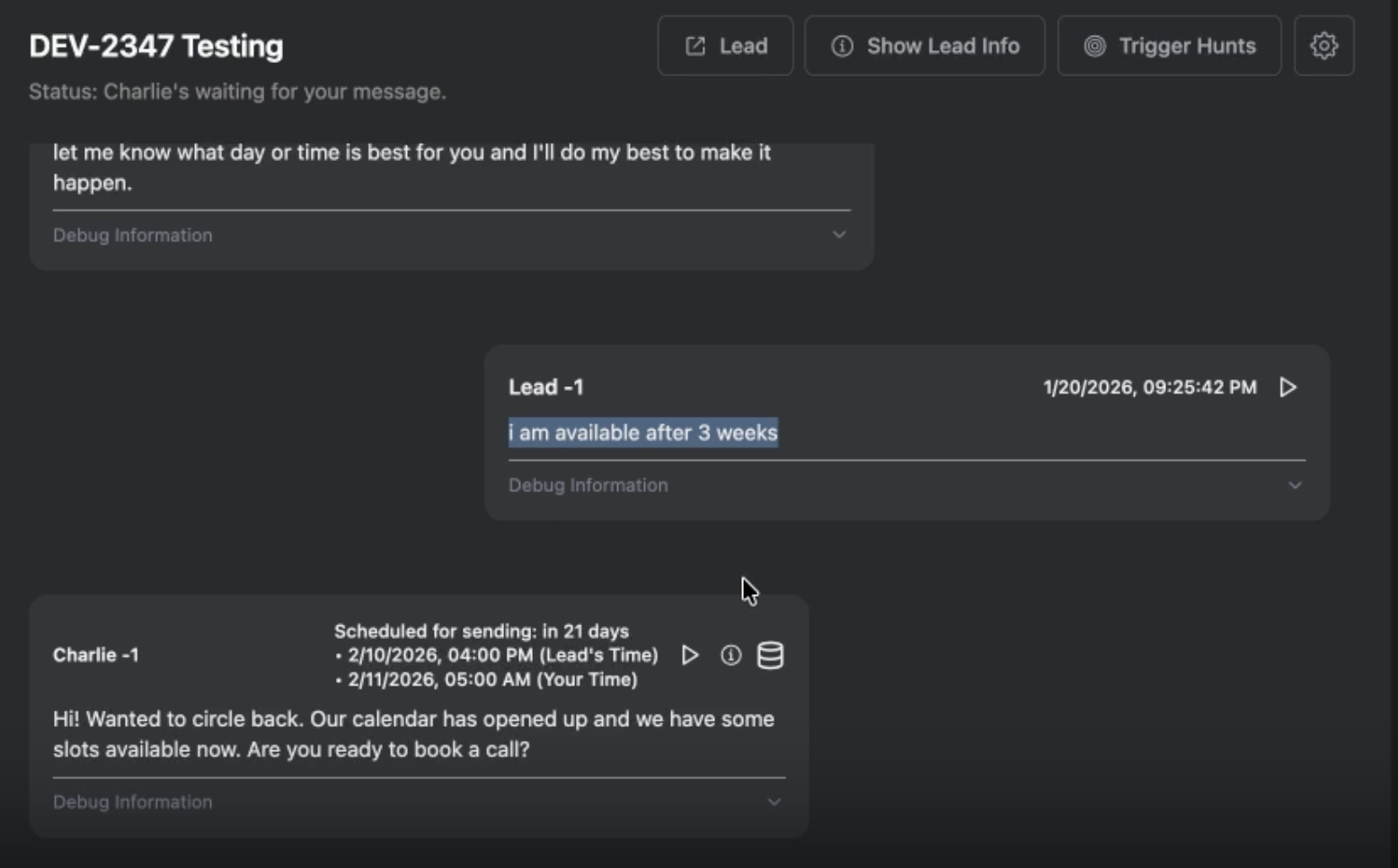
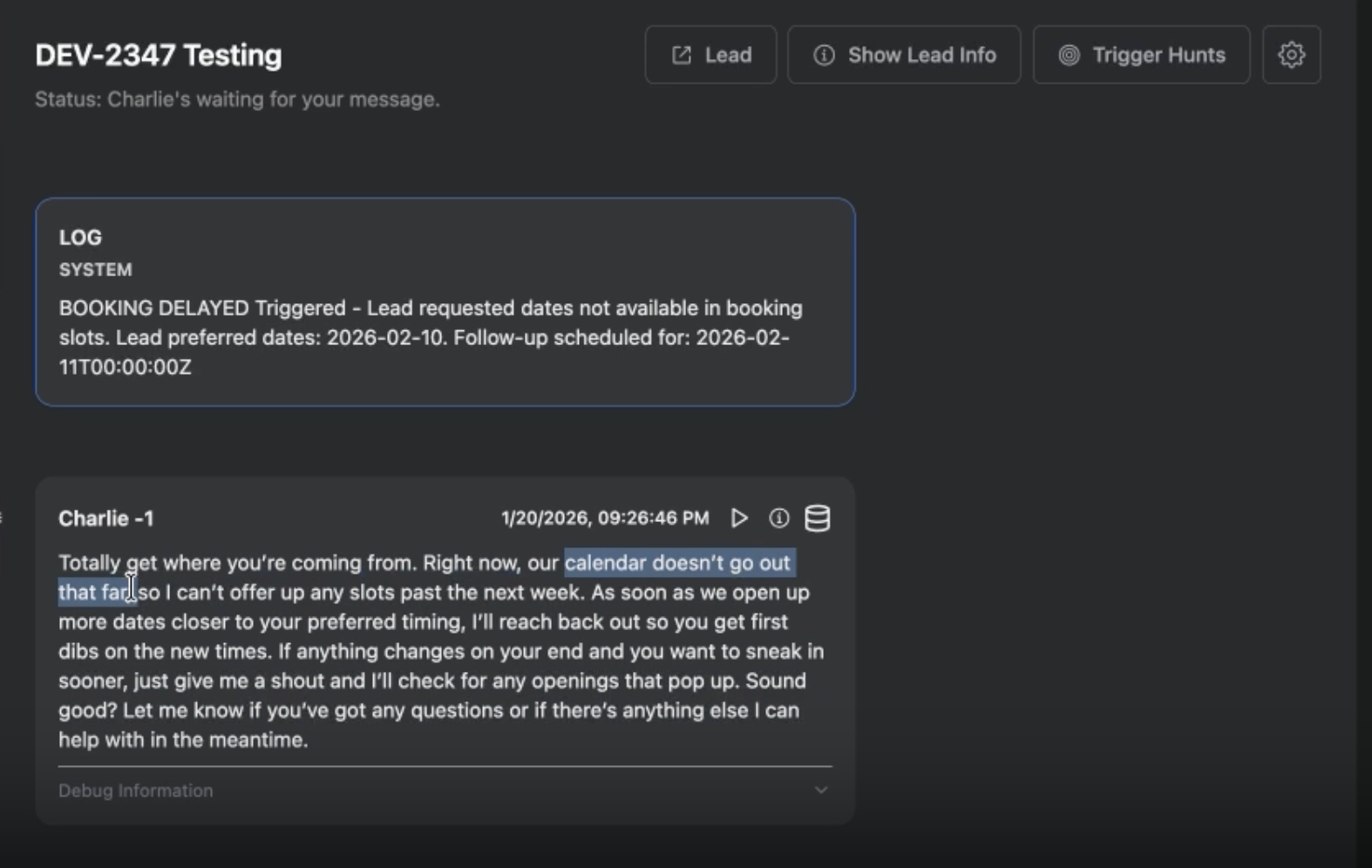
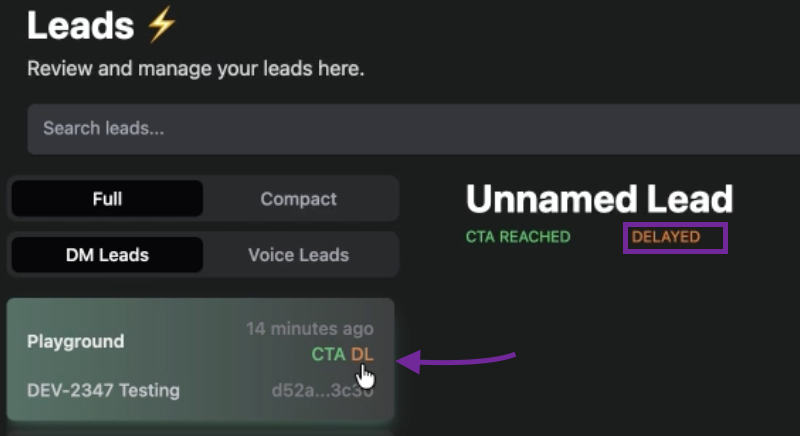
Charlie includes functionality that intelligently manages situations where a lead's availability falls outside your calendar's configured booking window. When this occurs, Charlie updates the Booking Intent to "DELAYED", schedules an automatic follow-up to reconnect with the lead at an appropriate time, and includes a LOG in the conversation with the explanation behind. No CTA hunts are triggered until the follow-up message is sent.
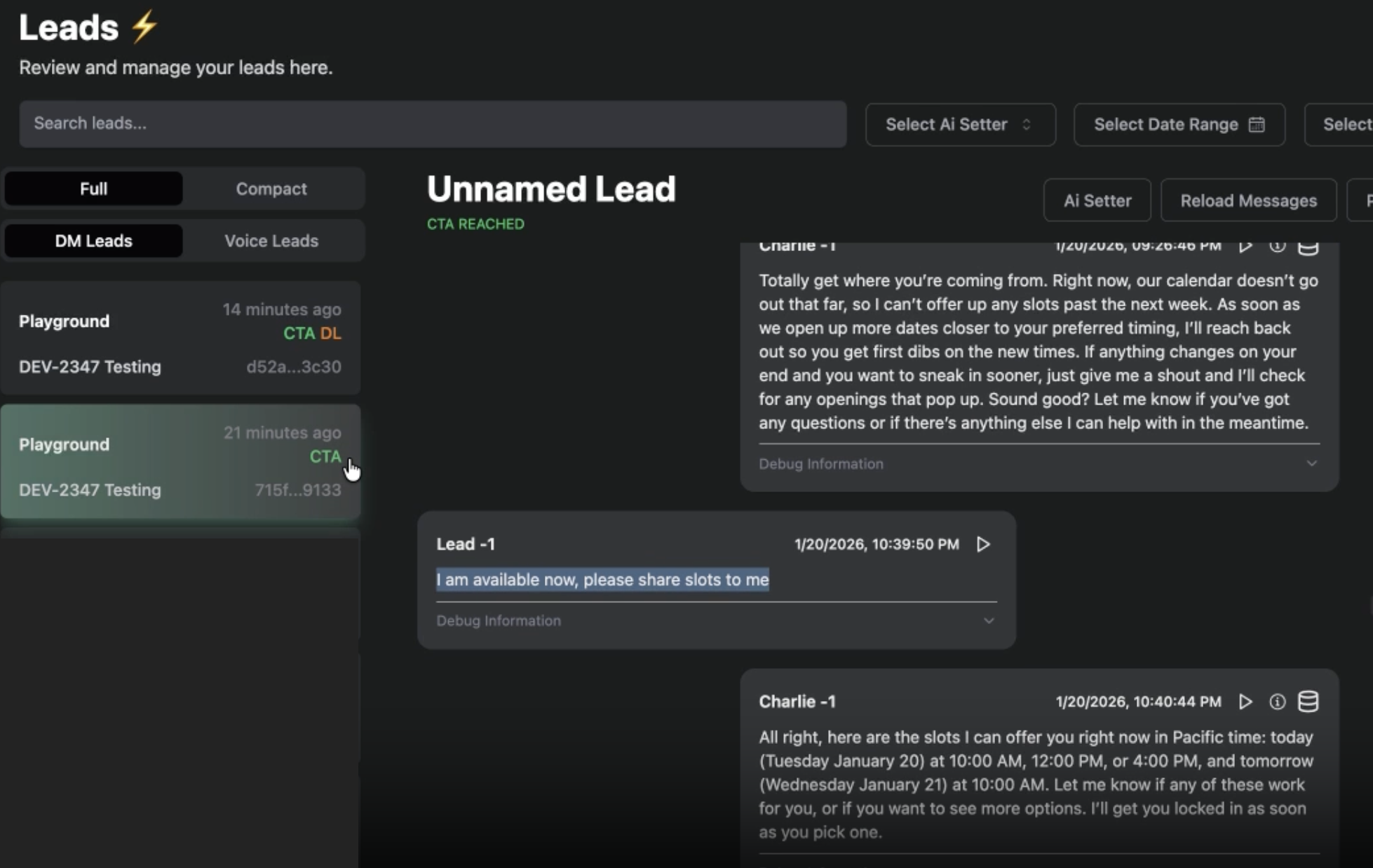
If a lead responds before the scheduled message is sent, then Charlie responds with the normal auto books flow.
Delayed Booking Intent functionality is configured within each calendar integration, not in Charlie settings directly. Charlie internally will use that information to trigger DL (Delayed)
Example & visual guidance: Delayed
example with an enabled booking window of 2 weeks
Example & visual guidance: re activate normal flow
Lead re-engages with Charlie before the scheduled follow up
Booking Limit Window Configuration
How It Works:
You set booking window limits in your calendar platform (HubSpot, OnceHub, GHL, Calendly)
Charlie automatically detects these limits via integration
When lead availability exceeds limits, Charlie triggers Delayed logic
No additional Charlie-side configuration needed—it responds to your calendar settings
Hubspot
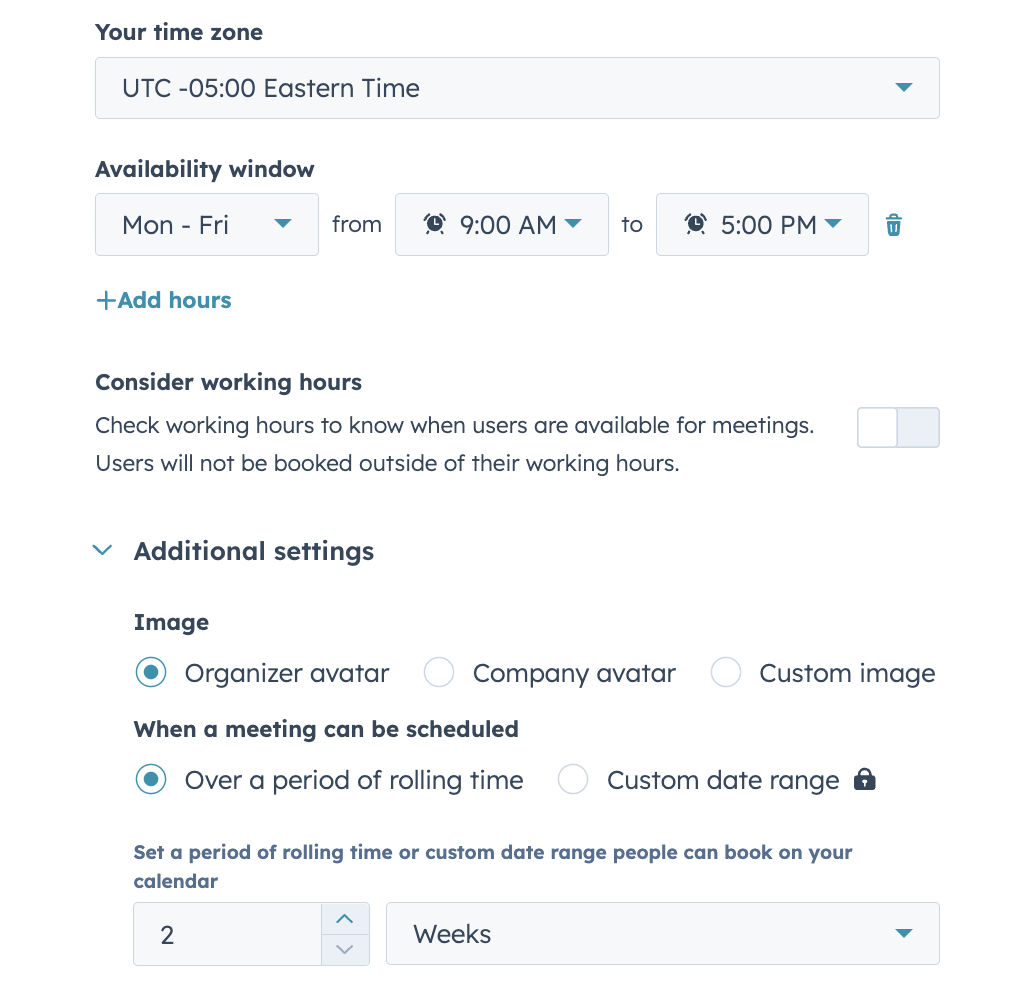
To include a Booking window option, you need to edit "additional settings" of the "Scheduling" option, in here you can find availability windows & notice settings
🔗 Their documentation shows how to set up booking window limits (how far ahead contacts can book)
Oncehub
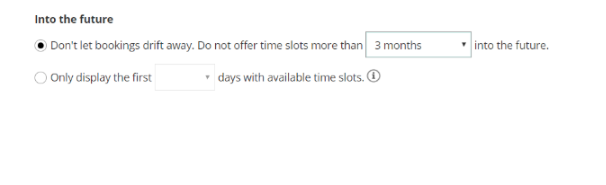
Go to the Time slot & timeframe rules section to configure when slots are offered, plus time frame limits:
🔗Timeframe rules [Classic] | OnceHub (OnceHub)
OnceHub’s documentation shows the section where you control how booking windows behave (time slots, timeframe rules). You’ll find settings for limiting the booking window here.
GHL
You can configure availability via calendar settings inside the app; typical support pages focus on calendar integration and availability (e.g., syncing calendars and setting meeting preferences).
🔗 Calendar & booking configuration
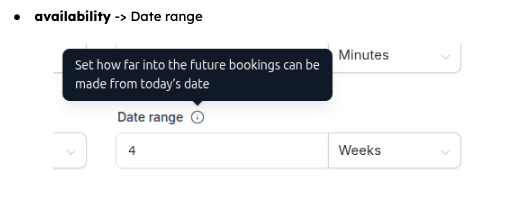
In GHL itself you’ll find booking window-like configuration under: availability → Date range
Calendly
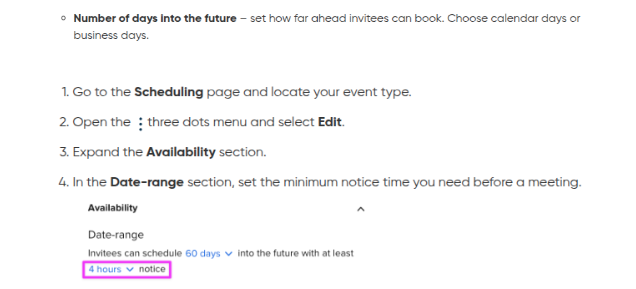
Availability & scheduling window settings including date ranges & minimum notice / booking windows:
🔗 Booking date range
Supported for the following calendars: Calendly, OnceHub, HubSpot, and GHL