Sending multimedia files
Last updated: August 27, 2026
Charlie can send multimedia files (images, PDFs, videos, and audio notes) as part of its outbound conversations. Files are not generated or chosen by the AI on the fly: every file you want Charlie to send is uploaded and attached to a specific step of your script, so you keep full control over what leaves your account.
In this article we give you all the details to make the most out of it!
This is a setter specific configuration, so make sure to configure it in the agents you want to enable the functionality
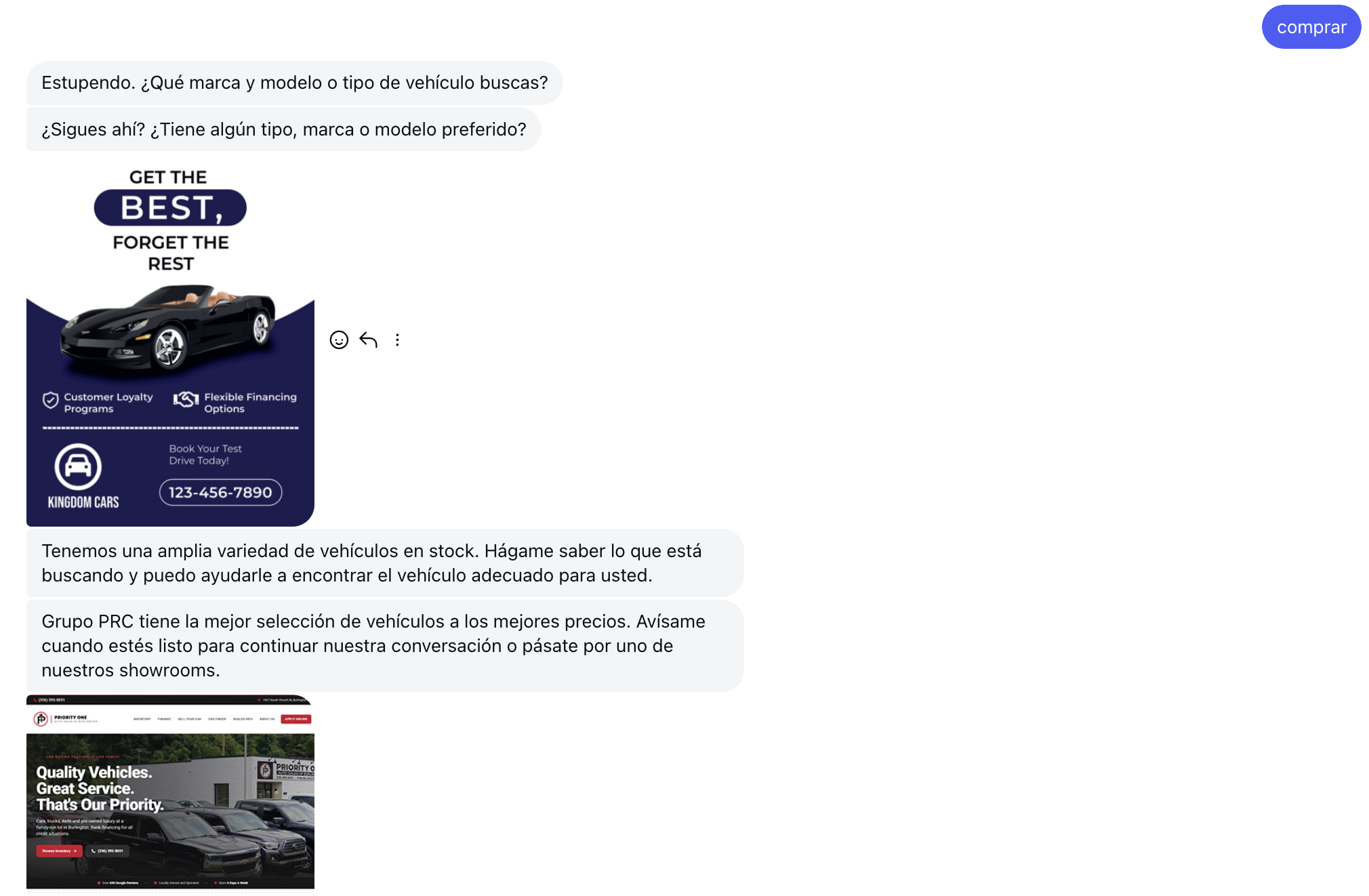
How it works
This is a fully configurable and scripted feature. Meaning that you need to set it up in the setter you want to send multimedia files
Multimedia sending is available in two places:
1. Intro & Qualification steps: attach files to specific steps of your Intro or Qualification script.
2. 📄 DM Hunts: attach a file to an individual static hunt (follow-up) message.
Supported file types: images, PDFs, videos, audio files.
Supported type of files
Image: JPEG, PNG, WebP
Audio: MP3, OGG, WAV,
Video: MP4, MOV, WebM
Why to use it
- More natural conversations. Real setters send screenshots, voice notes and one-pagers. Charlie can now do the same, so conversations feel human instead of text-only.
- Faster qualification. Send a price list PDF, a portfolio image or a short explainer video at the exact moment a lead needs it, instead of describing it in text.
- Stronger follow-ups. A hunt with an image or short audio note stands out far more than another plain text nudge.
- Brand consistency. Because files are scripted, everything Charlie sends is approved, and aligned with your account's identity and messaging.
The usage of this feature won't generate higher consume of credits as it's scripted, and Charlie won't be processing the files.
Set-up
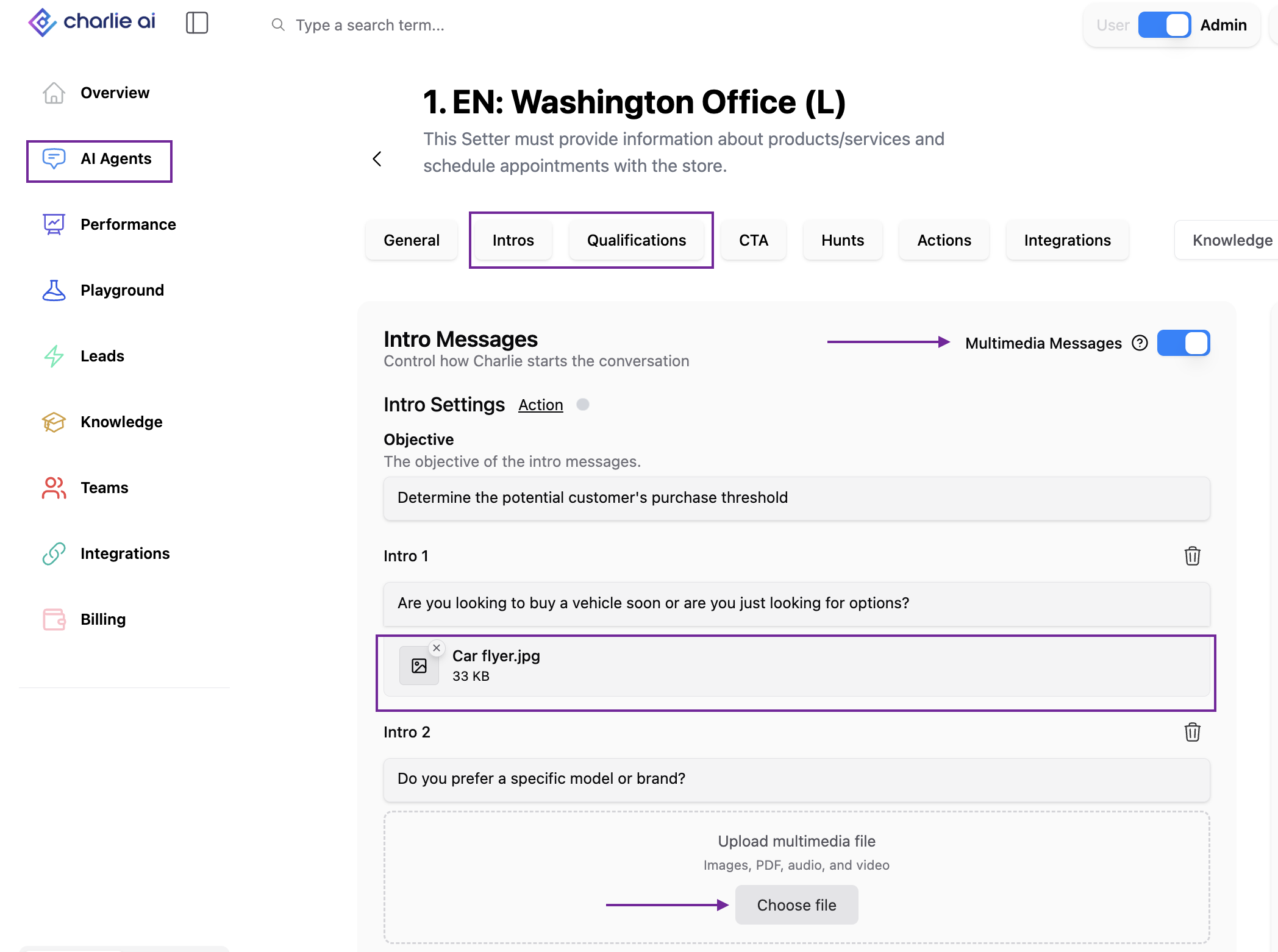
Intro & Qualification
Open your AI Setter configuration and go to the Intro or Qualification section.
Turn on the multimedia toggle. The upload area appears once the toggle is active.
Find the step where you want Charlie to send a file.
Upload the file (image, PDF, video or audio).
Repeat for any other steps that need an attachment
The files will now part of that step's script and will be sent with that step's message.
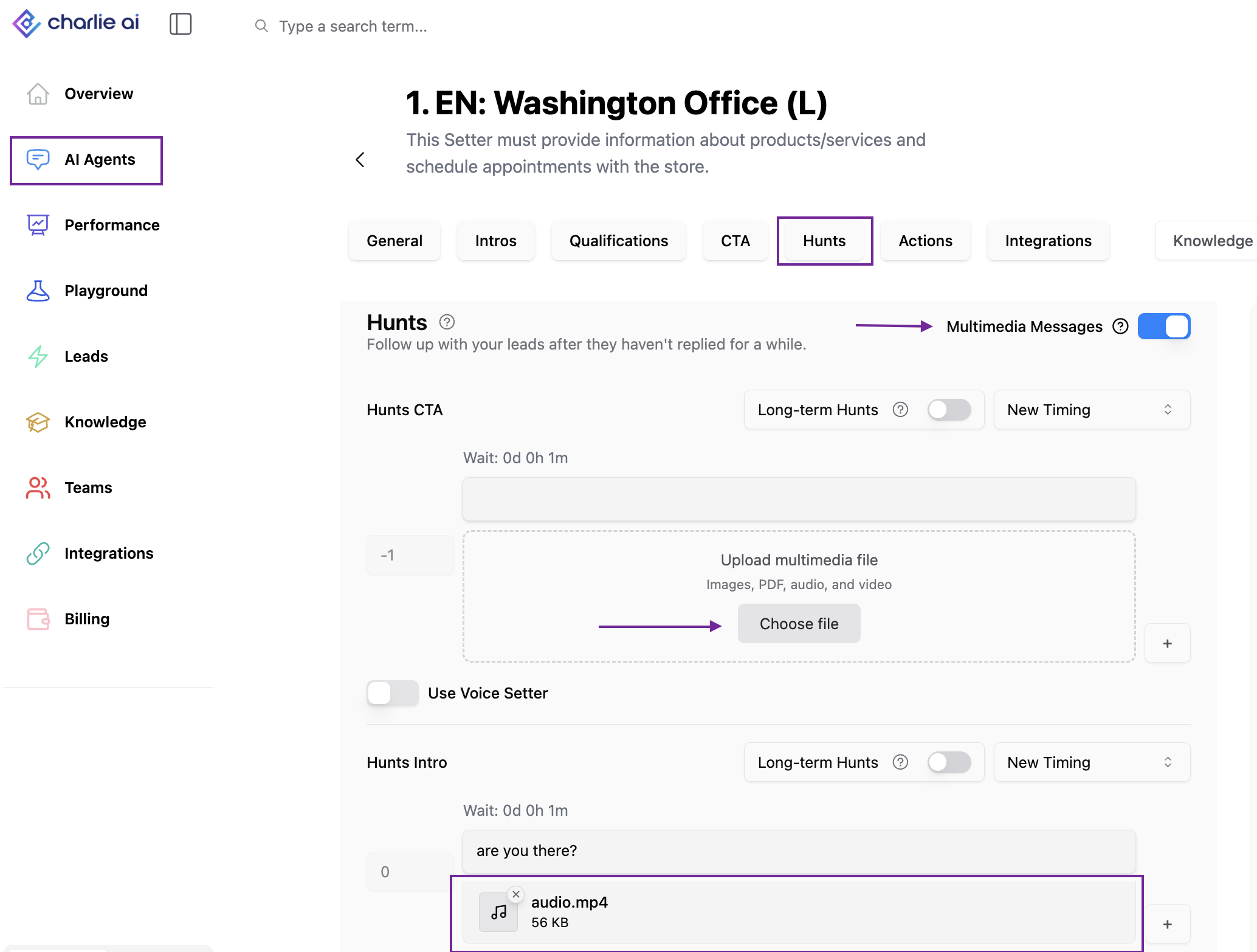
Hunts
Go to the Hunts section of your configuration.
Turn on the multimedia toggle. The upload area appears once the toggle is active.
Inside the hunt field you want to enrich, click the attachment button.
Upload the files
The file will now be tied to that specific hunt only.
IG just support images for the multimedia hunts due to a META restriction
Instagram just support images due to a Meta restriction
Key takeaways
Charlie only sends files you have uploaded and scripted. It will never generate or pick a file on its own.
Attachments are configured per step and per hunt, there is no global "send this file always" setting.
Hunt attachments are static; they do not change based on lead behaviour or conversation content. And multimedia files can't be used in dynamic hunts.
Deliverability of a given media type ultimately depends on the messaging channel in use (for example, SMS/MMS handles images and short video differently than iMessage or WhatsApp). Test on the channel you actually run before rolling out at scale.