Revenue Tracking: GHL Setup
Last updated: July 30, 2026
This article walks you through setting up Revenue Tracking with GoHighLevel (GHL). Once configured, Charlie automatically tracks when a Charlie-qualified lead’s deal closes in GHL, recording both Cash Collected and Contract Value Closed on your Performance Page.
GHL Revenue Tracking uses a pipeline stage trigger: you select which GHL pipeline stage means a deal is closed, and Charlie listens for contacts that reach that stage.
Prerequisites
A GHL account connected to Charlie AI (account-level integration already set up)
At least one pipeline with defined stages in GHL
At least one number-type Contact custom field in GHL for mapping revenue values
At least one AI Setter configured in Charlie
Configuration
Step 1 — Navigate to Revenue Tracking Settings
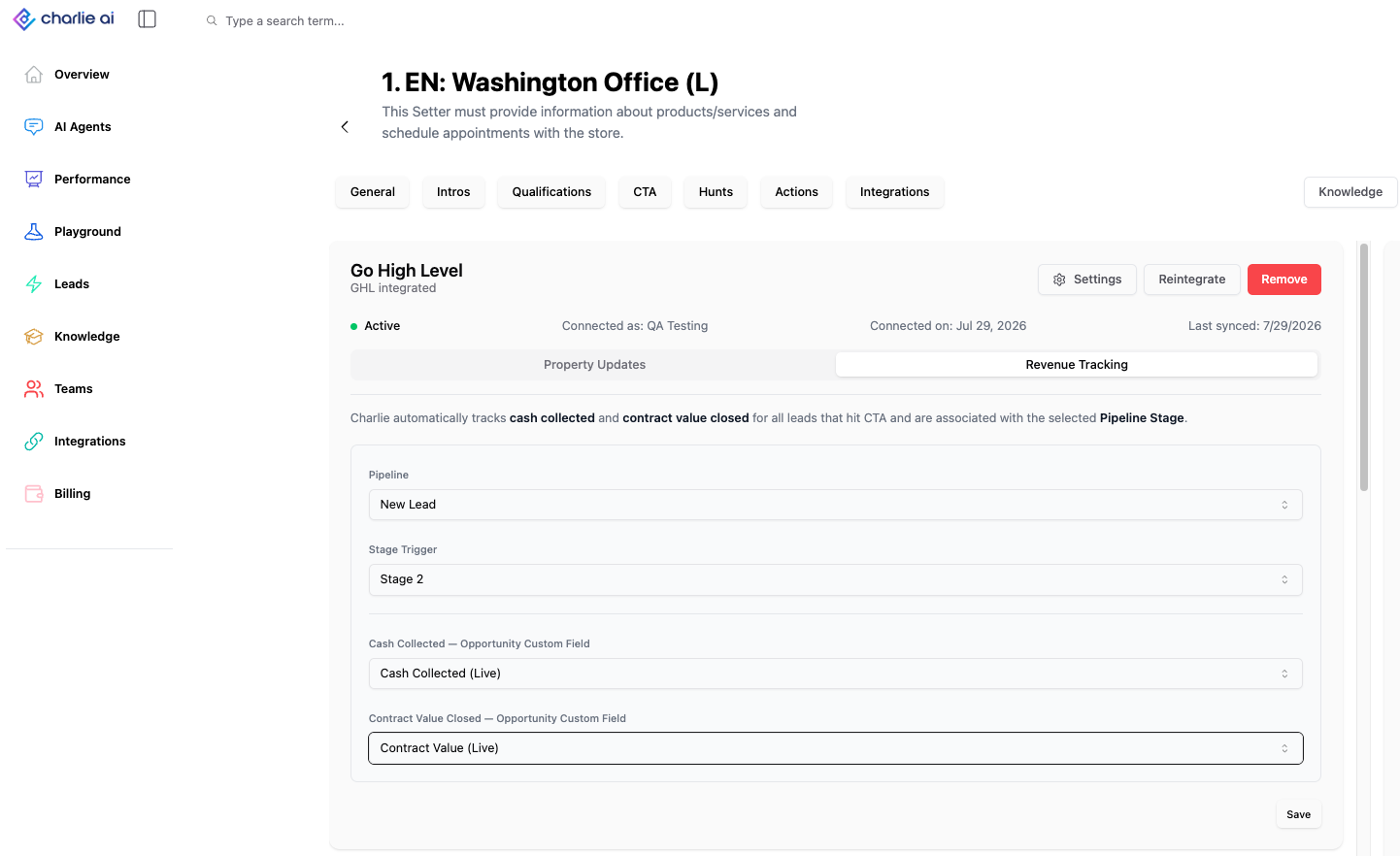
In the Charlie dashboard, go to the AI Setter you want to enable it, go to the integrations tab and Find the GHL integration card
Click Settings
Select the Revenue Tracking tab
Step 2 — Configure the Pipeline Stage Trigger
The pipeline stage trigger tells Charlie when to fire a revenue event.
Under Pipeline Stage Trigger, you’ll see a dropdown populated with all your GHL pipeline stages
Select the stage that represents a closed deal in your sales process (e.g., “Closed Won”, “Paid”, or “Contract Signed”)
When a Contact in GHL reaches this pipeline stage and the lead has already reached CTA through Charlie, the revenue event will fire.
Step 3 — Configure Revenue Mappings
You need to map Charlie’s two revenue metrics to GHL Contact custom fields. These fields must be number-type custom fields in GHL.
Cash Collected Mapping
Under Cash Collected, select a GHL number-type Contact custom field from the dropdown
This field should contain the actual payment amount received from the contact
Contract Value Closed Mapping
Under Contract Value Closed, select a GHL number-type Contact custom field from the dropdown
This field should contain the total committed contract or deal value
Important rules:
The same Contact custom field cannot be selected for both mappings
You can save the configuration with only one mapping selected — both are not required, but at least one must be configured
Tip: If you don’t have number-type custom fields in GHL yet, create them first in GHL → Settings → Custom Fields → Contacts. Name them something clear like “Revenue — Cash Collected” and “Revenue — Contract Value.”
Step 4 — Save the Configuration
Once you’ve selected the pipeline stage trigger and at least one mapping, click Save
A notice will appear confirming Revenue Tracking Enabled
The fields become disabled/uneditable and two buttons appear:
Edit — re-enables the fields so you can modify your configuration, then Save or Cancel
Turn Off — disables Revenue Tracking
Editing Your Configuration
To change your pipeline stage trigger or revenue mappings:
Click the Edit button
The fields become editable again
Make your changes
Click Save to apply, or Cancel to discard changes
Turning Off Revenue Tracking
To disable Revenue Tracking:
Click the Turn Off button
A confirmation modal will appear asking you to confirm
Confirm to disable
How It Works Behind the Scenes
Once configured, Revenue Tracking works automatically:
A lead is activated in Charlie and reaches CTA through one of your AI Setters
The same lead (matched by contact info) progresses through your GHL pipeline
When the contact reaches your configured trigger stage, Charlie detects the stage change
Charlie pulls the revenue values from the mapped Contact custom fields
A Revenue Event is created, attributed to the Use Case that most recently triggered CTA
The metrics appear on your Performance Page
Both conditions must be met for revenue to fire:
The lead must have reached CTA through Charlie
The contact must reach the configured pipeline stage in GHL
If a contact reaches the pipeline stage but was never a Charlie lead (or never reached CTA), no revenue event is created.
Tips & Best Practices
Choose the right trigger stage — Pick the stage that definitively means the deal is done. Using a stage too early in your pipeline (like “Proposal Sent”) will overcount revenue.
Keep your custom fields updated — The revenue values are pulled from your GHL custom fields at the time the trigger stage is reached. Make sure the values are populated before the contact moves to that stage.
Use one mapping if you only track one metric — If you only care about cash collected (or only contract value), you don’t need to configure both.
Test with a single lead first — Activate a test lead through Charlie, run it through CTA, then move the contact to your trigger stage in GHL. Verify the revenue appears on the Performance Page before relying on the data.