Activation: Close
Last updated: November 2, 2026
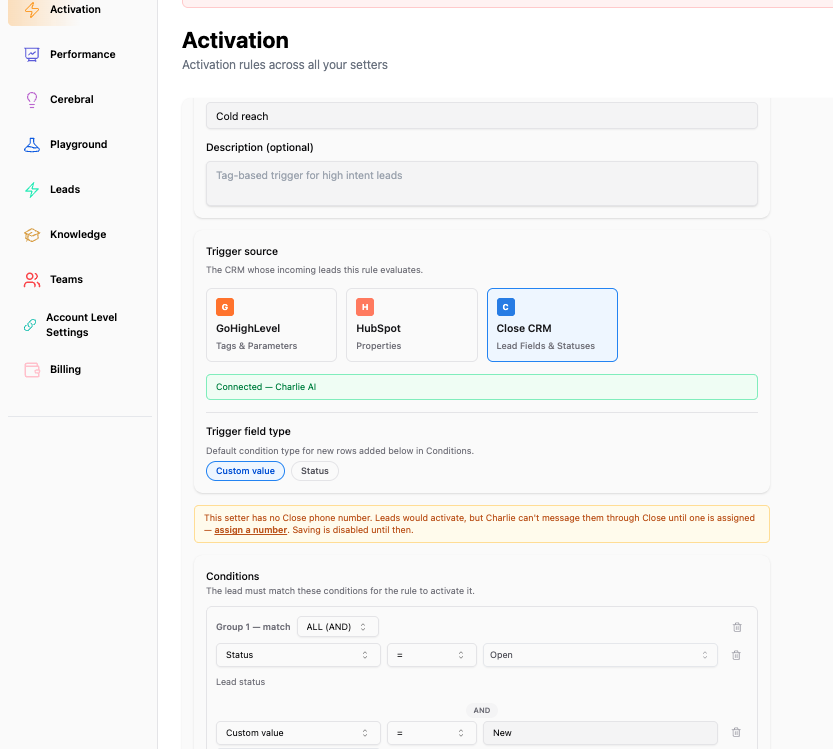
Close Activation Rules let Charlie evaluate lead-status and custom-field changes. When the rule’s conditions are satisfied and the lead is eligible for activation, Charlie routes them to the setter assigned to that rule.
Test with a small number of leads first. Verify both the initial outreach and an incoming reply before increasing volume.
Before you start
Connect the Close account containing your leads.
Configure the target setter for outreach.
Assign a Close phone number to the target setter. This is required so replies can return to Charlie correctly.
Review any existing automation that already enrolls the same leads in Charlie.
Supported conditions
You can create conditions using:
Lead status, selected from your connected Close account’s available statuses.
Custom fields, selected from the available Close fields, with the matching value entered in the rule.
Lead status is different from opportunity status. The feature covers lead status and custom fields, not opportunity-status activation.
Field selection and values
Lead statuses are selected from the statuses available in the connected Close account. Custom-field values are entered in the condition builder, so check that the value matches what is stored in Close.
Selecting a field alone does not define the complete condition. You must also configure the comparison and any required value.
Create a Close activation rule
Open Activations and create a rule.
Select Close as the source.
Choose a lead-status or custom-field condition.
Select the status or enter the custom-field value you want to match.
Add any additional conditions and choose AND or OR.
Assign the target setter and confirm it has a Close phone number attached.
Configure the delay and any reactivation settings.
Save and enable the rule.
Make the relevant change on a test lead in Close, then verify the result in Charlie.
When the rule matches and the lead is eligible, Charlie routes them to the assigned setter and queues outreach for the configured delay.
Troubleshooting
Close is unavailable as a source: verify the account connection and resolve any reconnect notice.
The rule cannot be saved for the selected setter: confirm that a Close phone number is assigned to that setter.
The rule does not match: check that you selected lead status rather than opportunity status, and verify custom-field values and AND/OR logic.
The lead appears immediately despite a delay: the record can appear before outreach begins. Check the message timestamps and activation log.
Outreach starts through an unexpected path: review other automations that may enroll the same lead independently.
A previously contacted lead does not activate: check reactivation settings, cooldown, attempt limits and lead eligibility.