General Settings
Last updated: January 21, 2026
The "Settings" menu provides multiple configuration options to tailor your Setters and align them with your account's operational needs. This guide explores the "General Settings" section, detailing how each configuration impacts your Setter's behavior, along with key insights that summarize the most important considerations.
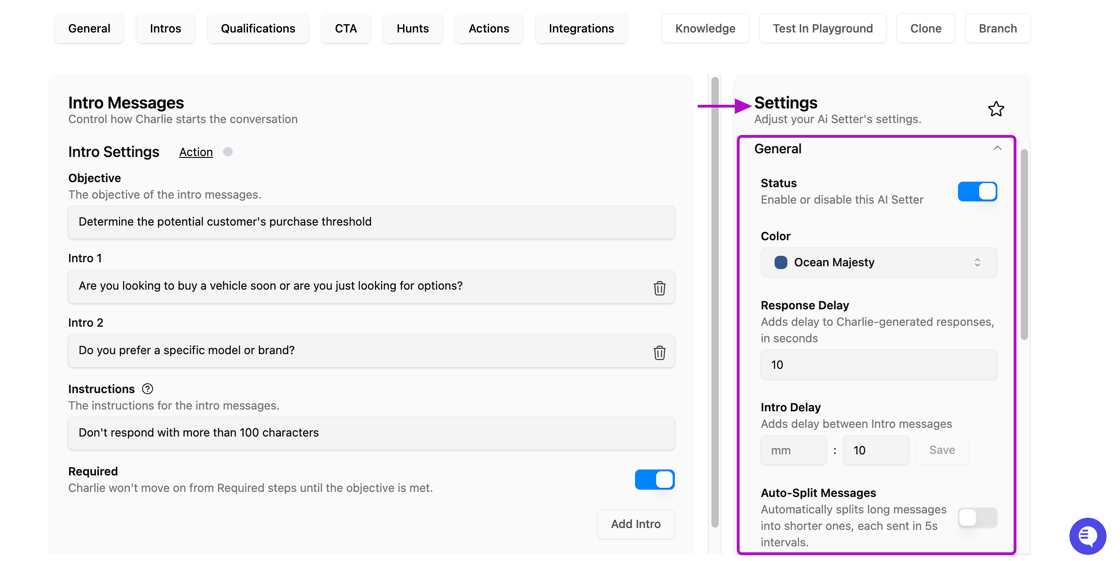
Where to find it
In all your setter you'll always find the "Settings" menu, you just need to:
Click in the "Ai Setters" option at your left side menu
And look for the "settings" menu at your right side.
All adjustments made in a Setter's Settings menu impact only that specific Setter. Changes do not apply account-wide or affect other Setters.
Bookmark
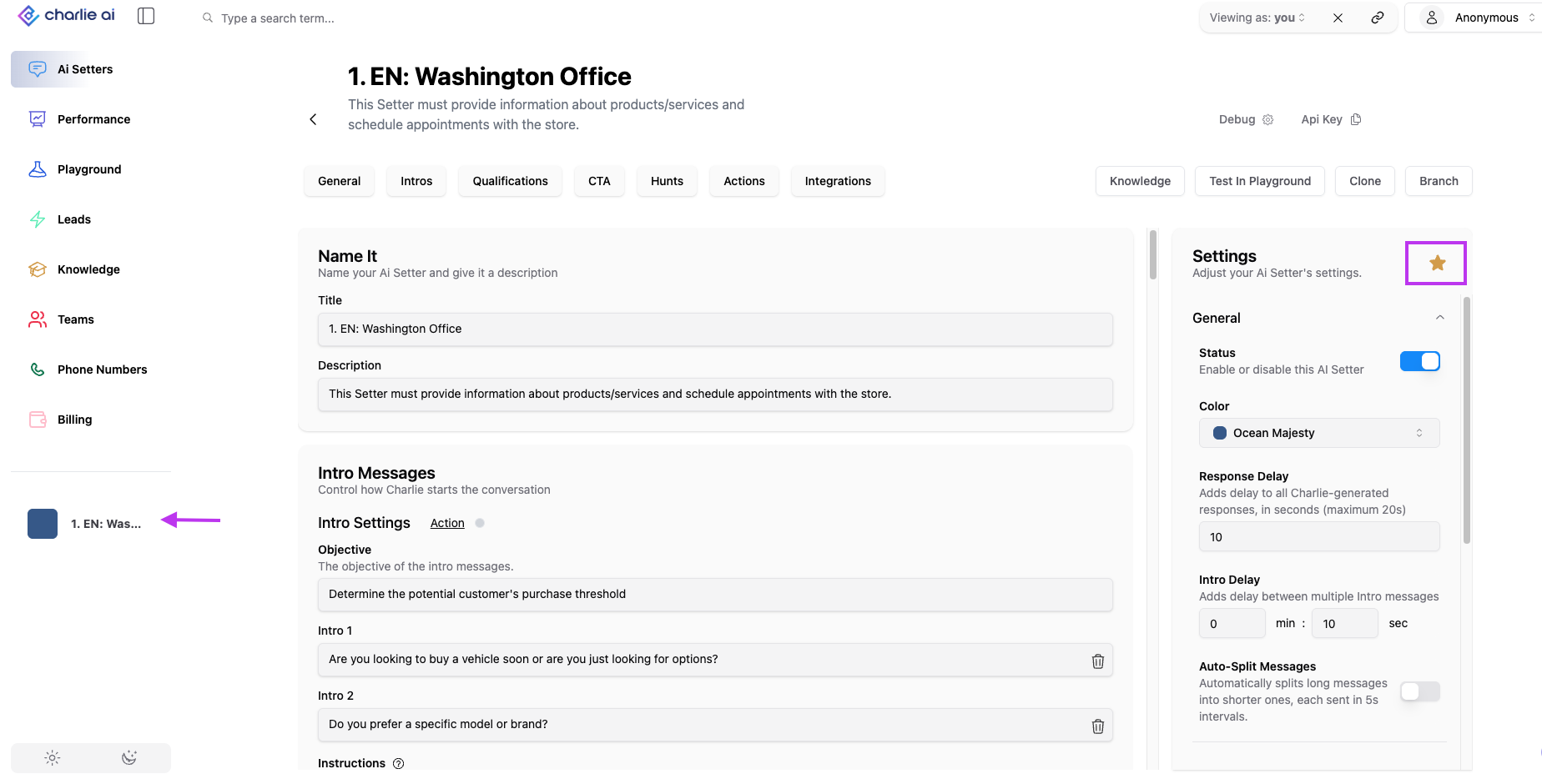
Users can now bookmark their favorite setter for quick access, you just need to click over the star at the top of the settings menu. Bookmarked setters will appear in the left-side panel, eliminating the need to scroll or search. This feature is especially useful for users who manage multiple setters.
Visual guidance
Status
The Status toggle is a simple on/off switch that enables or disables the entire Setter.
It is the very first configuration in this section, positioned strategically for quick access.
Configuration:
Toggle ON (Enabled): Setter is active and can engage in conversations
Toggle OFF (Disabled): Setter is inactive and will not respond to any conversations.
Disabling a Setter does not delete conversations or data, it simply prevents the Setter from engaging in new or ongoing conversations until re-enabled.
Color
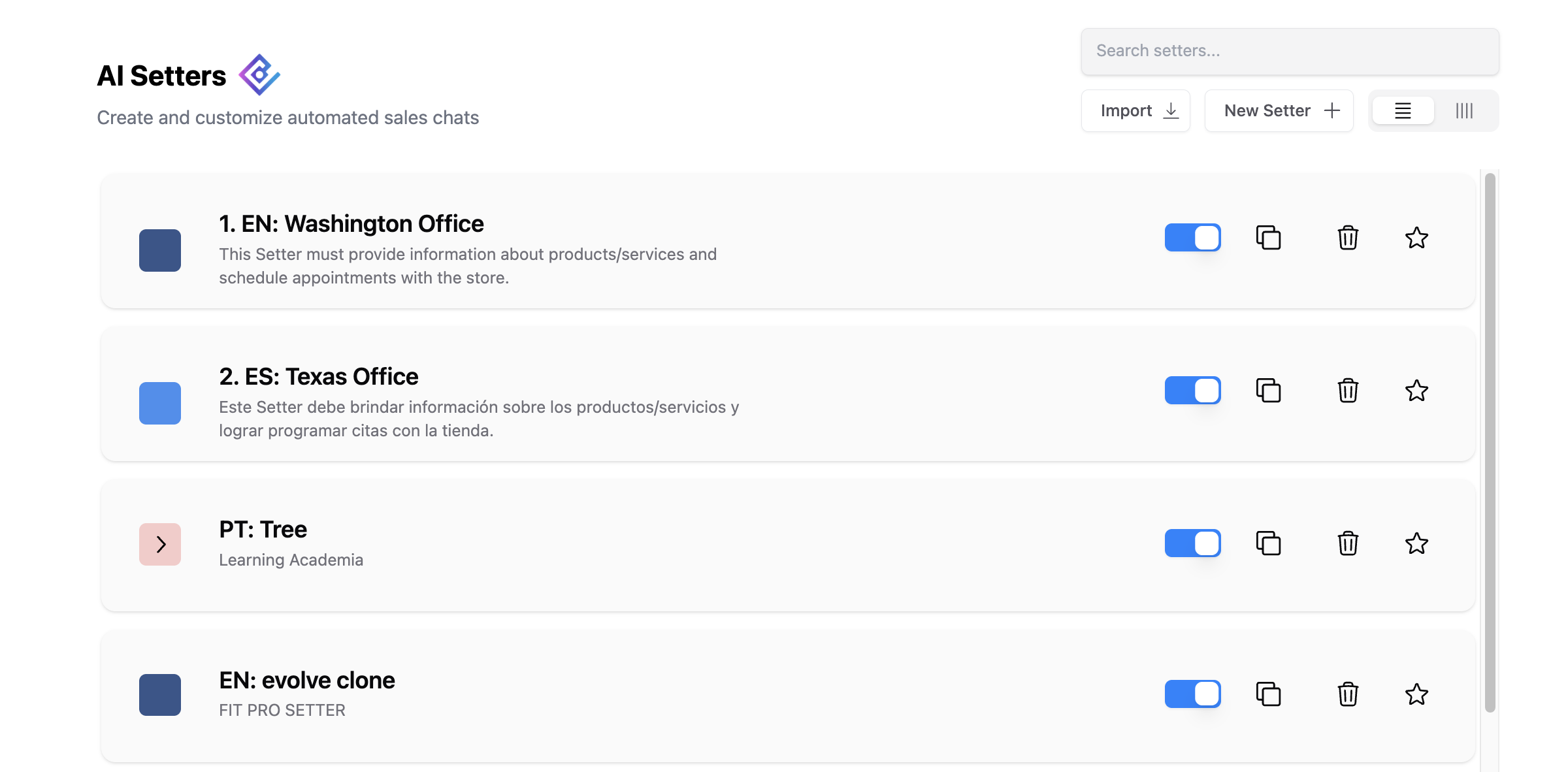
Color configuration is a simple feature that will give you the possibility to color-code your setters for better organization, and easier identification. We have 10 different color tones to choose from, providing sufficient variety for most organizational systems.
Unlock instant recognition of Setter type, language, or purpose without reading detailed descriptions.
Visual guidance
I.E. This account used the color to easily differentiate the language that the AI setter is configured (Dark blue = English / Light blue = Spanish / Pink = Portuguese)
Response Delay
You can configure the time Charlie will take between each of it's generated responses, this was thought as an option to have a more human-like interaction, mimicking the time a human would take to read, think, and type a response.
It can be configured according the account's owner preferences. It should be set up in seconds, with a maximum allowed of 20s, and it will be automatically saved for all conversations.
Intro Delay
Similar to the previous setting, we developed a configuration to humanize intro sequences. You can now customize the delay between multiple intro messages to have a more natural human behavior. And if a lead responds before all intro messages are sent, Charlie intelligently cancels the remaining messages and engages immediately.
This is the third configuration, and you can set it in minutes, seconds or a blend of both.
Auto-Split Messages
This function automatically splits long messages into shorter ones, it's a toggle configuration that will generate 5s intervals with fragmented parts of the complete response.
Some common use cases are:
To solve complex questions
To provide additional information regarding the product/ service offered
Provide different scheduling possibilities
Key Insights
Response Delay, Intro Delay, and Auto-Split Messages aren't independent features, they're a coordinated system for creating human-like conversation flow. Configure them holistically.
General Settings being specific and not account-wide, enable you to run simultaneous experiments: Set one sales Setter with fast responses and another with moderate delays, then compare performance.