Phone number: Aloware
Last updated: August 12, 2026
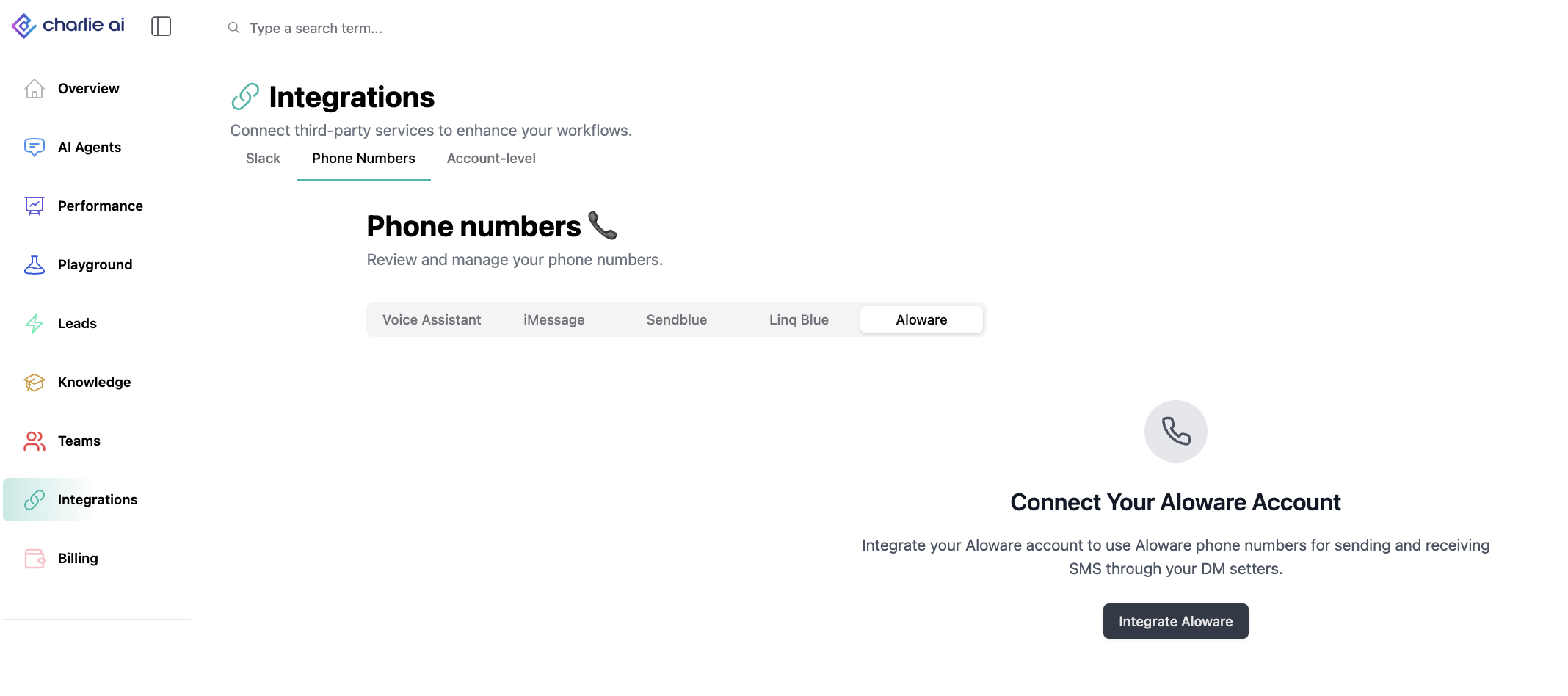
The Aloware integration connects your Aloware account to Charlie AI as a native phone number / SMS provider. Once connected, Charlie sends and receives text messages through your own Aloware numbers, providing a smooth and efficient operation.
In this guide, we walk you through the integration, the configuration, the benefits, Tips and troubleshooting.
What it does? | Why to use it? | |
Charlie sends outbound SMS to leads through the Aloware SMS API. | Keep your existing numbers and caller identity — leads see the Aloware numbers they already know. | |
Lead replies arrive back in Charlie through an Aloware webhook and trigger the AI response flow automatically. | Consolidated telephony: your calling/SMS stack stays in Aloware while Charlie handles the conversation. | |
Inbound messages from unknown numbers create a new lead in Charlie with source "aloware". | Per-Setter routing: different Setters can own different numbers, or share one number, with conversations kept isolated. | |
Aloware phone numbers (and lines) can be assigned to individual AI Setters / use cases | Full conversation history and message status visible in the Charlie dashboard. |
Configuration
Step 1: Connect Aloware
1. In the Charlie dashboard, go to Integrations.
2. Select the Aloware card.
3. Enter your Aloware API token and confirm.
4. Charlie validates the token against the Aloware API and the card shows Connected.
For security, the API token is never returned to the dashboard after saving and is never sent in a URL. To change it, disconnect and reconnect with a new token.
Step 2: Configure the webhook in Aloware
Charlie cannot create the webhook for you — Aloware has no programmatic webhook setup, so this step is done by you in the Aloware Dashboard.
1. In the Charlie setup wizard, copy the Charlie webhook URL shown (for example /webhooks/aloware/sms).
2. In the Aloware Dashboard, add that URL as your SMS webhook.
3. Follow the step-by-step instructions in the wizard to finish.
Inbound messages will not reach Charlie until this webhook is saved in Aloware.
Step 3: Add your phone numbers or lines
Numbers are not fetched automatically. Add each phone number, or a line (campaign) by its Line ID, from the Aloware Admin panel into the Charlie phone numbers screen.
Step 4: Assign Setters
1. On a phone number row, open the Setter dropdown.
2. Select one or more Setters.
3. The assigned count updates and assignments persist after a refresh.
The number assigned to a use case is used for all outbound messaging for that use case.
Removing / disconnecting
Remove a Setter from a number — that Setter no longer receives messages for that number.
Delete a number — it disappears from the phone numbers table.
Disconnect the integration — credentials are cleared, all Aloware phone numbers are cleared, and any use cases that were using Aloware numbers are flagged for reassignment. You can reconnect with a new API token at any time.
Tips and troubleshooting
No inbound replies? Re-check the webhook URL in the Aloware Dashboard first; this is the most common cause.
Numbers missing in Charlie? They are added manually — confirm the number or Line ID from the Aloware Admin panel.
Messages showing a provider other than ALOWARE? The lead's Setter is probably not assigned to an Aloware number.
Token rejected at connect time? Regenerate the API token in Aloware and reconnect.