GHL: Calendar set-up
Last updated: June 30, 2026
There are different types of calendars in GHL, that can be integrated with Charlie to enable seamless appointment booking during conversations. While integration is straightforward, certain calendar types require specific configurations to prevent double bookings and ensure smooth operation. This guide covers a quick description of available calendar types, specific considerations, troubleshooting section and key insights for successful setup.
Calendars
Service calendars: tailored to simplify the scheduling process of service-based businesses. Users can create different services they offer, group them together by categories, and display all of them in one single scheduling link.
Round robin: allow businesses to distribute appointments evenly among multiple team members. This feature ensures that scheduling is efficient, fair, and optimized based on availability or workload balance.
Class booking: designed to manage one-to-many events where multiple invitees can attend a single booking. These calendars are ideal for webinars, workshops, or training sessions.
Collective booking: enables scheduling meetings involving multiple team members simultaneously. It integrates individual team members' availability into a shared calendar, allowing for unified scheduling
Most used calendar for our integration is Round Robin type.
Specific considerations
Service calendars
Define clear service descriptions so Charlie can guide leads to appropriate options
Configure appropriate booking windows (how far in advance booking is allowed)
Establish minimum notice periods to prevent last-minute bookings
Round robin
Ensure all team members' calendars are properly connected
Set individual availability preferences for each team member
Configure distribution logic (truly even, priority-based, or skill-based)
Establish backup protocols if all team members are unavailable
Define what constitutes "availability" (only specific calendar blocks, or any non-busy time)
Must have clear availability logic so Charlie can accurately communicate available time slots without promising times that won't be honored.
Class booking
Set appropriate capacity limits
Define minimum attendee requirements (if applicable)
Decide on confirmation requirements (automatic vs. manual approval)
Collective booking
Clearly define which team members must attend
Set appropriate meeting duration accounting for multiple participants
Establish protocols for last-minute cancellations by team members
Define backup team members if primary members become unavailable
Collective calendars have the highest complexity for availability because they require consensus across multiple schedules. More calendars mean fewer available slots.
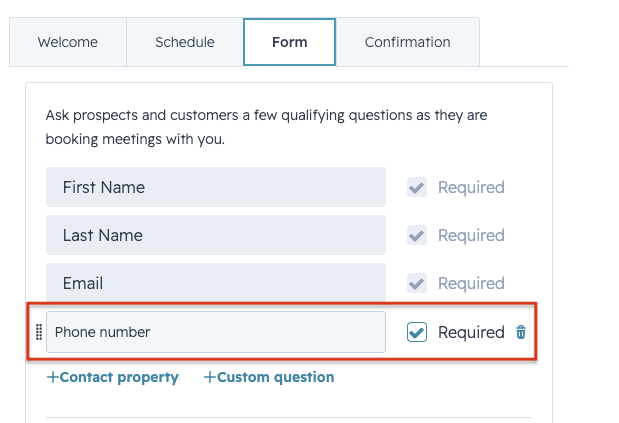
In the form, you should only have as required fields the First Name, Last Name and email. including additional fields as Required could generate issues with the auto-booking sequence.
Visual guidance
Configurations:
Double booking: to prevent one of the most critical issues in calendar integrations, you can follow these steps to reduce the risk of this problem across all calendar types.
In GoHighLevel:
Navigate to Settings → Calendars
Select the calendar integrated with Charlie
Open Advanced Settings or Availability Settings
Locate "Check for conflicts" or "Conflict detection" settings
Enable conflict checking for:
The primary calendar
All connected team member calendars (for round robin/collective)
Any external calendars (Google, Outlook, etc.)
Verify These Settings:
"Check for conflicts with other GHL calendars, connected Google Calendar or connected Outlook Calendar"
Block time when marked as busy in external calendars
External Calendar Sync: If your team uses Google Calendar, Outlook, or other external calendars for non-GHL appointments, GHL must check these calendars to avoid double bookings.
For Google calendar
In GHL, go to Settings → Integrations → Google Calendar
Connect your Google account
Select which Google calendars to monitor for conflicts
Enable "Mark as busy" for events in Google Calendar
Set sync frequency (recommend: every 5-10 minutes)
Test by creating an event in Google Calendar and verifying it blocks GHL availability
For Outlook/ Office 365
In GHL, go to Settings → Integrations → Outlook
Connect your Microsoft account
Select which Outlook calendars to monitor
Enable conflict detection with Outlook events
Configure sync frequency
Test integration with a sample Outlook event
Ensure the sync is bidirectional:
GHL bookings appear in external calendar (prevents manual double-booking)
External calendar events block GHL availability (prevents automatic double-booking)
Round Robin Specific Settings For round robin calendars, there are some additional configurations that prevents conflicts:
Priority and Distribution Logic:
Navigate to your Round Robin calendar settings
Configure distribution method:
Even distribution: Rotates strictly through team members
Availability-based: Prioritizes whoever is most available
Least busy: Routes to person with fewest upcoming appointments
Set "Skip if unavailable" to automatically exclude busy team members
Configure "Max appointments per day/week" per team member (prevents overloading)
Individual Availability:
Ensure each team member has connected their personal calendar
Verify individual availability schedules are configured
Test that individual conflicts properly prevent their slot allocation
Establish backup protocols if all team members are simultaneously unavailable
Visual guidance
Troubleshooting
Despite proper configuration, double bookings can occasionally occur. Here's how to diagnose and/or solve them.
Go to Calendar, select Calendars and look for the bookings that has double booking issues. Click it to view details. Go to right side panel and click Activity Log. Activity log will help you troubleshoot the issue. You can also view JSON payload to know more about the backend.
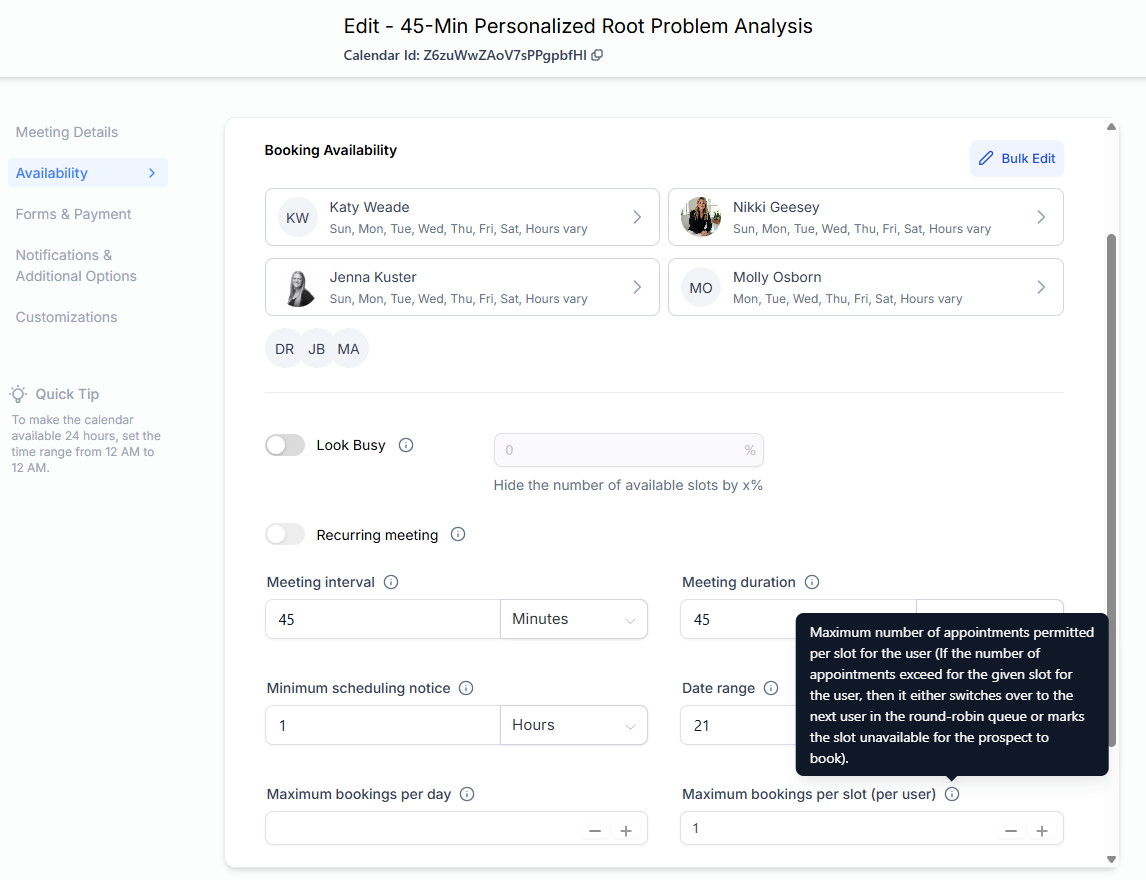
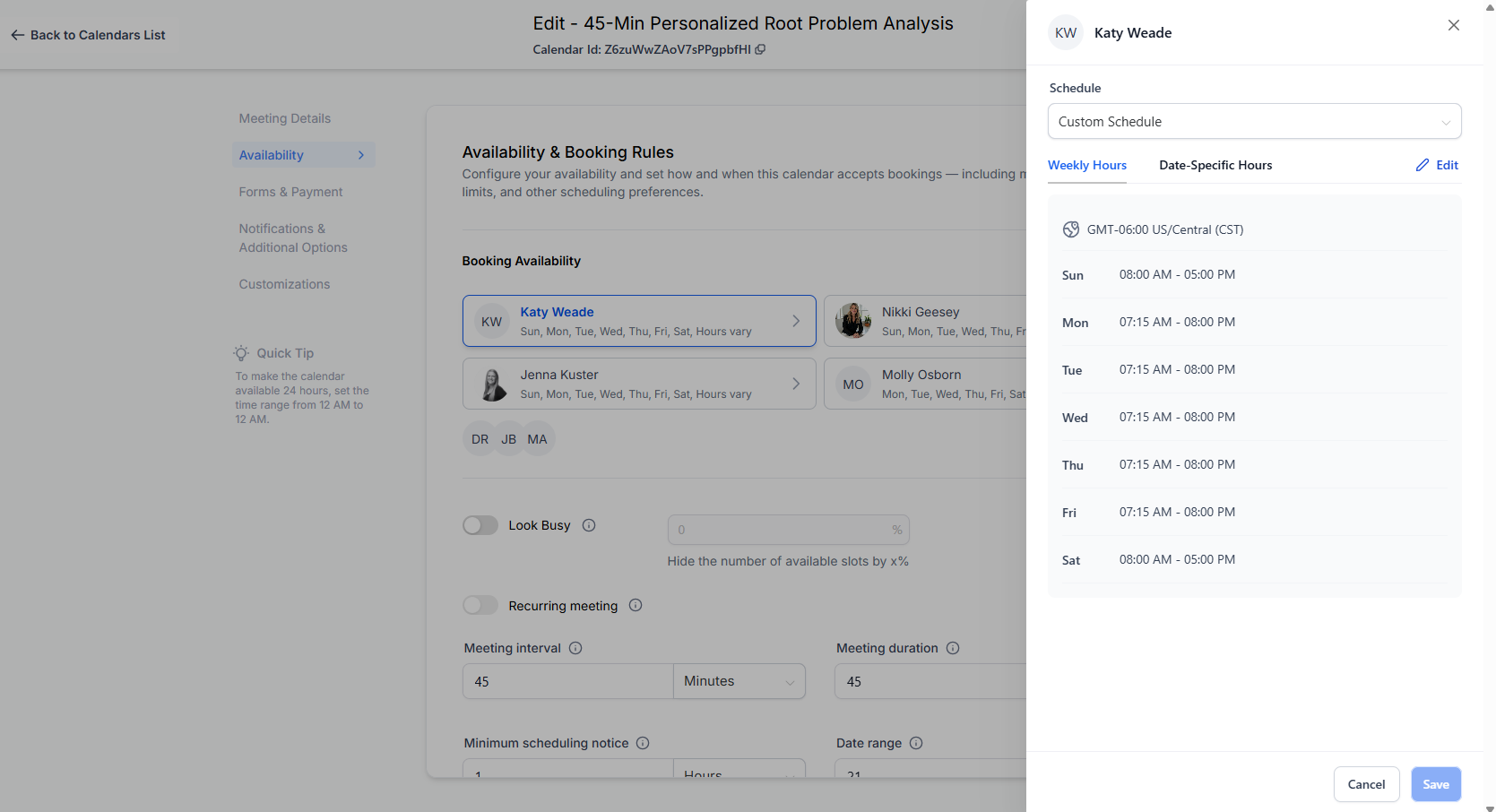
If there are more than 1 booking for 1 host per time slot. Go to Calendar → Calendar Settings → Find the calendar you wanna check → Edit Calendar → Availability. Ensure that the Maximum bookings per slot per user is set to 1
Review GHL Logs: In GoHighLevel, navigate to "Settings" → "Calendars" → Select the affected calendar → Open "Logs" or "Activity" tab → Filter for the date/time of the double booking.
Look for: Timestamp, which system created each booking, any error messages or warnings
Verify Third-Party Integration: The most common cause of double bookings is external calendar events not properly blocking GHL availability.
Solution: Open Third-party Calendar → Locate the conflicting time slot → Check if an event exists there → Verify the event is marked as "Busy" not "Free" (Must be "Busy" for GHL to recognize it) → Confirm the calendar is connected to GHL → Check last sync time
Fix Third-Party Issues: If external events show as "Free":
Change all relevant events to "Busy"
Establish a policy that all calendar events must be marked "Busy"
Train team members on proper calendar marking
Common Round Robin Issues:
Team member's external calendar not properly synced
Individual availability overridden by calendar-wide settings
Distribution logic not accounting for partial availability
Multiple team members marked unavailable simultaneously (defaulting to showing slots anyway)
Key Insights
The majority of double bookings occur because external calendars (Google, Outlook) aren't properly connected or aren't marking events as "Busy." This is your #1 priority in configuration.
When double bookings occur, GHL logs reveal exactly what went wrong. Don't guess, always check logs to identify the root cause and prevent recurrence.
The simplest calendar setup that meets your needs is usually the most reliable. Avoid unnecessary complexity in calendar configurations.