Hubspot: In-Charlie settings
Last updated: April 30, 2026
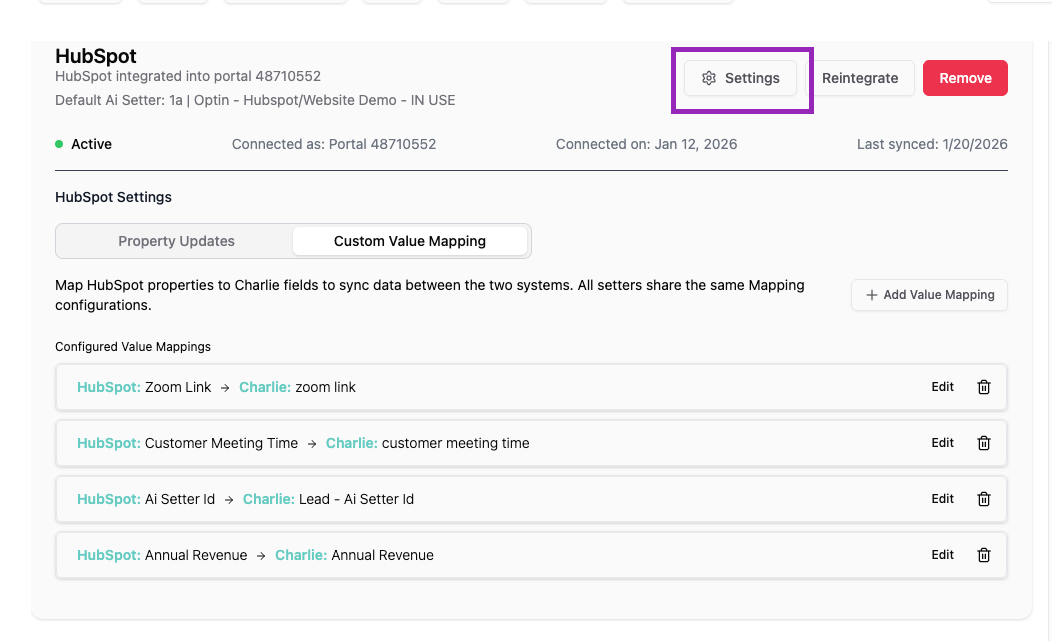
Within each of your Ai setters and under the integrations tab, you'll find the HubSpot settings that enable powerful bidirectional data synchronization. These settings provide two core functionalities that ensure seamless information flow between Charlie and HubSpot, automatically updating both systems as conversations progress. This guide explains each functionality in detail, configuration steps, and key insights for optimal implementation.
Prerequisites
📄 Hubspot: DM setter integration completed
Hubspot properties created
Purpose and Function
These settings enable you to:
Automatically update HubSpot properties when conversation milestones are reached
Pull HubSpot contact data into Charlie conversations for personalization
Synchronize systems bidirectionally without manual data entry
Maintain data consistency across platforms
Evolve workflows dynamically by adding, editing, or deleting rules as needed.
These are Setter-level settings, not account-wide configurations. Each Setter can have its own unique HubSpot synchronization rules tailored to its specific use case.
Property updates
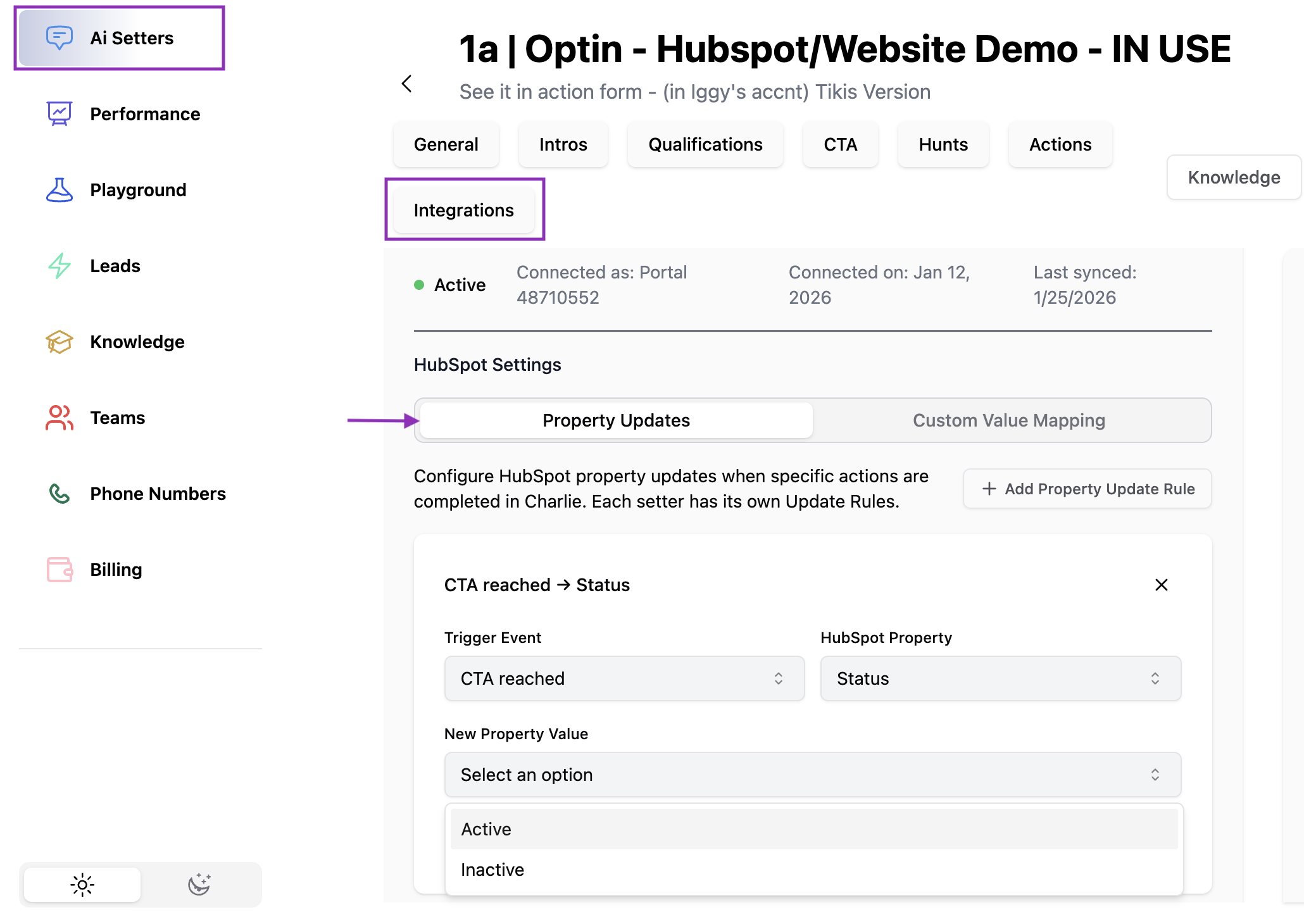
First feature, enables Charlie to update HubSpot properties automatically when specific actions are completed within Charlie's conversations.
To validate an action completion we have the "Trigger events", for this feature we have 8 available triggers, and they can be used to update any of the properties that are set within your Hubspot account.
The "new property value" field is dynamic, which means that it will take the format of the property within Hubspot, (text box, multiple choice, dropdown, date)
Direction of Data Flow: Charlie → HubSpot
Benefits:
Immediate Synchronization: Updates happen in real-time as conversation events occur, eliminating delays between Charlie actions and CRM updates.
Automatic CRM Maintenance: No manual data entry required—your HubSpot records stay current automatically, freeing your team from administrative work.
Improved Lead Traceability: Accurate, timely property updates enable precise lead tracking through your funnel, revealing where leads get stuck or convert most effectively.
Workflow Automation Enablement: Updated properties trigger HubSpot workflows automatically, creating seamless multi-touch campaigns and follow-up sequences.
Configuration:
Example: CTA Reached
Select the "Trigger Event": CTA reached
Select the HubSpot Property that it will affect: Status
Include what should be adjusted in the New Property Value*: Active
*This field is dynamic and will have the same format as the property has within Hubspot.
Visual guidance: Property Updates
Custom value mapping
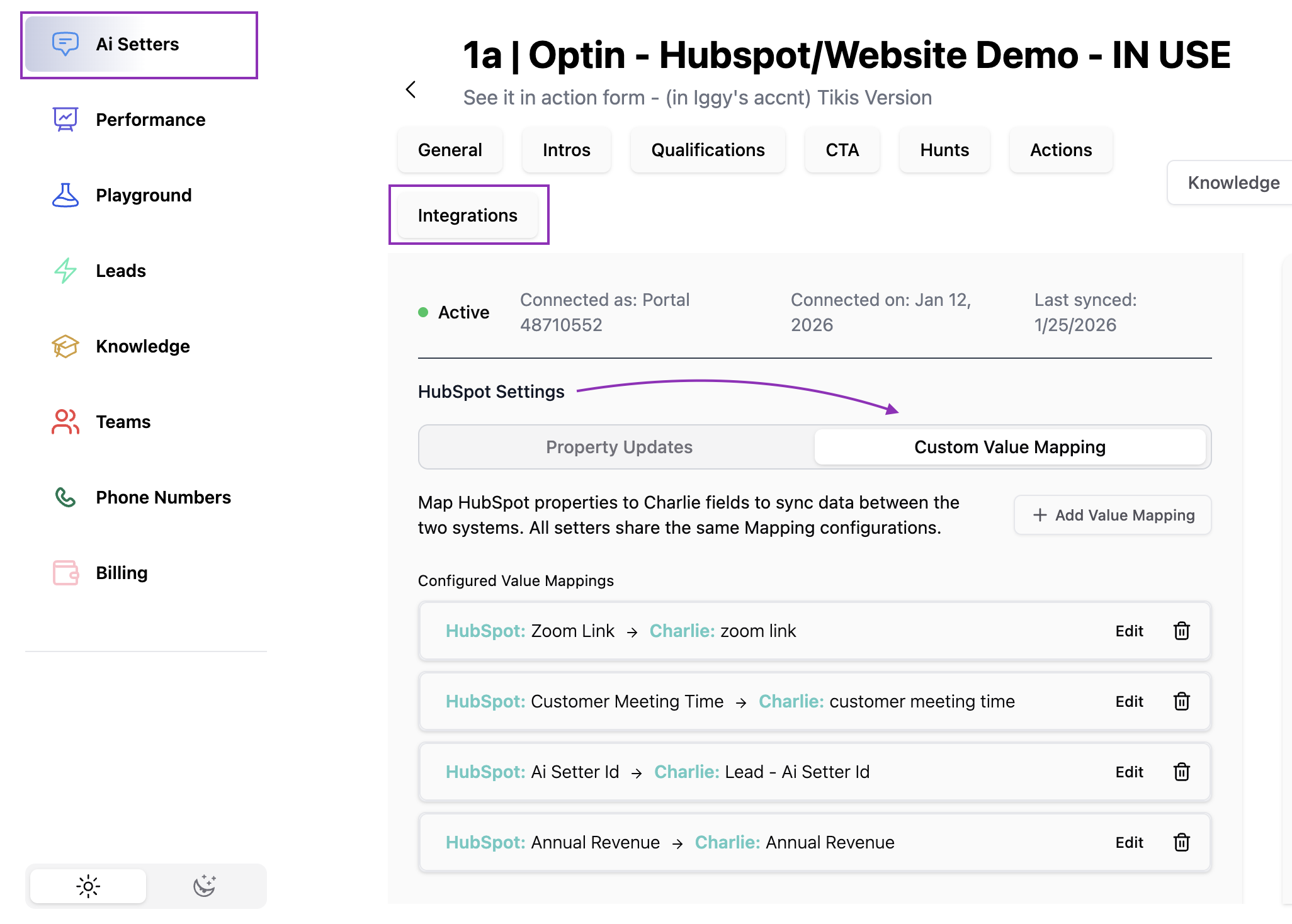
Custom Value Mapping enables Charlie to automatically retrieve information from HubSpot contact records and use it during conversations.
Before or during a conversation, Charlie pulls specified data from the HubSpot contact record, allowing it to personalize interactions, avoid redundant questions, and provide contextually aware responses.
Direction of Data Flow: HubSpot → Charlie
Visual guidance: Custom Value Mapping
Benefits.
Perceived Connected Processes: When Charlie references information from previous interactions or existing CRM data, leads perceive a unified, well-integrated system rather than disconnected tools.
Better Custom Experience: Personalization based on known data creates individualized experiences that increase engagement and conversion rates.
Reduced Conversation Length: Skipping already-answered questions shortens conversations, respecting lead time and improving completion rates.
Configuration
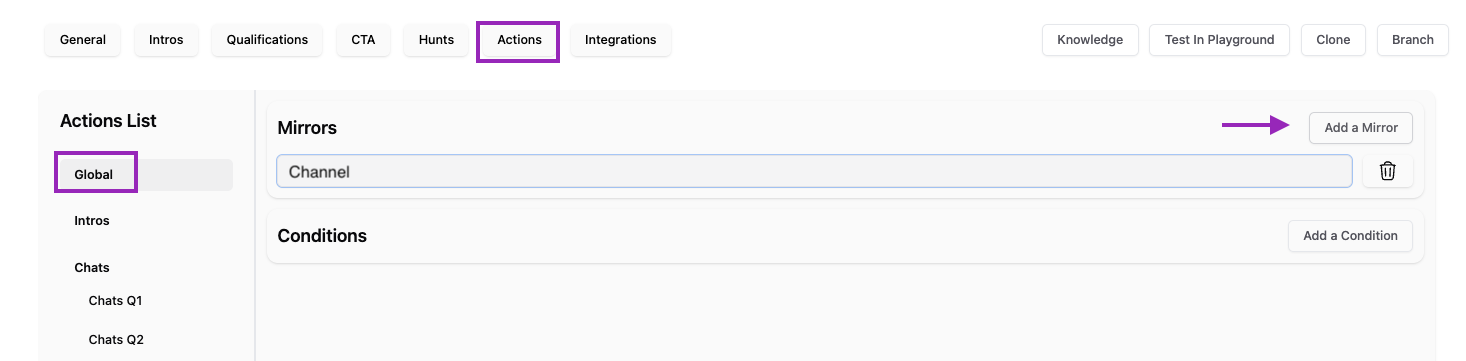
Create in Charlie a new custom value
Go to the "Actions" option on the top menu → Select "Global" option → Click in the "Mirrors" option, and "Add a mirror" button → Type the new custom value name.
Visual guidance
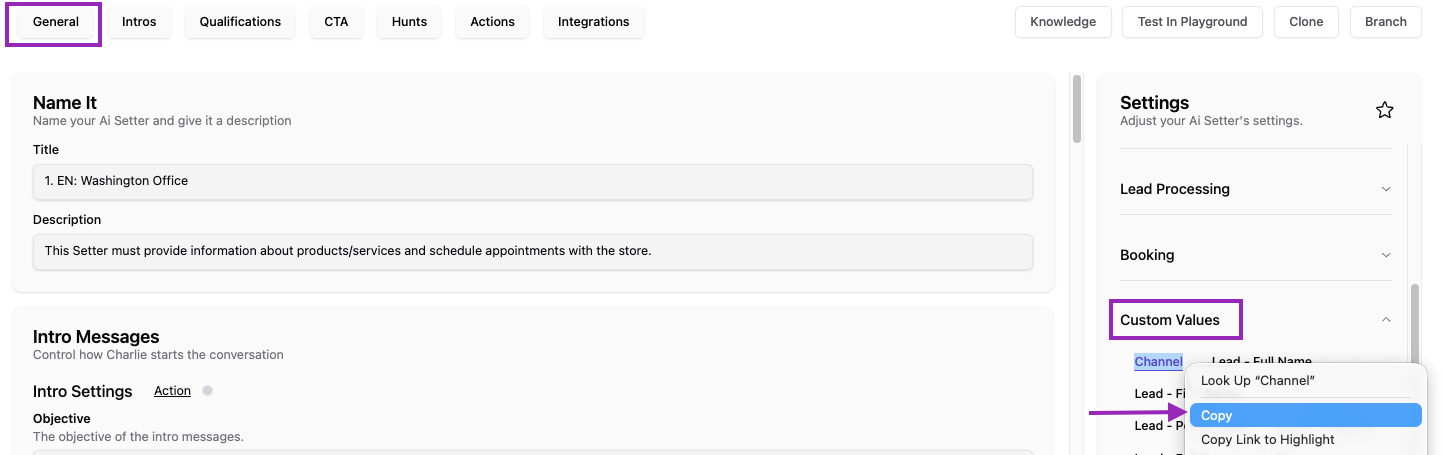
Go to the "General" option on the top menu → Look in the "Settings" left side menu for the "Custom values section" → identify the new custom value name you created in the previous step and "copy" it
Visual guidance
Add a Value mapping
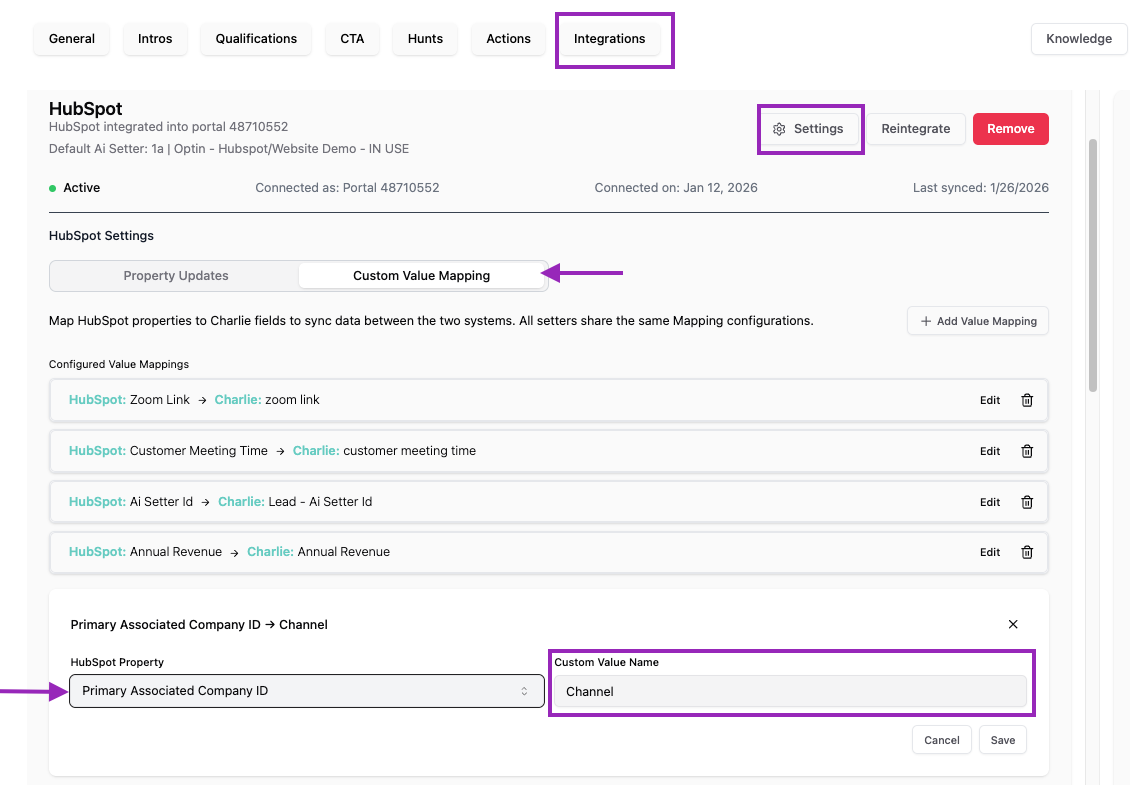
Go to the "Integrations tab" → select settings in the Hubspot integration → Go to "Custom value mapping" option and click in the "+Add value Mapping"
Select the Hubspot property and paste the custom value name you got in step 1b. (IMPORTANT: Custom values created by the mirrors just appear in the specific setter were it was included)
Hit save.
Visual guidance
Custom values are available in scripts for seamless personalization
Key insights
Property Updates and Custom Value Mapping work together to create complete bidirectional data flow between Charlie and HubSpot.
When configured together strategically, they eliminate data silos and ensure both platforms always reflect the most current, accurate lead information, creating a true single source of truth.
Both of them are Setter-Level configurations.
The ability to add, edit, and delete synchronization rules without developer involvement means your data flows can evolve as fast as your business.