Hubspot: Lead's activation workflow
Last updated: January 20, 2026
Charlie AI can run smoothly through your Hubspot workflows, in this article we show you how to set them up, through a step by step guide.
How to setup a Workflow
Important note: this integration should be done setter by setter, as each one will have an specific id.
Prerequisites
Ensure you have the following before proceeding:
Active Hubspot & Charlie ai accounts
Completed the 📄 Hubspot: CRM - DM setter integration
Setter(s) already created.
Step by step guide
Step 1: Identify your AI setter
Go to your Charlie Ai dashboard and select "AI Setter" option on your left side menu
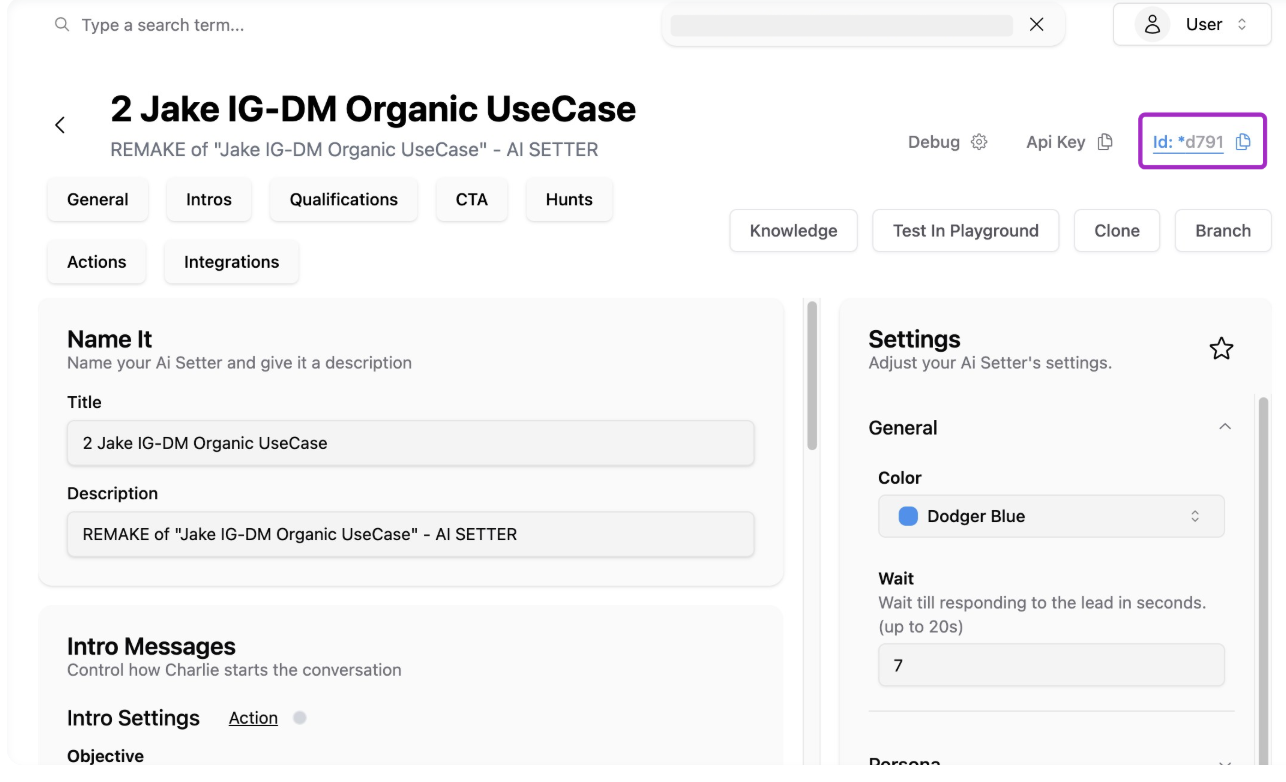
Select one of the Setters you already have created, and look below it's name and just above the menu for the "Id" information.
Copy the Id (you'll need this information for Step 2)
Visual support
Step 2: Create Workflow + Set property value
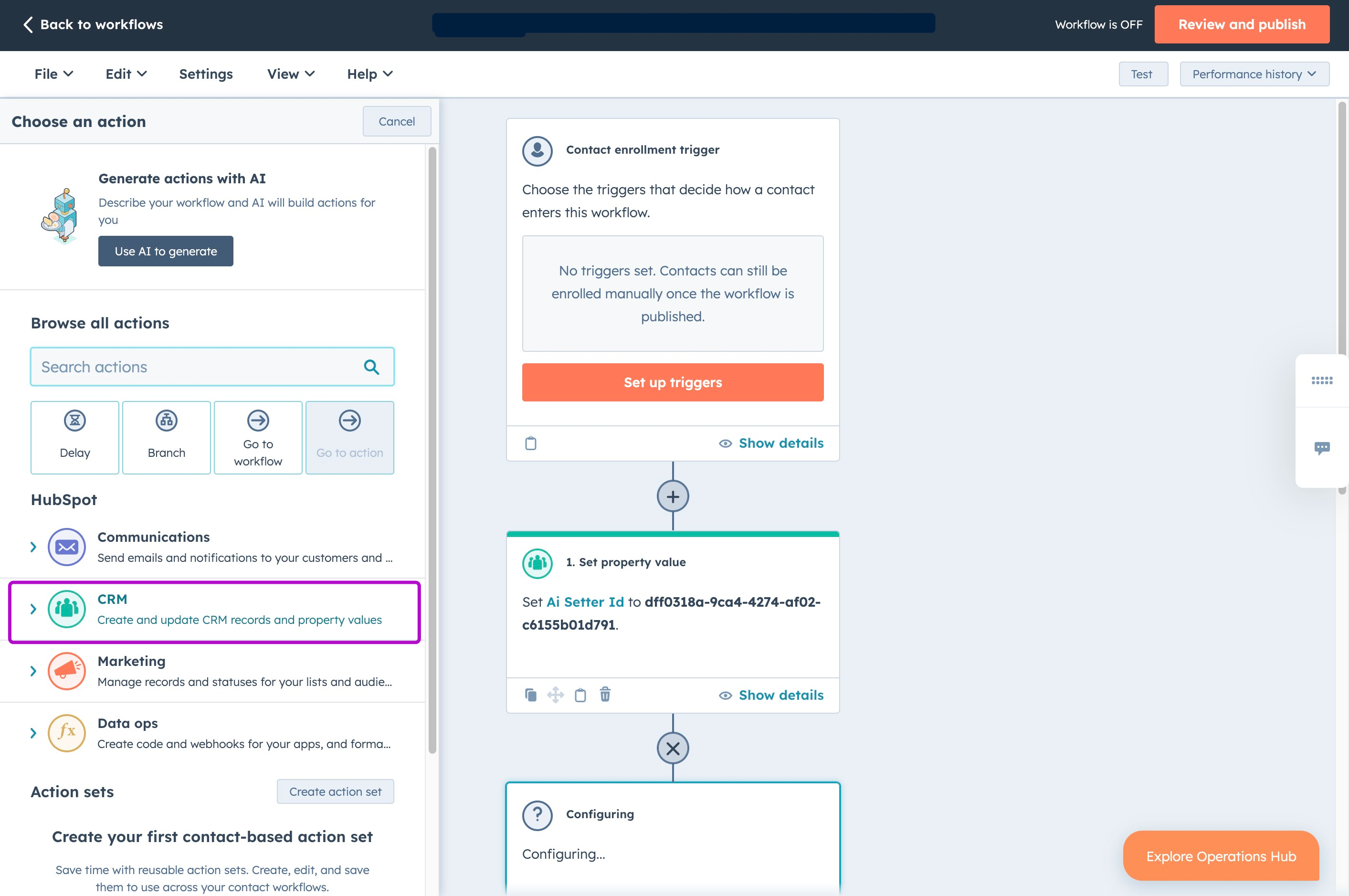
Create a workflow from scratch, and click in the "+" sign to add a step
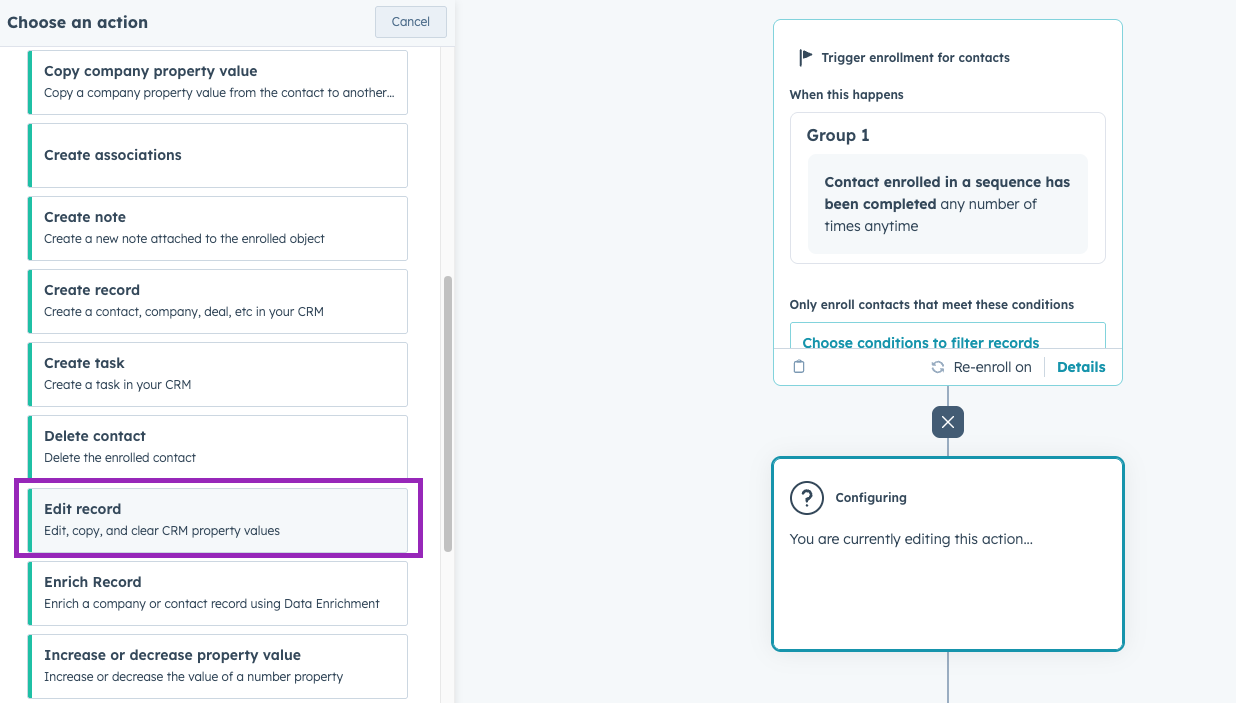
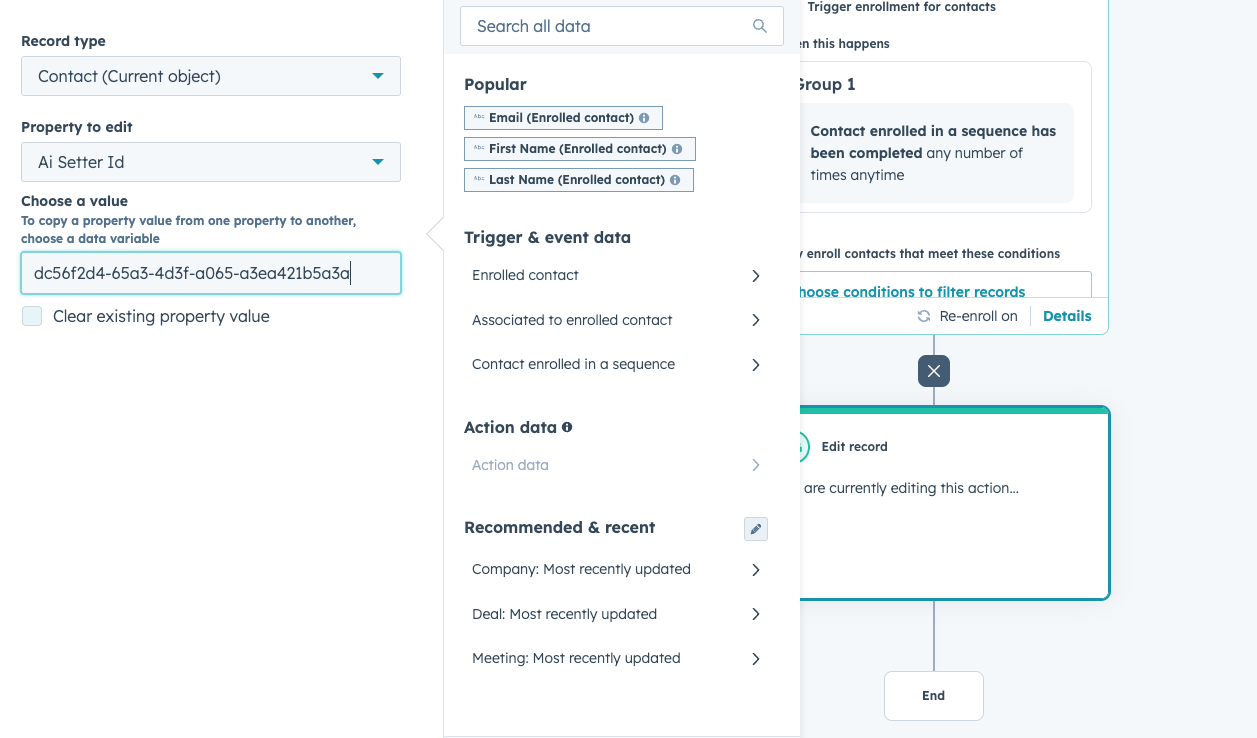
In the left side menu, select the CRM dropdown and look for "Edit record" -> Click "Choose a property"
Choose "Contact" for the target object and type "AI Setter ID" for the property to set
Copy the setter ID (previous step), and paste it in the "AI Setter id" field (last one)
Hit save
Visual support
Step 3: Enable Charlie
Click in the "+" sign to add a new workflow action
In the left side menu, select the CRM dropdown and look for "Edit record" -> Click "Choose a property"
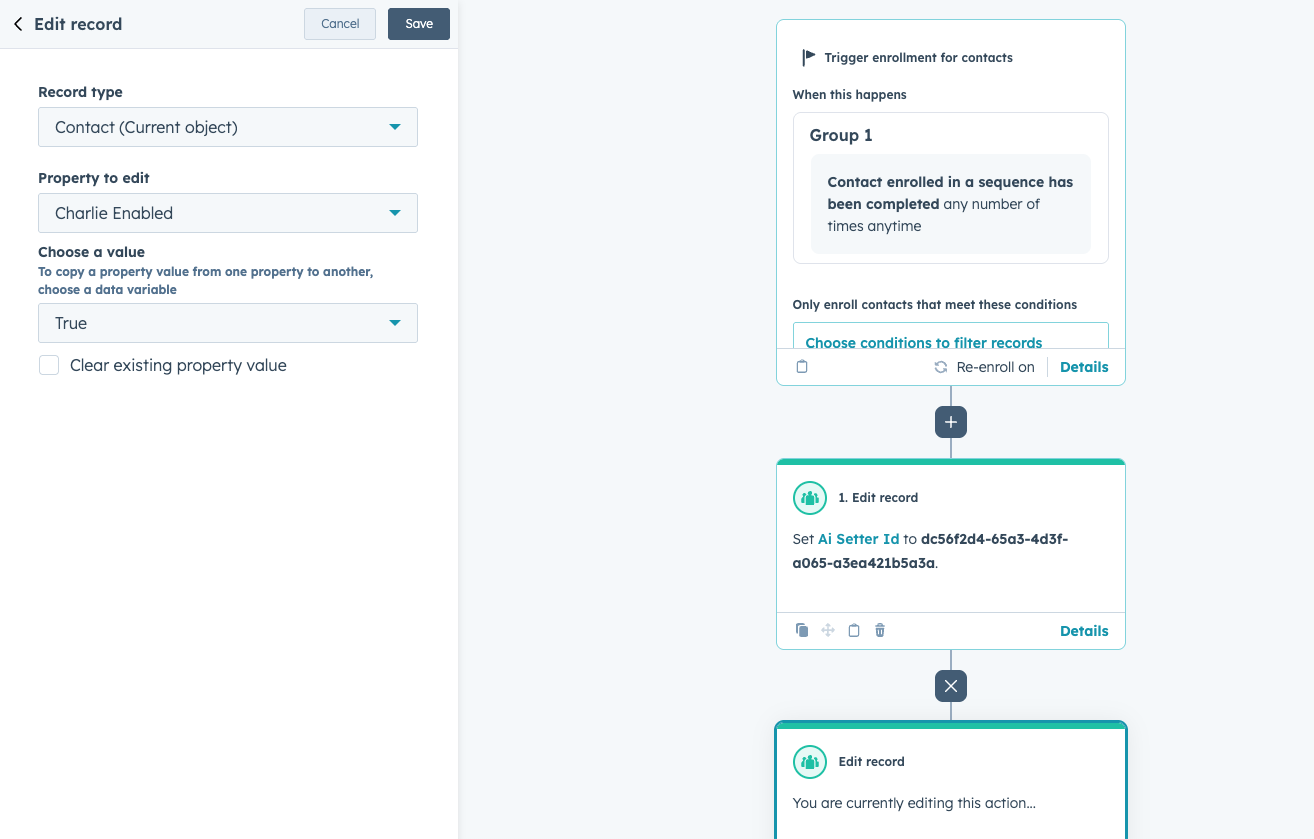
Choose "Contact" for the target object and type "Charlie Enabled" for the property to set
Click to "Enter the new value to set to this property", and select "True"
Hit save
Visual support