How to Set Up and Activate Booking Managers
Last updated: May 6, 2026
This guide walks you through setting up a Booking Manager in Charlie AI from scratch, connecting your calendar, configuring confirmation settings, and activating the agent.
Prerequisites
An active Charlie AI account with at least one AI Setter configured
A connected calendar integration (Calendly, OnceHub, GHL, or HubSpot)
A phone number configured in Charlie (Linq / GHL)
Configuration
Creation
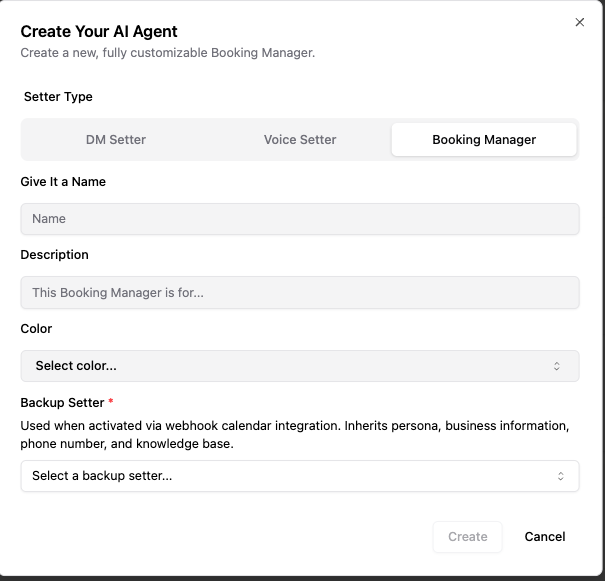
Go to the Ai setter section and look for the "+" New agent button
Click on it, and in the Setter type select "Booking Managers"
Fill information up
Important step: Select a back up setter, the booking manager will inherit the configurations from that setter (custom persona, phone number, knowledge base)
It will automatically get created and will be shown in the "Ai setter" left side section, under booking managers option
Calendar connection
Before activating a Booking Manager, ensure your calendar is integrated with Charlie
Go to the "Integrations" tab of the booking agent top menu
Integrate your agent to the selected option
And click on the subscribe button to ensure it will be available for calendars
Then move to the "Calendars" tab of the booking agent top menu
Click on the "+" Add calendar button, and select the integration you want to connect
It will display a list of calendars for you to select, you can have multiple selection
It will be shown in a list, and at the end of the card is a toggle that can turn the calendar on and off
Validate Setter Settings Backup
When activating a Booking Manager, your existing AI Setter's booking-related settings are automatically backed up to the Booking Manager. This ensures continuity and prevents configuration conflicts. Make sure the information and backup setter assigned is correct.
Activate the Booking Manager
Once all settings are configured:
1. Review your configuration one final time
2. Make sure the status toggle is enable to turn on the Booking Manager
3. The Booking Manager will immediately begin monitoring your calendar for new bookings and sending confirmation messages
Right now, the Booking Manager is only handling leads booked by the autobooking system in Charlie's conversational flow.
Troubleshooting
Booking Manager isn't activating? Ensure your calendar integration is properly connected and your AI Setter is fully configured before attempting activation.
Messages not sending? Verify your phone number is configured and the Booking Confirmation Reminders toggle is enabled.