Reminders: Types, Differences & Configuration
Last updated: May 21, 2026
Booking Manager Reminders are automated messages sent to leads after they book an appointment. These reminders dramatically improve show rates by keeping leads engaged and committed. This article explains the different reminder types, how they differ, and how to configure them.
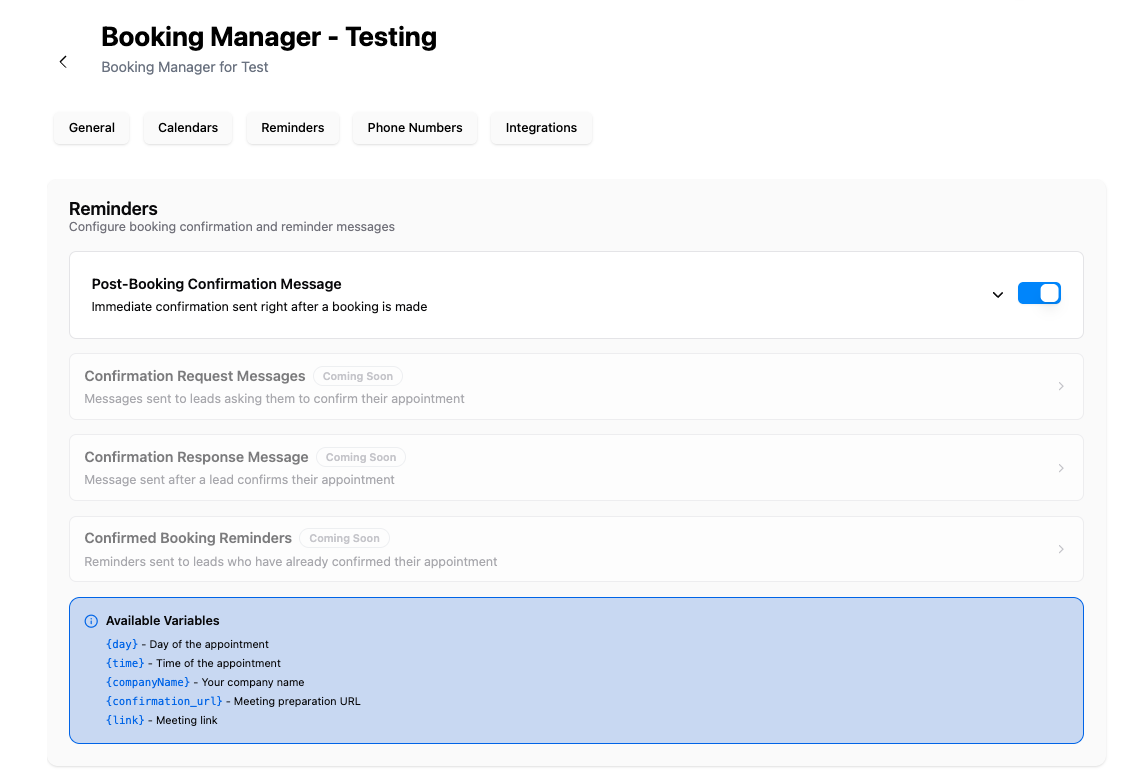
Types
There are three core reminder types within the Booking Manager system:
1. Booking Confirmation Reminders
The primary reminder flow. Once a lead books an appointment, Charlie sends a series of timed messages prompting the lead to confirm by responding with "YES."
Default message sequence:
• 48 hours before the meeting — Initial confirmation request
• 24 hours before — Follow-up reminder
• 22.5 hours before — Second follow-up
• 21.75 hours before — Third follow-up
• 8 hours before — Final reminder
If confirmed: Charlie sends a thank-you message and stops further reminders.
If not confirmed 4 hours prior: Charlie can optionally cancel the appointment and notify the lead (if "Cancel unconfirmed appointment" is toggled on).
2. Confirmed Booking Reminders
Once a lead has confirmed their appointment (by responding "YES"), this second layer of reminders ensures they don't forget:
• Sent at strategic intervals after confirmation
• Lighter touch — these are simple "see you soon" reminders, not requests for action
• Helps reinforce commitment after the lead has already confirmed
3. Confirmation Response Messages
These are the intelligent responses Charlie sends based on how the lead replies to the confirmation request:
• "YES" response: Charlie acknowledges the confirmation with a personalized thank-you
• Reschedule request: Charlie handles the reschedule flow conversationally
• Cancellation request: Charlie processes the cancellation and can attempt to recover the booking
• Questions or objections: Charlie uses AI to understand and respond appropriately
Differences Between Reminder Types
Feature | Booking Confirmation | Confirmed Booking | Confirmation Response |
Trigger | New booking created | Lead confirms ("YES") | Lead replies to any reminder |
Goal | Get confirmation | Maintain commitment | Handle lead responses |
Timing | 48h, 24h, 22.5h, 21.75h, 8h before | After confirmation until meeting | Immediate (on reply) |
Action Required | Lead must respond "YES" | No action needed | Varies (cancel, reschedule, etc.) |
Customizable | Yes — all messages editable | Yes | AI-powered responses |
Reminders configuration
1. Navigate to the Booking Managers tab
2. Select the Booking Manager you want to configure
3. Enable Booking Confirmation Reminders — Toggle ON (default: ON)
4. Cancel Unconfirmed Appointment — Toggle ON/OFF depending on whether you want unconfirmed bookings to be automatically canceled
5. Confirmation URL — (Optional) Add a URL that leads can click to confirm instead of responding via text
6. Edit Message Templates — Click on any default message to customize it. Changes apply to all future reminders.
Best Practices
Keep confirmation messages short and direct. Leads respond better to concise prompts
Customize messages to match your brand tone. Default messages work, but personalized ones convert better
Monitor the Booking Performance Metrics to see which reminder intervals drive the most confirmations.